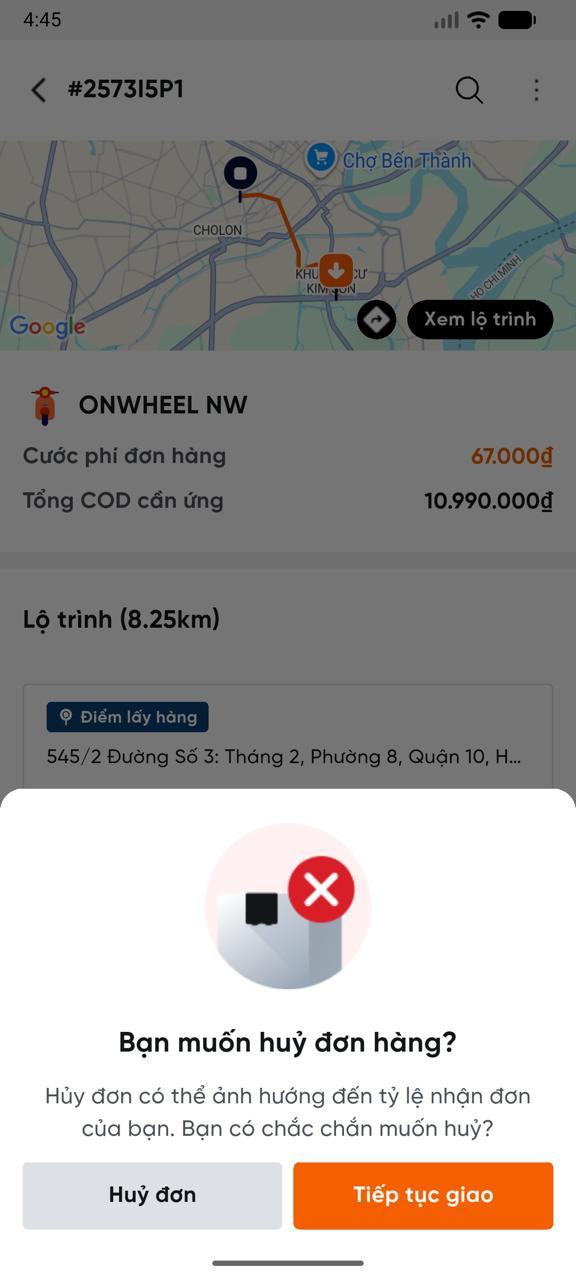
Multi-leg delivery (Tăng Bo)
Concept
Tăng bo is the process of transferring goods from one vehicle to one or more other vehicles for more efficient delivery. The English term is multi-leg delivery.
The Multi-leg delivery feature enables flexible multi-leg trip dispatching across different transport routes. The system allows orders to be handed off between drivers, vehicles, or routes to optimize travel distance, improve asset utilization, and reduce empty runs. With end-to-end visibility across every leg of the journey, operators can easily track delivery status, control operating costs, and ensure goods move on schedule.
1. Create a Multi-leg Delivery Request
Actor: Driver A — the one sending the relay request
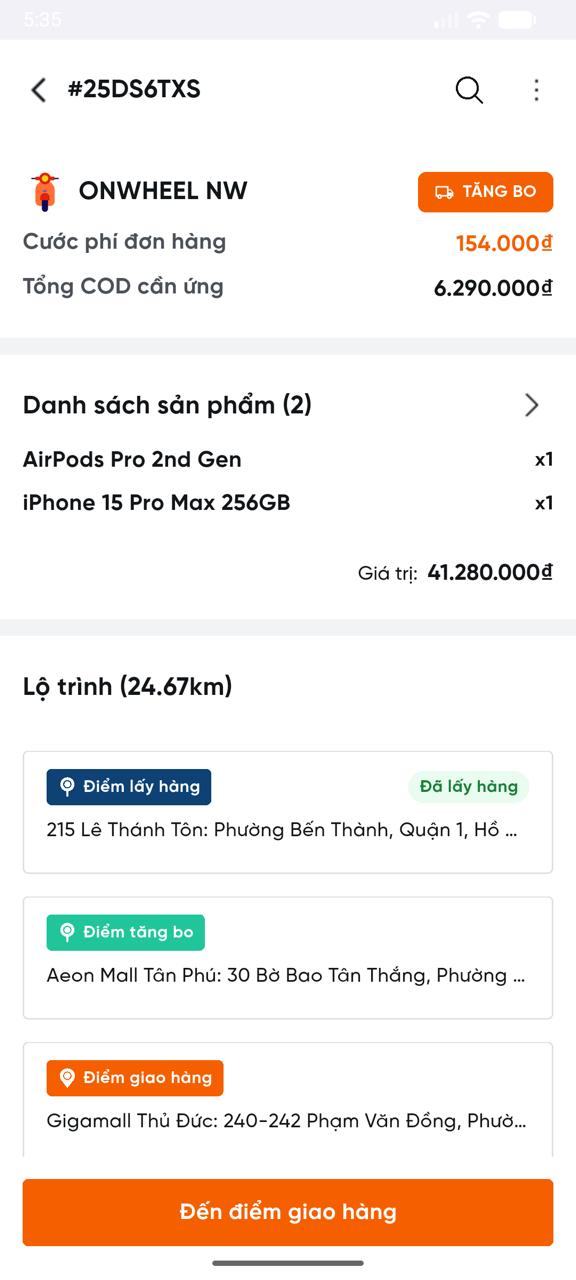
Step 1: On the order's pickup/delivery point list screen, after completing the pickup point, the "Tăng bo" button will appear. Tap it to navigate to the "Multi-leg Delivery Requests" screen.
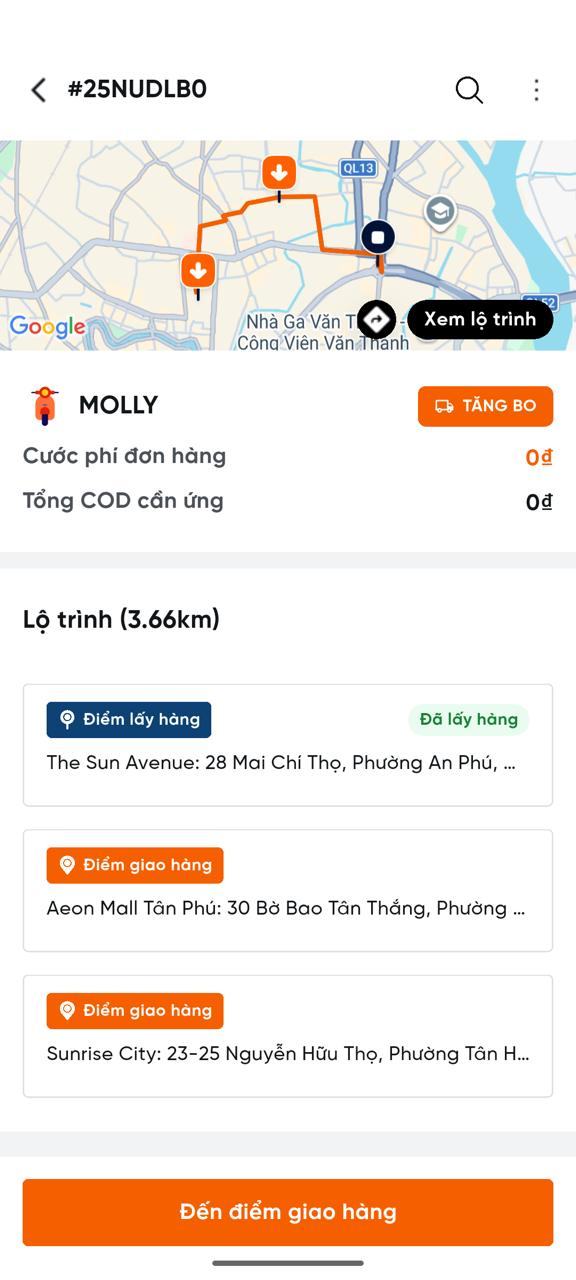
Step 2: Tap "Create new" (arrow icon in the top-right corner) to open the "Create Multi-leg Delivery Request" screen.

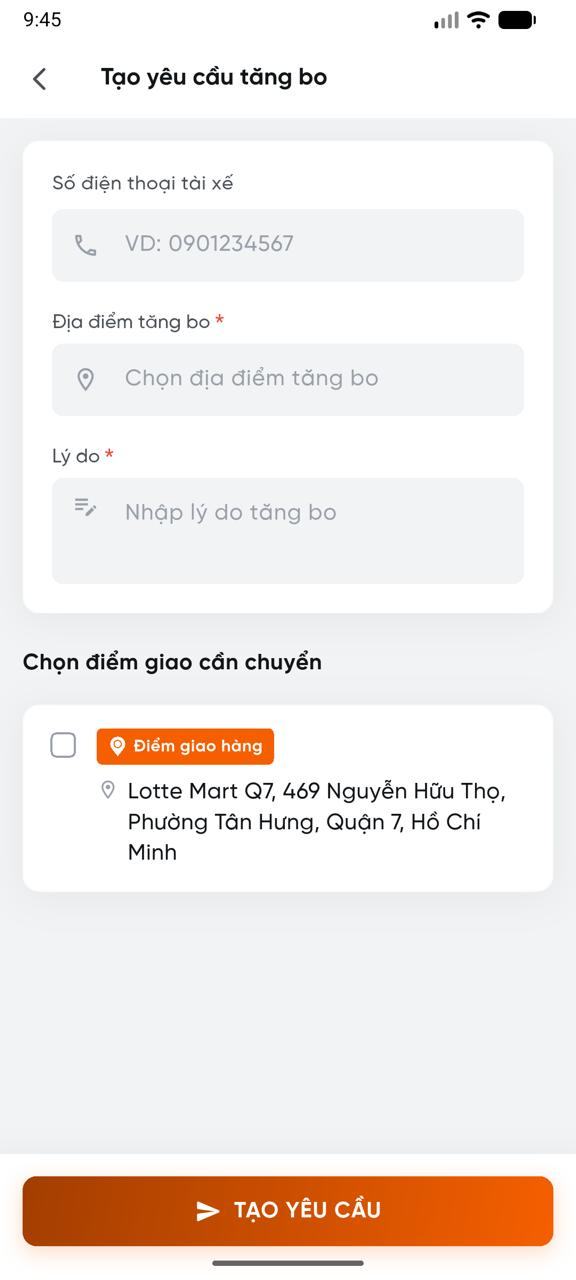
Step 3: Fill in the information and tap "Create Request":
- Driver phone number (optional)
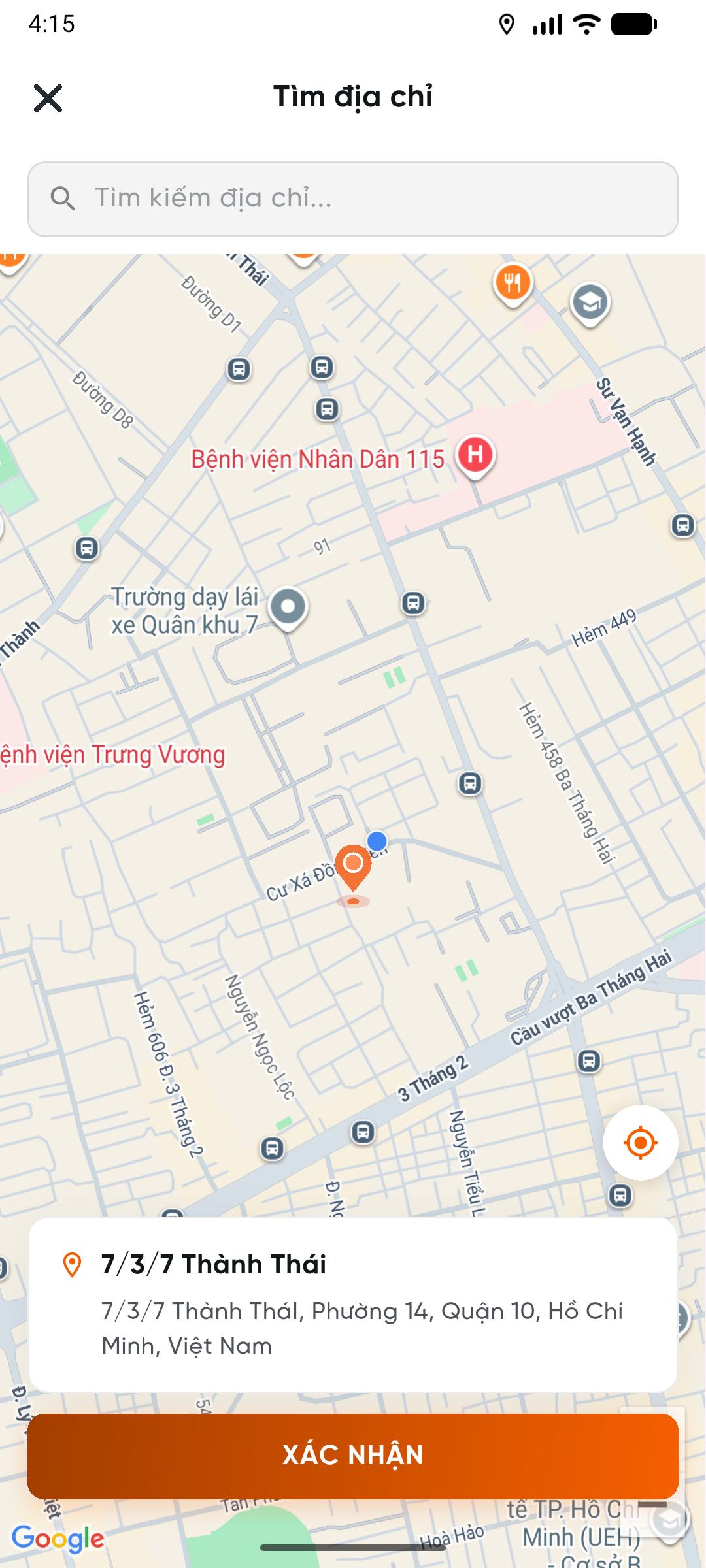
- Multi-leg delivery location — tap to open the location selection screen: search by address or drag the map pin, then tap "Confirm" to return
- Reason for multi-leg delivery
- Select the delivery point to transfer
Create request form
Location selection screen
After the request is successfully created:
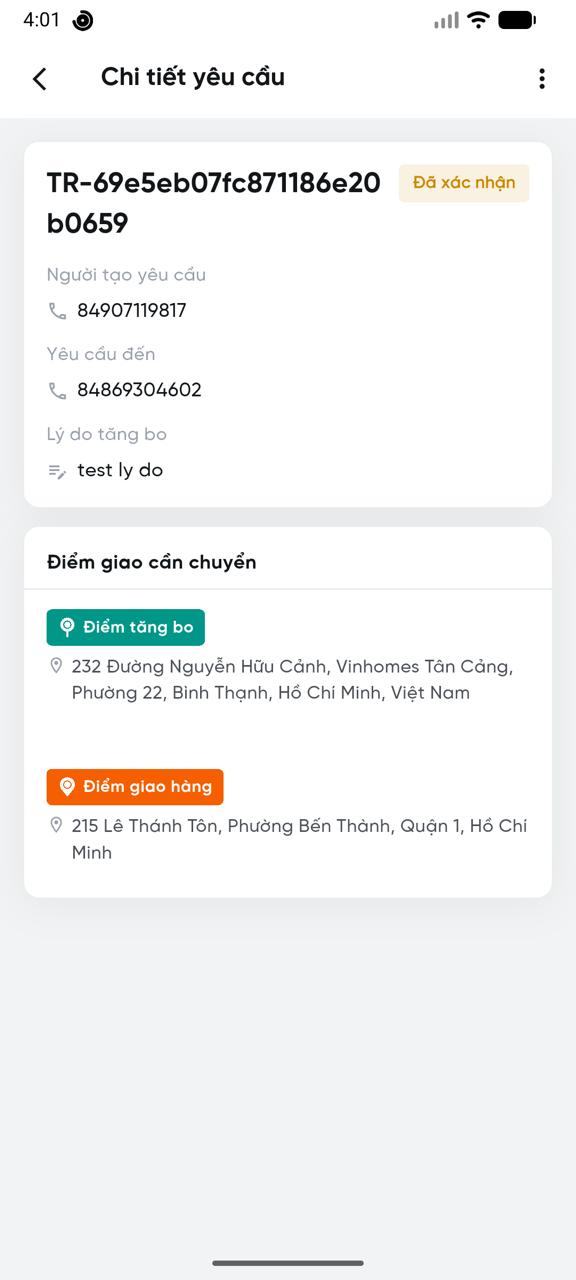
- Driver A: the relay point appears on the pickup/delivery screen — tap it to view "Request Details".
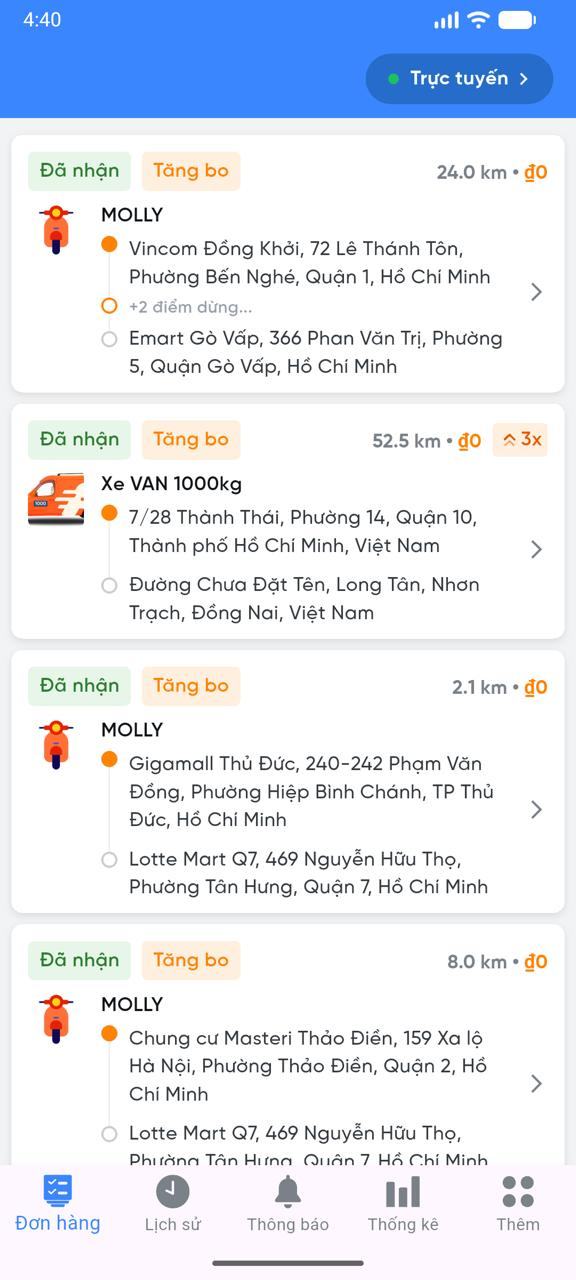
- Driver B receives the order in one of two ways:
- Assigned directly to Driver B: when Driver A entered Driver B's phone number, or a dispatcher assigned the driver
- Visible to all drivers of the same service: when the order has not been assigned yet
Driver A's screen
Driver B's screen
2. Manage Multi-leg Delivery Request Status
Actor: Driver A — the one sending the multi-leg delivery request
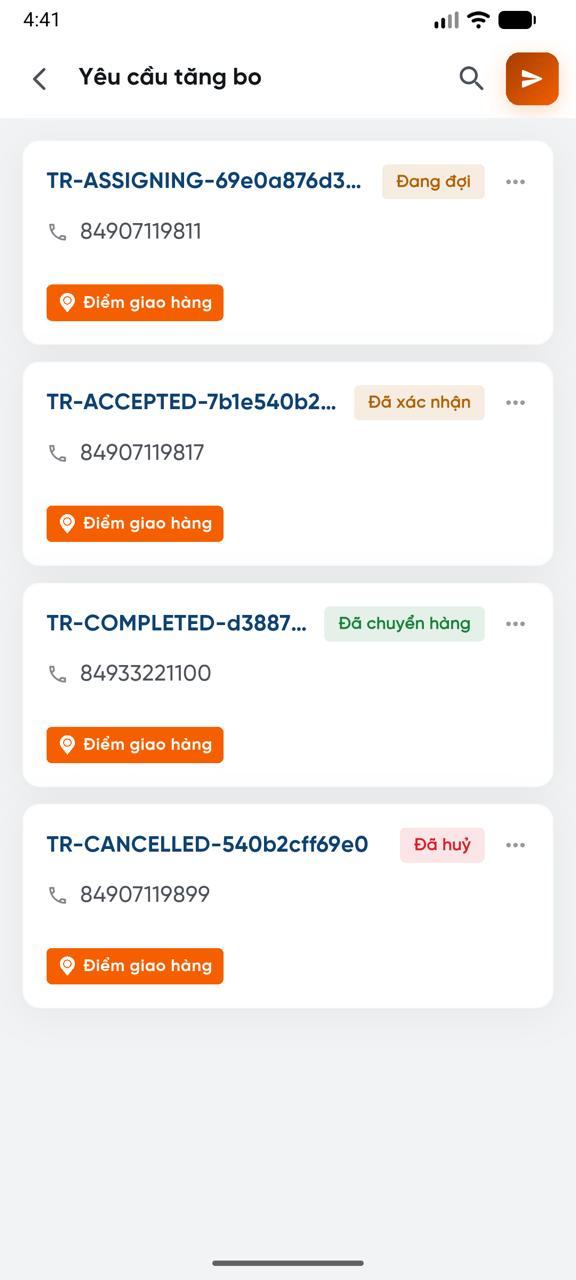
All multi-leg delivery requests for the order are managed on the "Multi-leg Delivery Requests" screen. Select a card to view "Request Details".
Request list
Request details
Request status types:
| Status | Description |
|---|---|
| Waiting | The order has not yet been assigned to Driver B |
| Confirmed | The order has been assigned to Driver B |
| Transferred | Driver B completed the multi-leg delivery pickup point of the multi-leg delivery order |
| Cancelled | Driver A cancelled the request, or Driver B cancelled the multi-leg delivery order (see conditions in section 3) |
3. Cancel a Multi-leg Delivery Request
Driver A — sender of the multi-leg delivery request
Cancellation is only allowed when the request status is "Waiting" or "Confirmed".
Step 1: Tap (...) on the request card or inside the "Request Details" screen to reveal the "Cancel Request" button.
Select (...) on card
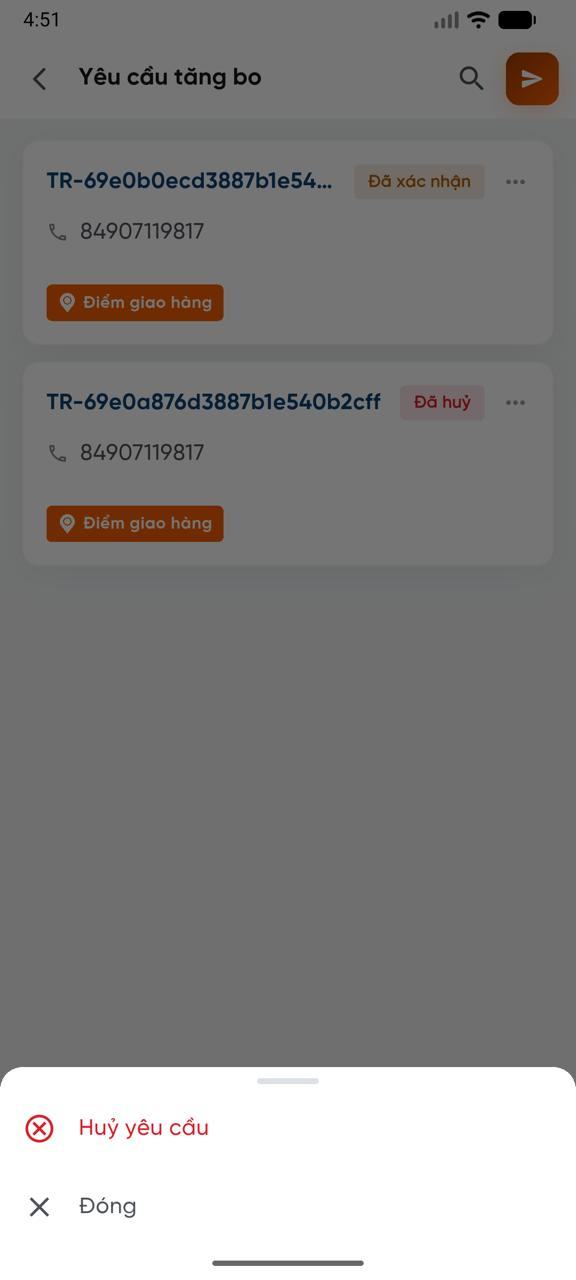
Confirm cancellation
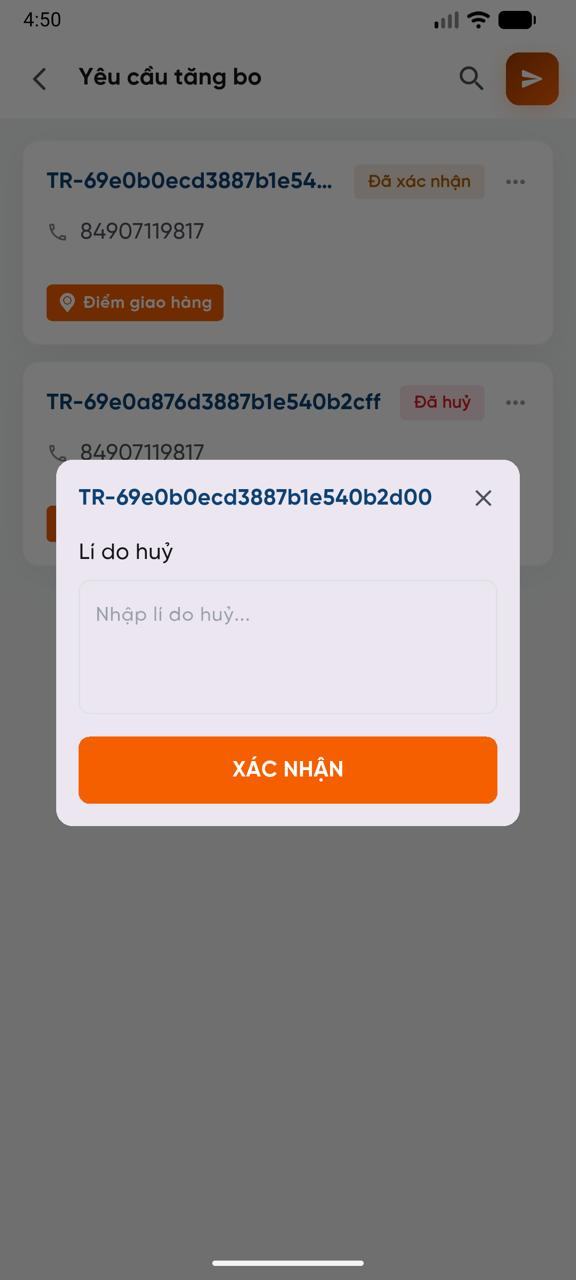
Step 2: Tap "Cancel Request" — a "Reason for Cancellation" pop-up appears.
Step 3: Enter the reason and tap "Confirm" to complete.
Driver B — assigned driver for the relay order
Cancellation is only possible when both the relay request status and the relay order status are "Confirmed".
Driver B directly cancels the order created from the relay request.