Supplied Vehicle Capacity Management
I. Overview
The Supplied Vehicle Capacity Management feature allows you to manage the actual transport capacity of partner carriers. Each carrier owns a fleet made up of multiple vehicle groups, classified by payload, assigned warehouse, and ability to carry dry or frozen goods.
Vehicle capacity data is the basis for the dispatch team to know how much capacity is available, where it is located, and what types of goods it can carry. The main components of the feature are: Fleet capacity declaration and Vehicle list management for each supplying carrier.
II. Fleet Capacity Management
2.1. Add Vehicles
| Step | Action |
|---|---|
| 1 | Select 'Supplied Vehicle Capacity' to open the supplied vehicle capacity list of all carriers |
| 2 | Click 'Add Vehicle' to open the add vehicle screen |
| 3 | Select the carrier whose vehicles you want to manage |
| 4 | Click 'Add Vehicle' to open the add vehicle type popup |
| 5 | Enter the vehicle type information: Vehicle Type, Service Code, Area, Store/Warehouse, Goods Type, Number of Vehicles, Weight Capacity, Volume Capacity |
| 6 | Click 'Add' to save the vehicle |
| 7 | Click 'Cancel' to cancel the action |
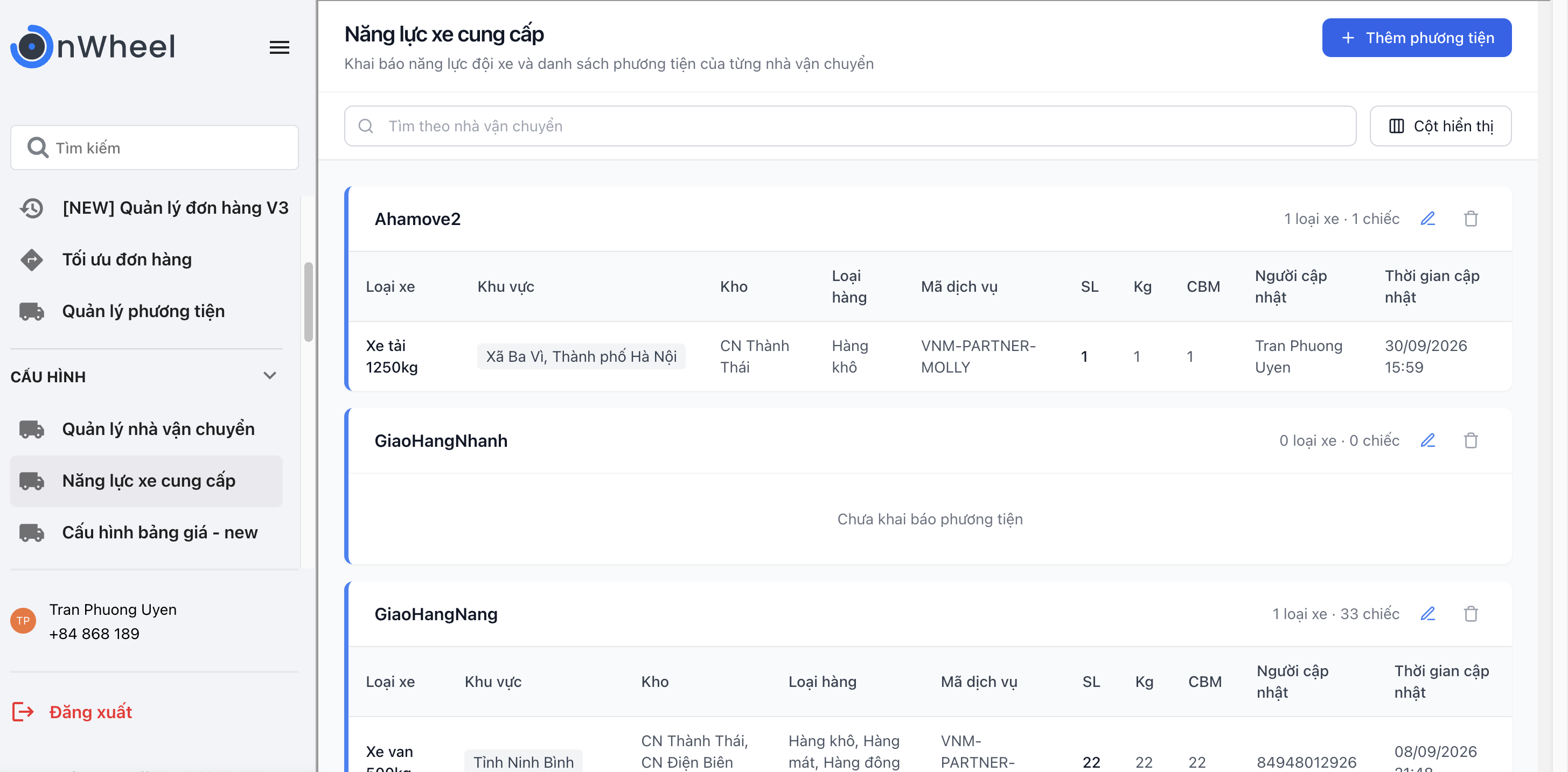
Supplied vehicle capacity list of carriers screen
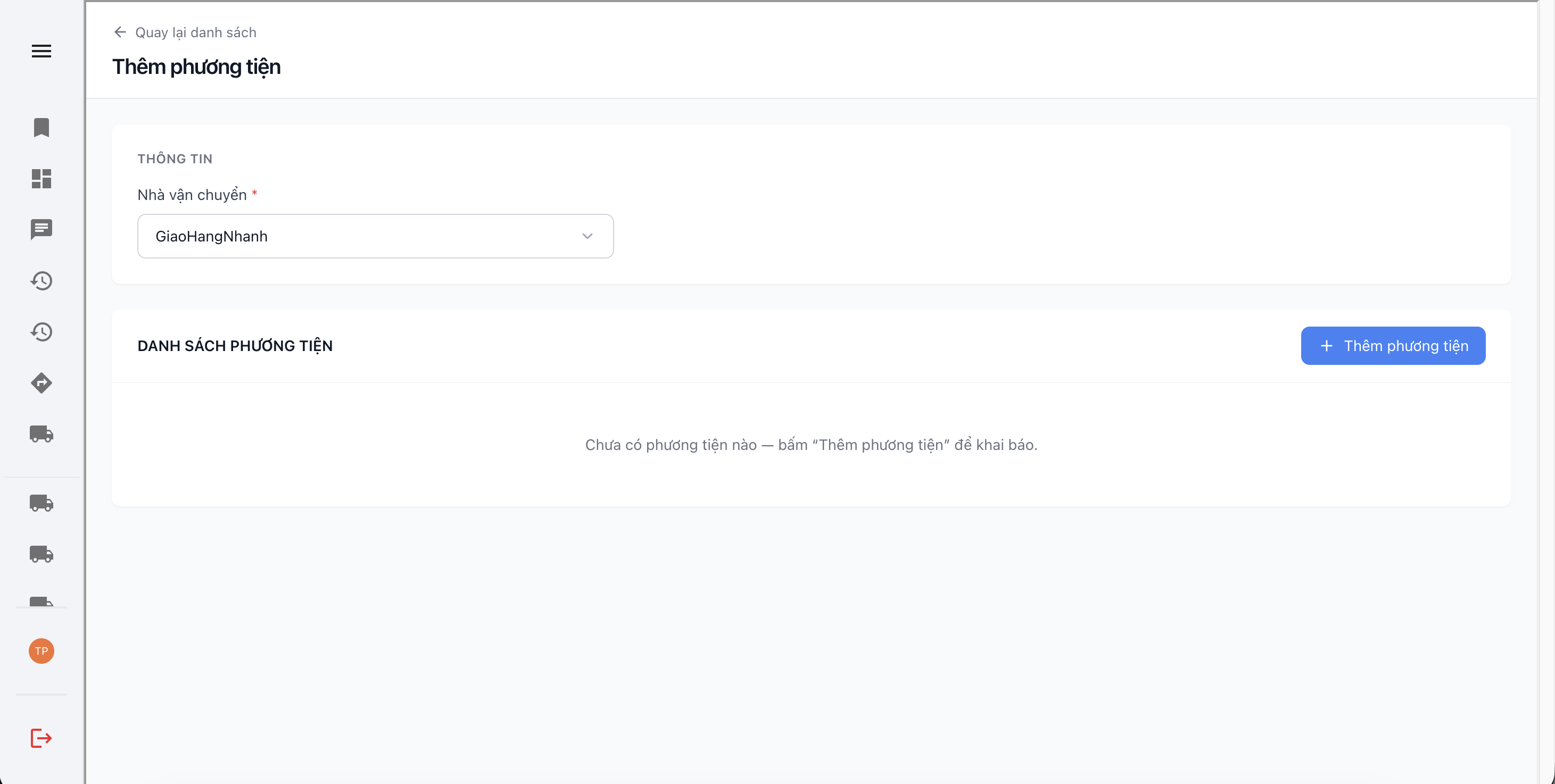
Add vehicle list for carrier screen
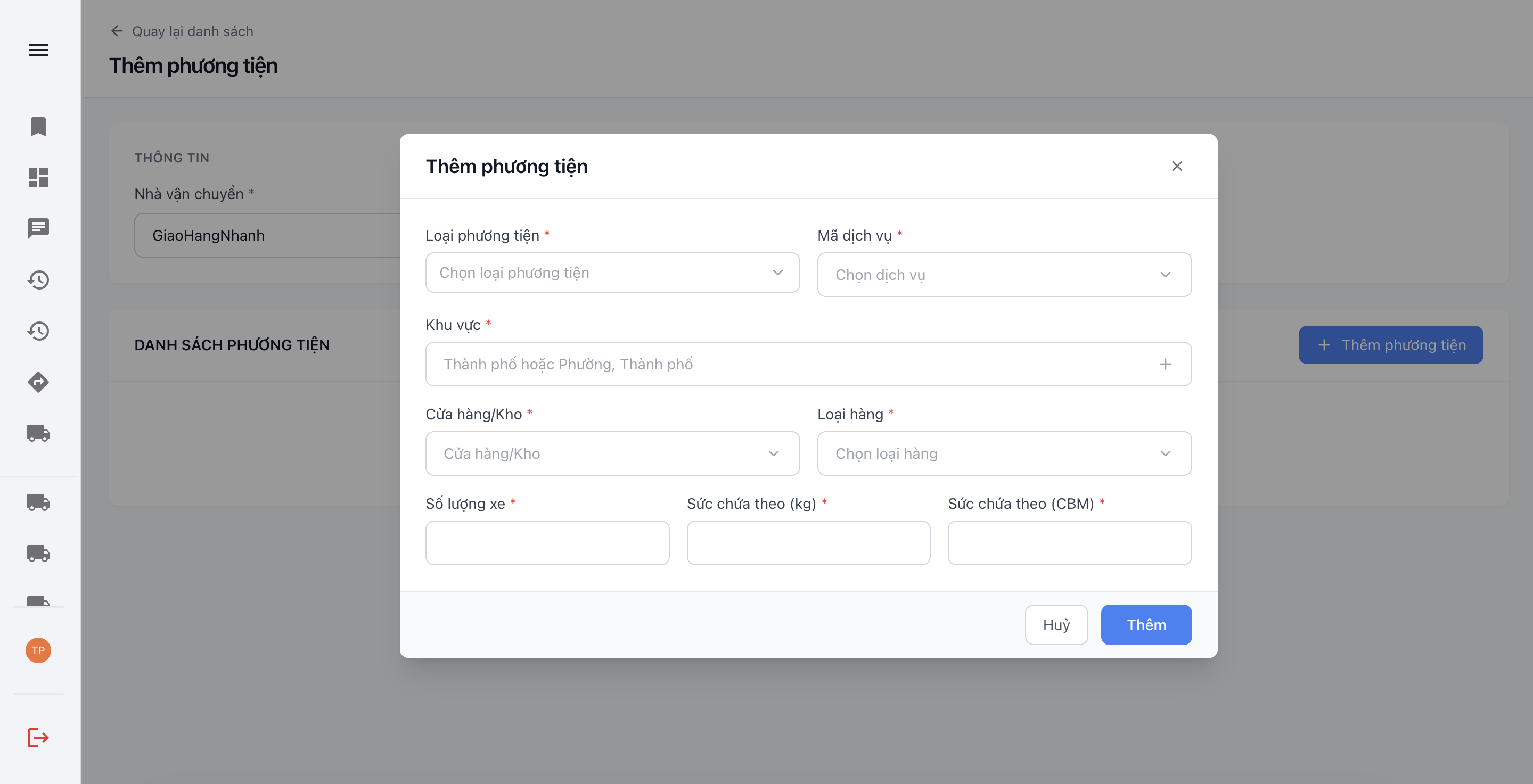
Add vehicle type to vehicle list popup
2.2. Edit Vehicle List and Vehicles
| Step | Action |
|---|---|
| 1 | Select the vehicle list of the carrier to edit, then click the edit icon to open the edit vehicle list screen |
| 2 | Select the vehicle type to edit, then click the edit icon to open the edit vehicle type popup |
| 3 | Enter the information to be edited |
| 4 | Click 'Save' to save the information |
| 5 | Click 'Cancel' to cancel the action |
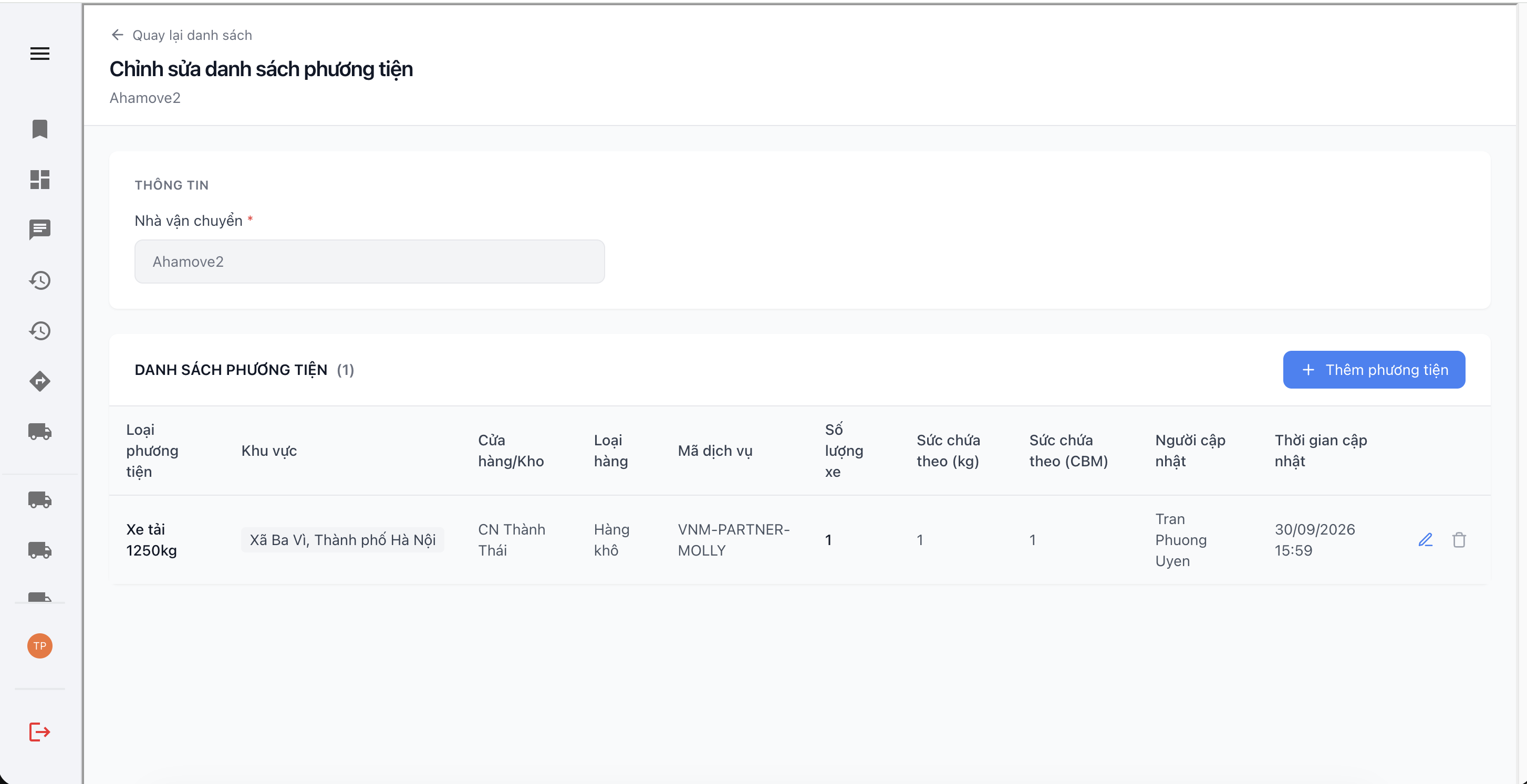
Edit vehicle list screen
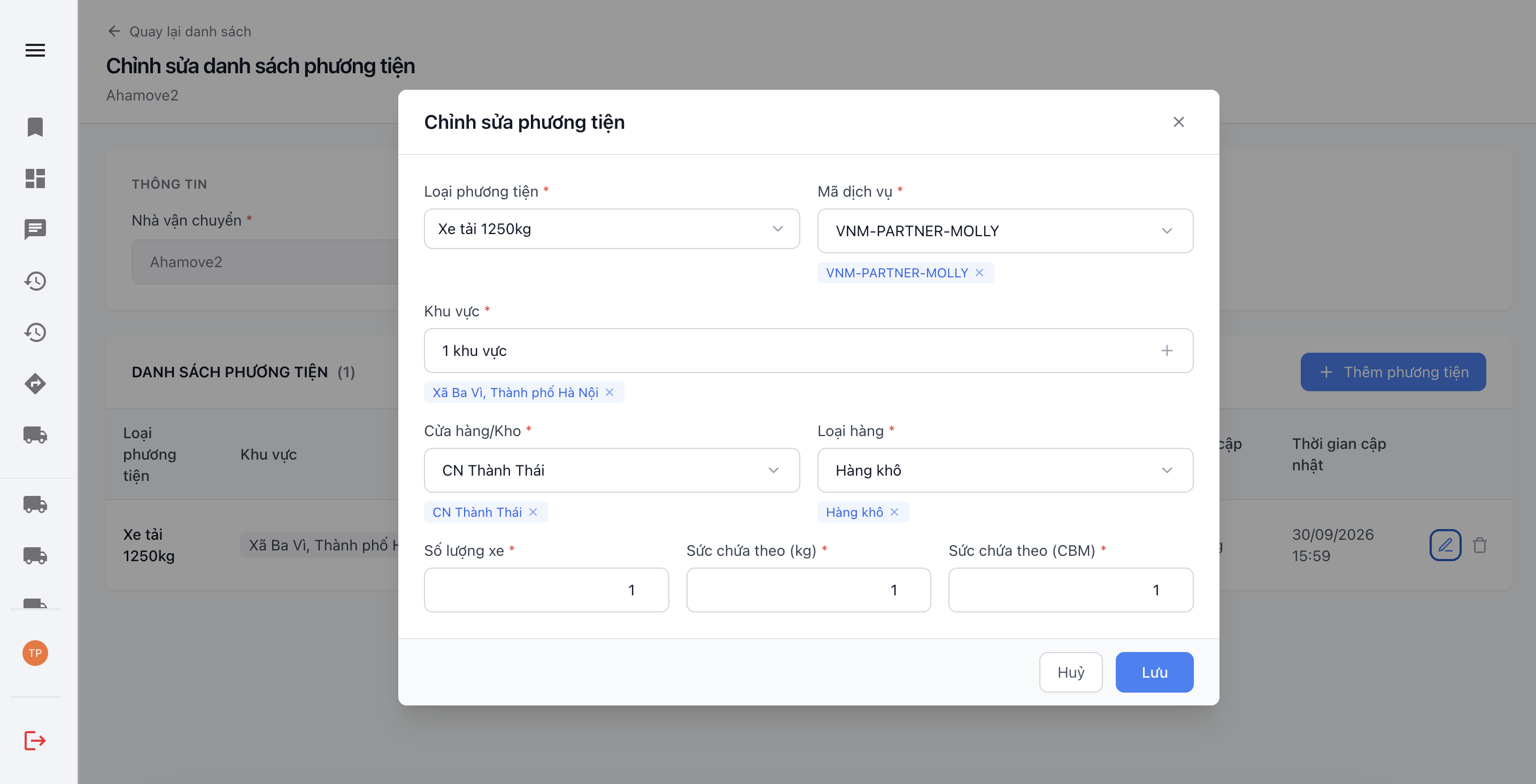
Edit vehicle type information popup
2.3. Delete a Vehicle Type
| Step | Action |
|---|---|
| 1 | Select the vehicle list of the carrier whose vehicle type you want to delete, then click the edit icon to open the edit vehicle list screen |
| 2 | Select the vehicle type to delete, then click the delete icon to open the delete confirmation popup |
| 3 | Click 'Confirm' to perform the deletion |
| 4 | Click 'Cancel' to cancel the action |
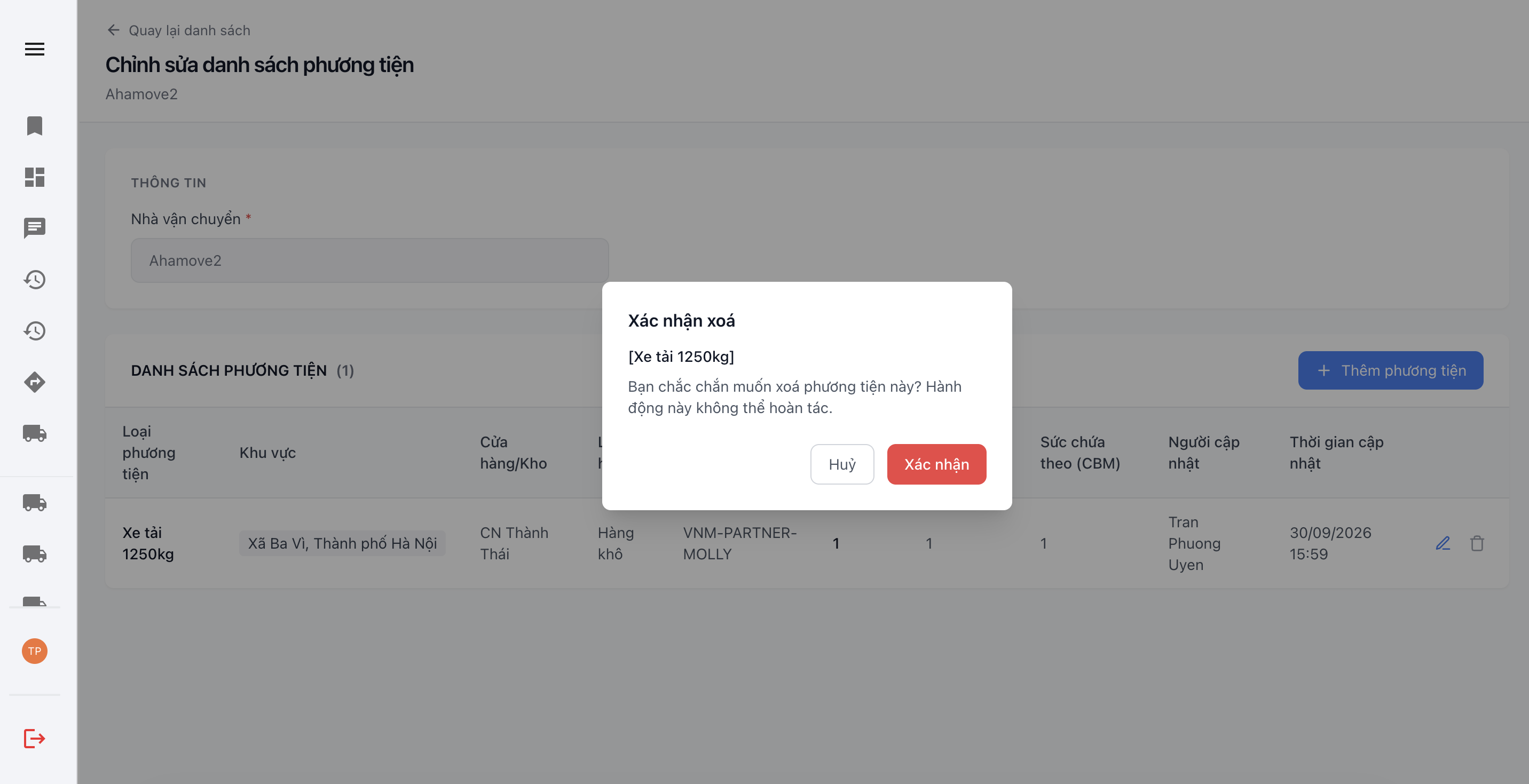
Delete vehicle type from vehicle list confirmation popup
2.4. Delete a Vehicle List
| Step | Action |
|---|---|
| 1 | On the supplied vehicle capacity list of carriers screen, select the vehicle list of the carrier to delete, then click the delete icon to open the delete confirmation popup |
| 2 | Click 'Confirm' to perform the deletion |
| 3 | Click 'Cancel' to cancel the action |
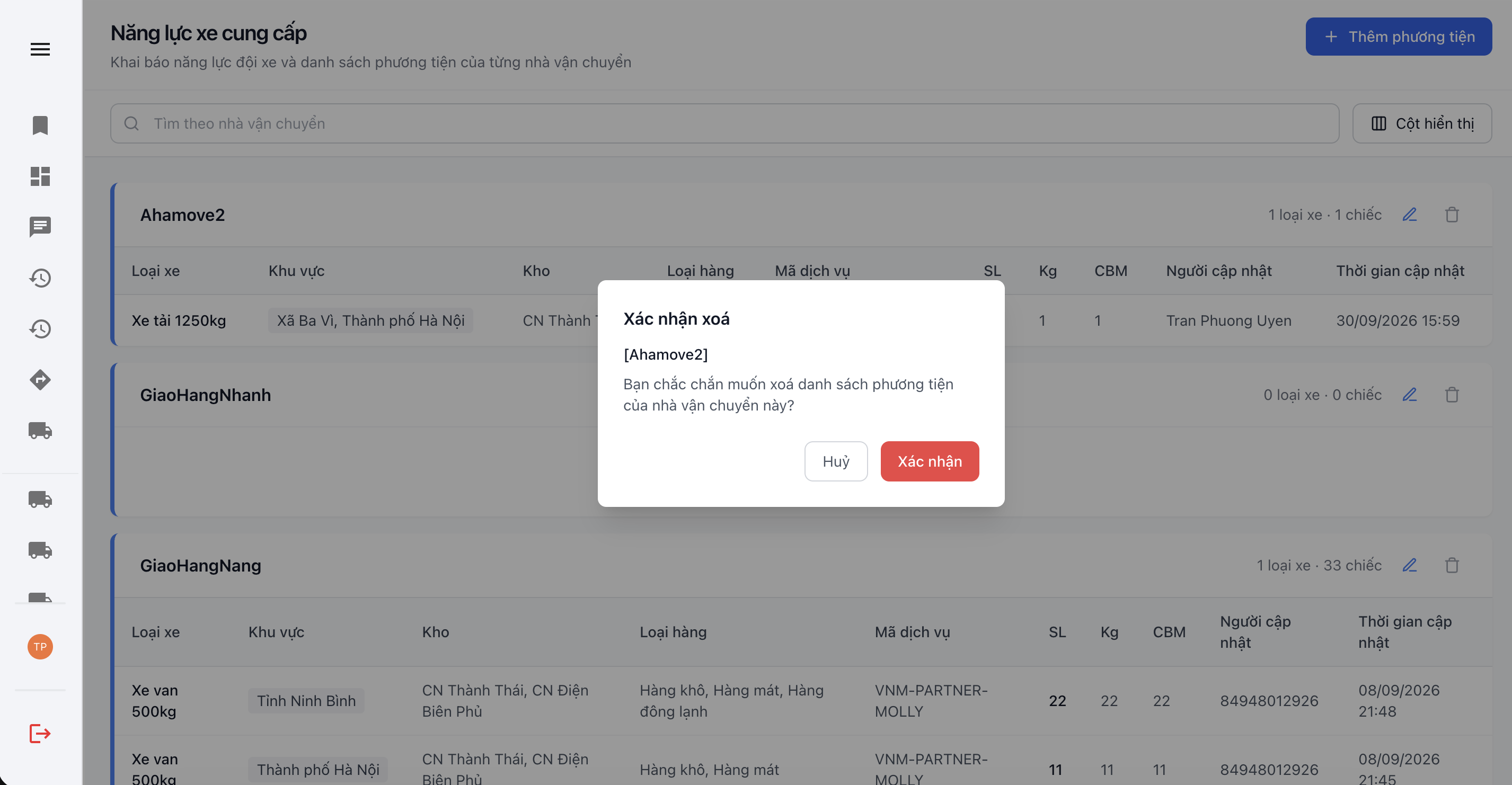
Delete carrier vehicle list confirmation popup