Permissions & Users
I. Overview
The Permissions & Users feature in FMS allows companies to centrally manage access and role-based permissions for each user in the organization. The system supports organizing users into teams based on the organizational structure, setting up permission sets suited to each job position, and assigning users to the corresponding teams to control the scope of data and features each person can access.
II. Team Management
| Step | Action |
|---|---|
| 1 | Go to 'Permissions & Users' and select the 'Team Management' page |
| 2 | Click the 'Add New Team' button to open the 'Add New Team' popup |
| 3 | Enter the team name and select the parent team (if any) |
| 4 | Click the 'Save' button to finish |
| 5 | Click the 'Cancel' button to cancel the action |
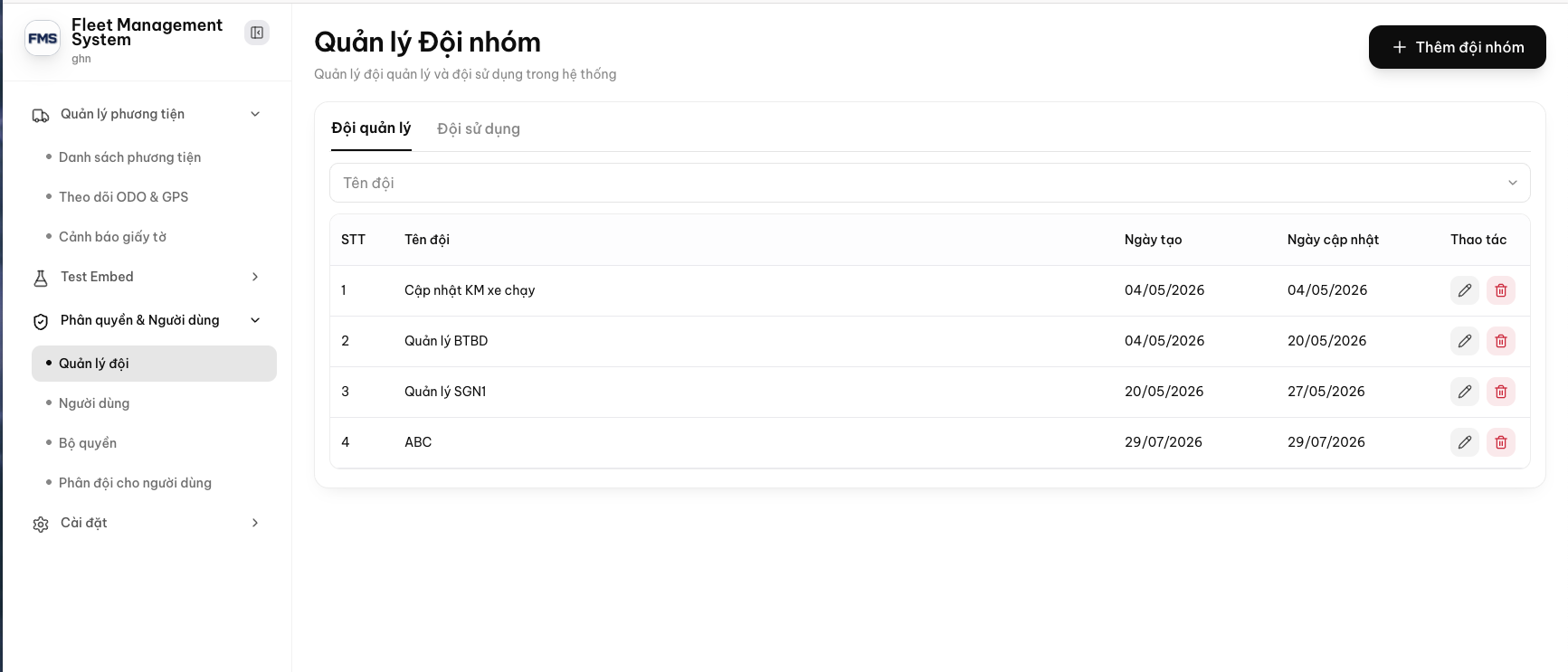
Team Management screen
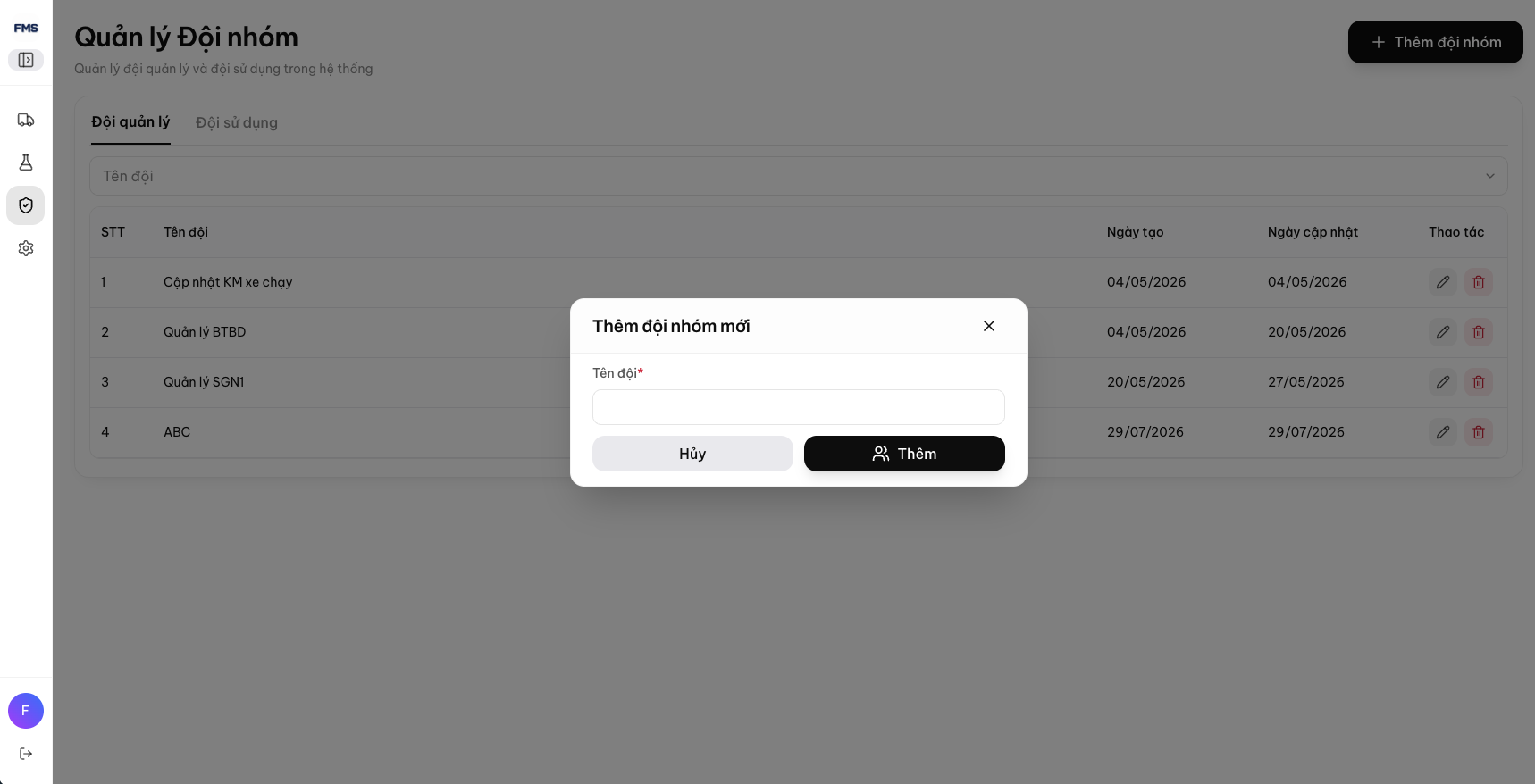
Add New Team popup
III. Users
a. Internal
| Step | Action |
|---|---|
| 1 | Go to 'Permissions & Users', select the 'Users' page, then select the 'Internal' tab |
| 2 | Click the 'Add User' button to open the 'Add Internal User' popup |
| 3 | Enter the information: Full Name, Email, Phone Number, Permission Set, Team |
| 4 | Click the 'Save' button to finish |
| 5 | Click the 'Cancel' button to cancel the action |
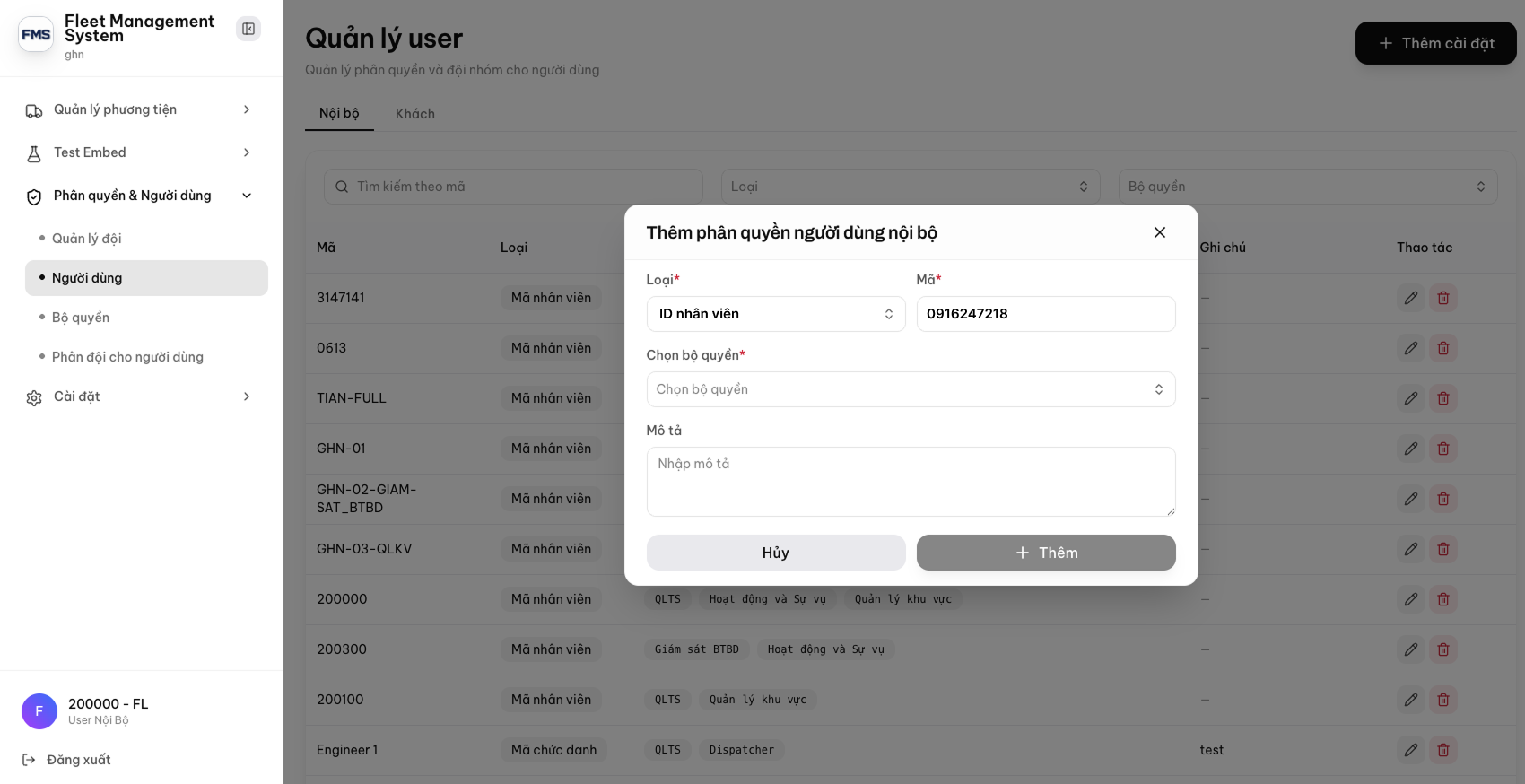
Add internal user permissions popup
b. Guest
| Step | Action |
|---|---|
| 1 | Go to 'Permissions & Users', select the 'Users' page, then select the 'Guest' tab |
| 2 | Click the 'Add User' button to open the 'Add Guest User' popup |
| 3 | Enter the information: Full Name, Email, Phone Number, Permission Set, Team |
| 4 | Click the 'Save' button to finish |
| 5 | Click the 'Cancel' button to cancel the action |
| 6 | Click the 'Edit' button to open the user information edit popup |
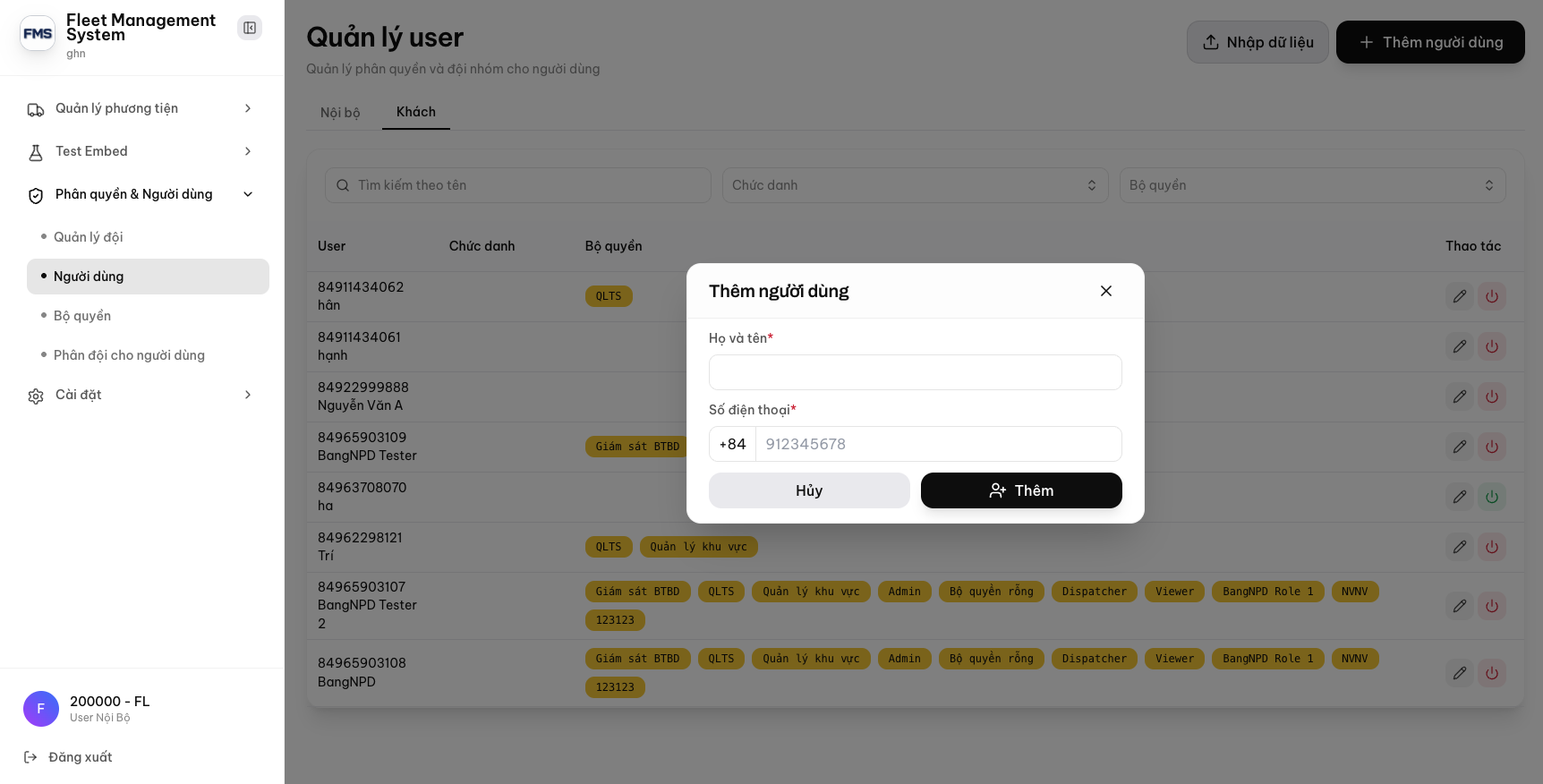
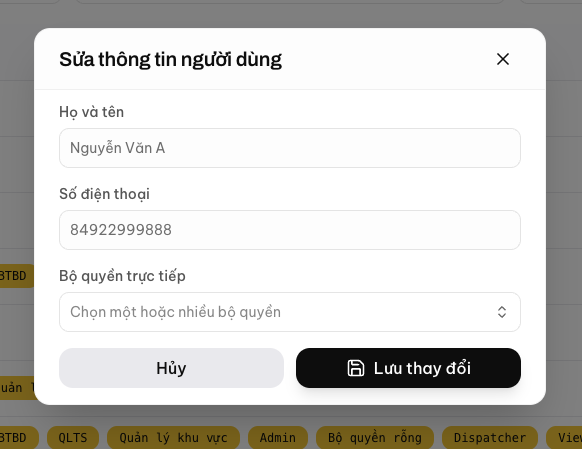
Edit User Information popup
IV. Permission Sets
| Step | Action |
|---|---|
| 1 | Go to 'Permissions & Users' and select the 'Permission Sets' page |
| 2 | Click the 'Add Permission Set' button to open the 'Add New Permission Set' popup |
| 3 | Enter the permission set name |
| 4 | Tick the permissions appropriate for the role |
| 5 | Click the 'Save' button to finish |
| 6 | Click the 'Cancel' button to cancel the action |
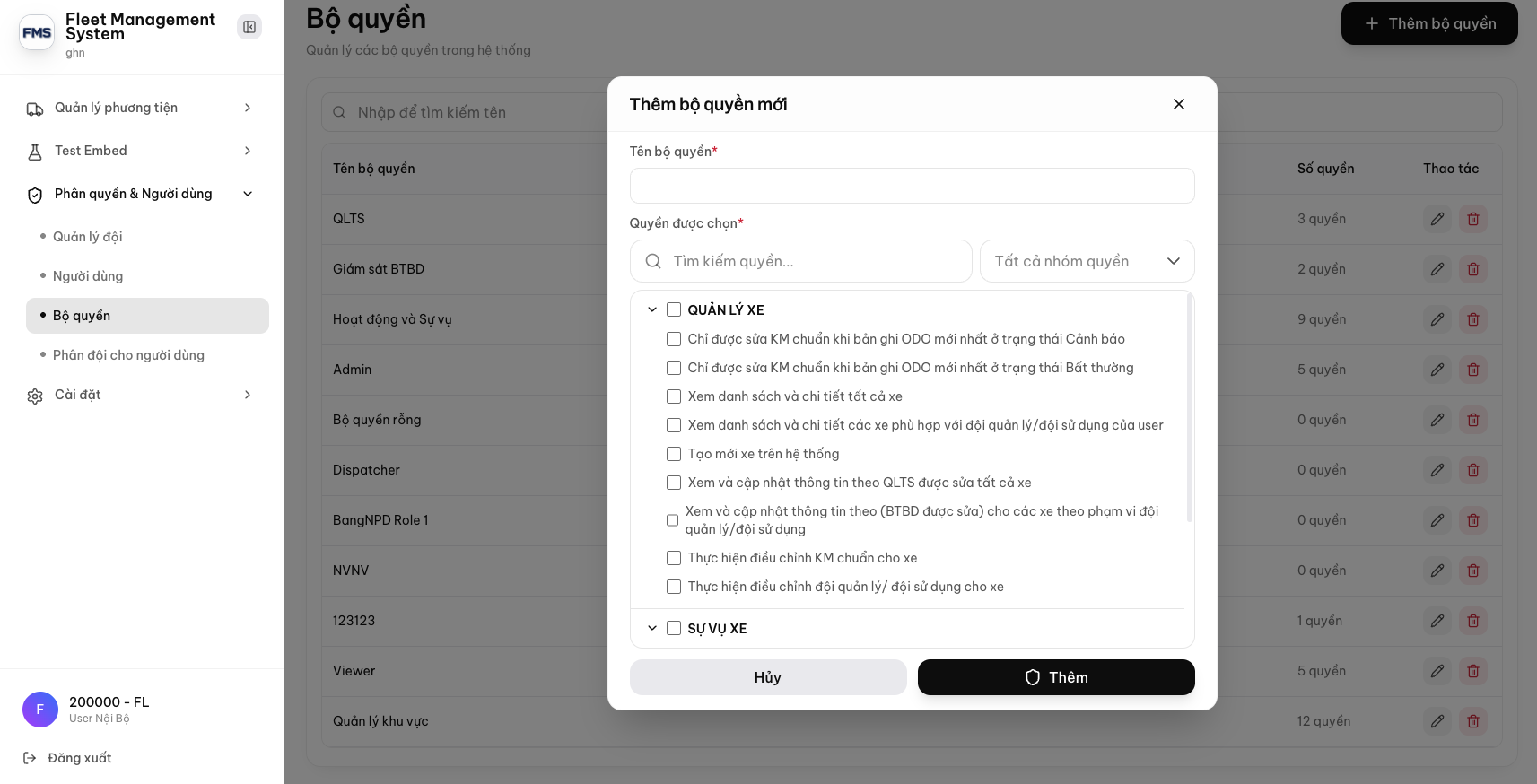
Add New Permission Set popup
V. User Team Assignment
| Step | Action |
|---|---|
| 1 | Go to 'Permissions & Users' and select the 'User Team Assignment' page |
| 2 | Click the 'Create Assignment' button to open the 'Create User Team Assignment' popup |
| 3 | Select the user and the team to assign |
| 4 | Click the 'Save' button to finish |
| 5 | Click the 'Cancel' button to cancel the action |
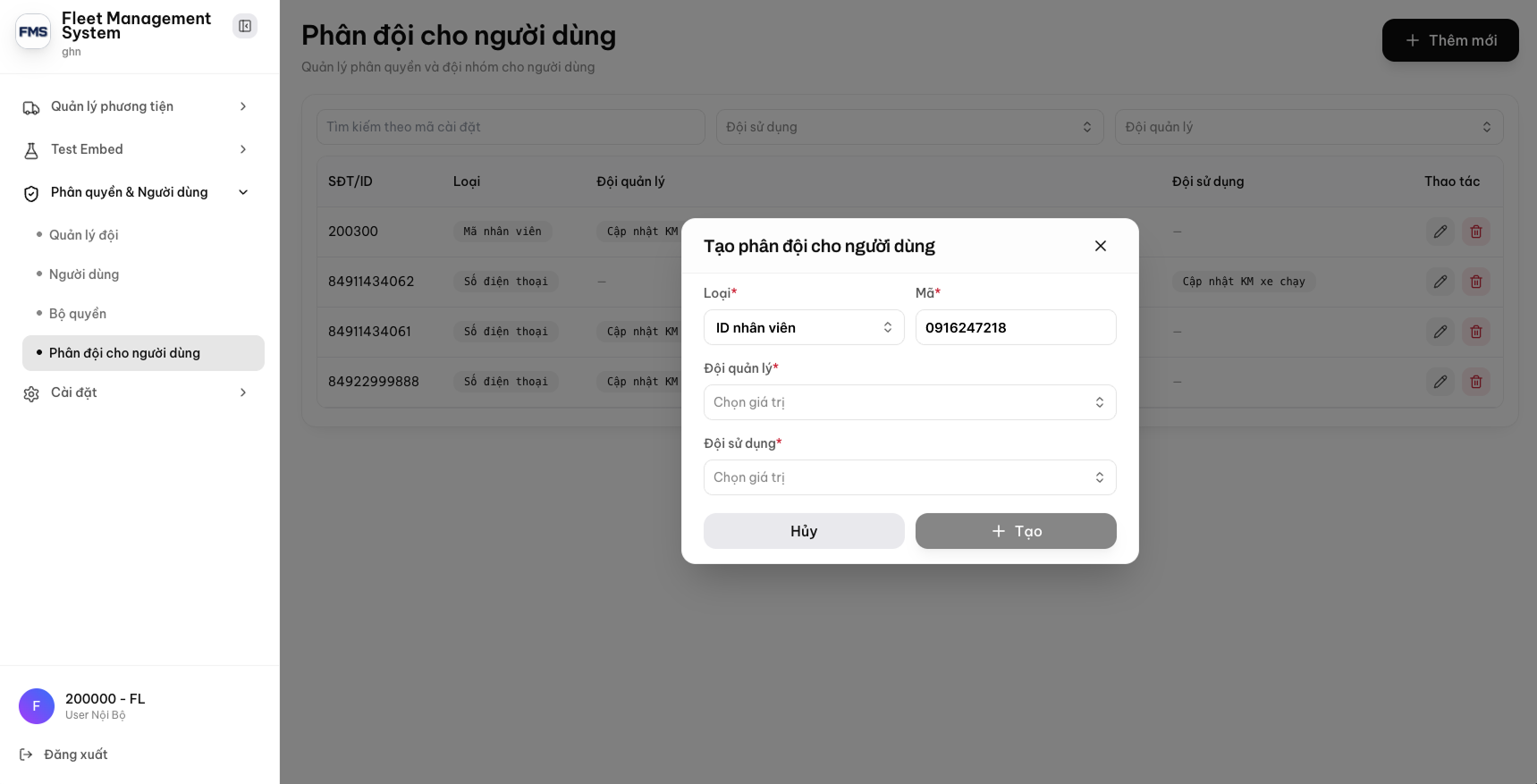
Create User Team Assignment popup