Integrations
The Quản lý tích hợp (Integration management) page is for businesses that want to create orders from their own system through the API. Orders created through the API also appear in Order management.
The page has 6 tabs: Tổng quan (Overview) · API key · Webhook · Nhật ký callback (Callback log) · Kiểm thử (Testing) · Giả lập đơn hàng (Order simulator).
4 steps to go-live
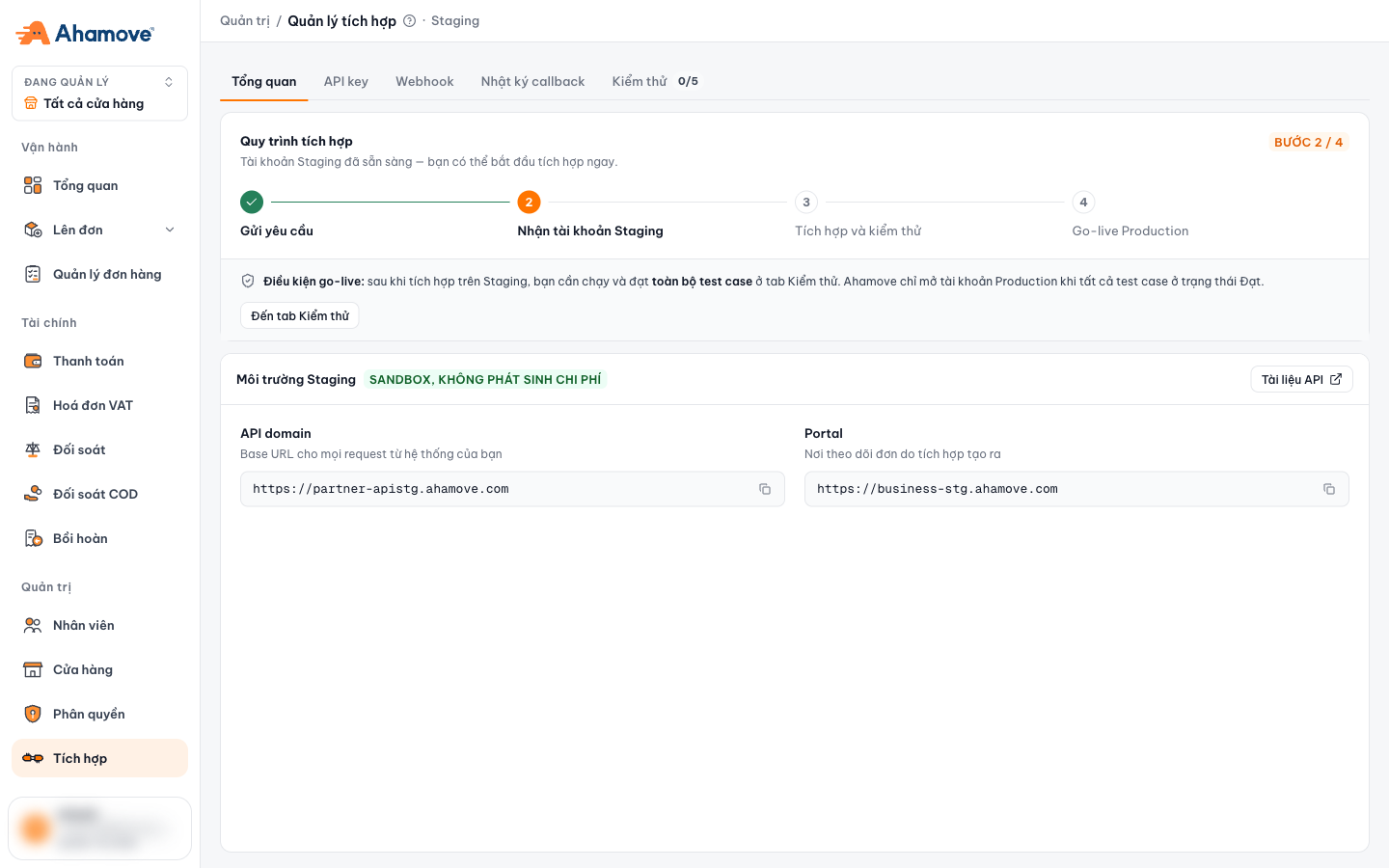
- The 5 tabs of the Integrations page
- Which step you are on
- Go to the Kiểm thử (Testing) tab
- Open the API documentation
- API domain: base URL for every request
After integrating on Staging, you must run and pass every required test case in the Kiểm thử (Testing) tab. Ahamove opens your Production account only when every test case is Đạt (Passed). Then click Gửi yêu cầu Go-live (Send go-live request) in the Testing tab.
| Staging environment | Value |
|---|---|
| API domain | https://partner-apistg.ahamove.com |
| Portal | https://business-stg.ahamove.com |
| Cost | Sandbox, no charges |
Full API documentation: developers.ahamove.com/docs/api-reference.
API key
Keys authenticate server-to-server calls to the Ahamove API.
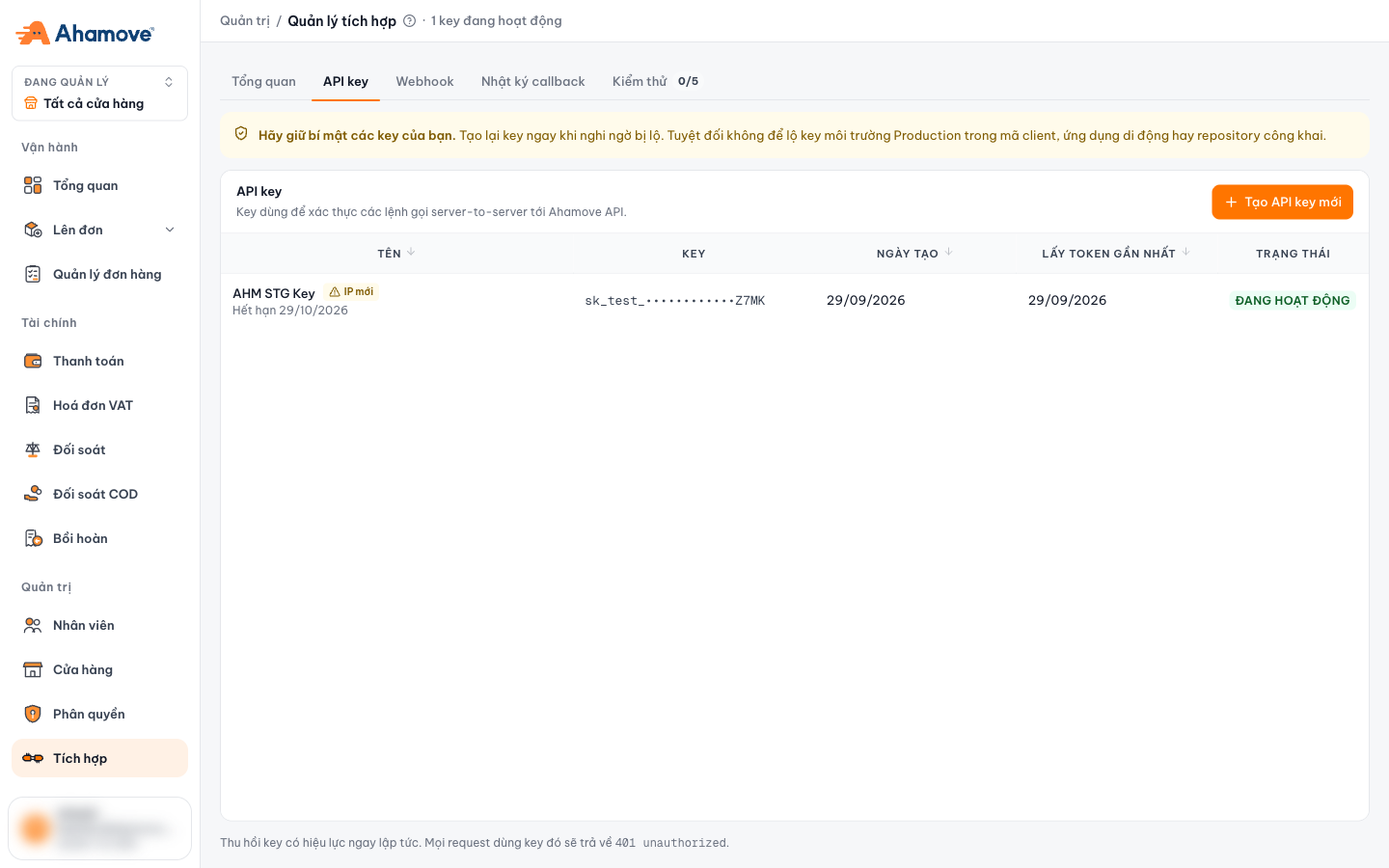
- Number of active keys
- Create a new API key
- Key name, expiry date and new-IP warning
- The key is shown masked, with its last 4 characters
- Last time the key was used to fetch a token
- Key status
| Column | Meaning |
|---|---|
| Tên (Name) | The name given to the key, with its expiry date. The IP mới (New IP) label means a new IP address used the key in the last 30 days; see key details |
| Key | Shown masked only, e.g. sk_test_••••••••Z7MK. You cannot view the full key again on the portal |
| Ngày tạo (Created) | The date the key was created |
| Lấy token gần nhất (Last token fetch) | The last time your system used this key. Revoke keys that have not been used for a long time |
| Trạng thái (Status) | For example Đang hoạt động (Active) |
- Staging keys start with
sk_test_. - Keys have an expiry date. Create a new key and put it into your system before that date.
Regenerate a key as soon as you suspect it has leaked. Never expose a Production key in client-side code, mobile apps or public repositories. A key can create orders and spend money on behalf of your company.
Create a new API key
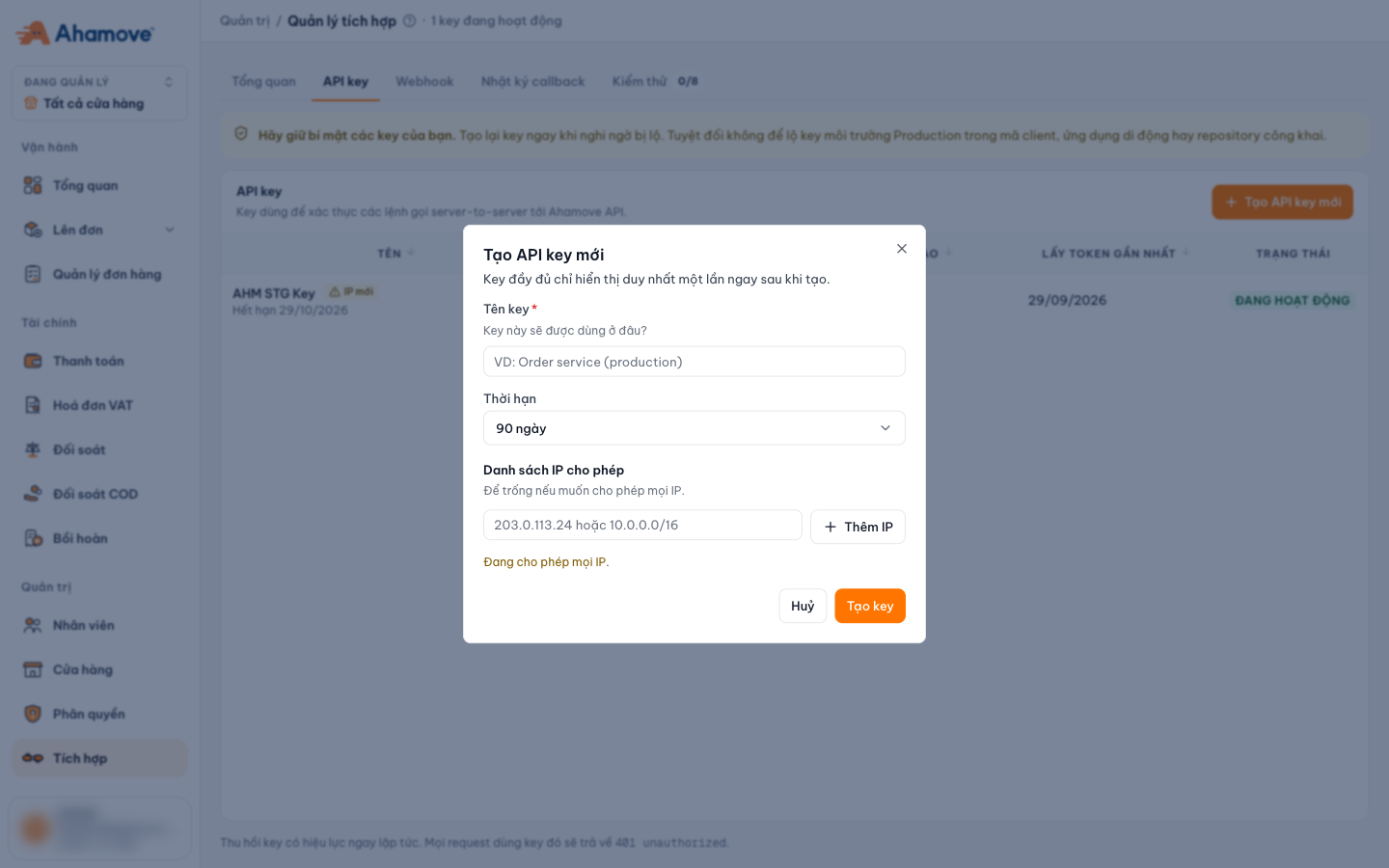
- Key name: state clearly where the key is used
- Validity: never expires, 30 days, 90 days (default) or 1 year
- Allowed IP list: empty = any IP is allowed
- Create the key
State clearly where the key is used, e.g. Order service (production), so you know later which key to revoke.
Không hết hạn (Never expires), 30 ngày (30 days), 90 ngày (90 days, default) or 1 năm (1 year).
Enter the IP address (e.g. 203.0.113.24) or IP range (e.g. 10.0.0.0/16)
of the server that calls the API, then click + Thêm IP (Add IP).
Leaving it empty means any IP is allowed.
The full key is shown only once, right after it is created. Store it somewhere safe immediately (e.g. an environment variable or your server's secret store). If you lose it, create a new key and revoke the old one.
Give each system (e.g. Order service, Warehouse) its own key with an IP restriction. If one system's key leaks, you only need to revoke that key.
Key details: IP restriction and usage history
Click a key row to open its details page.
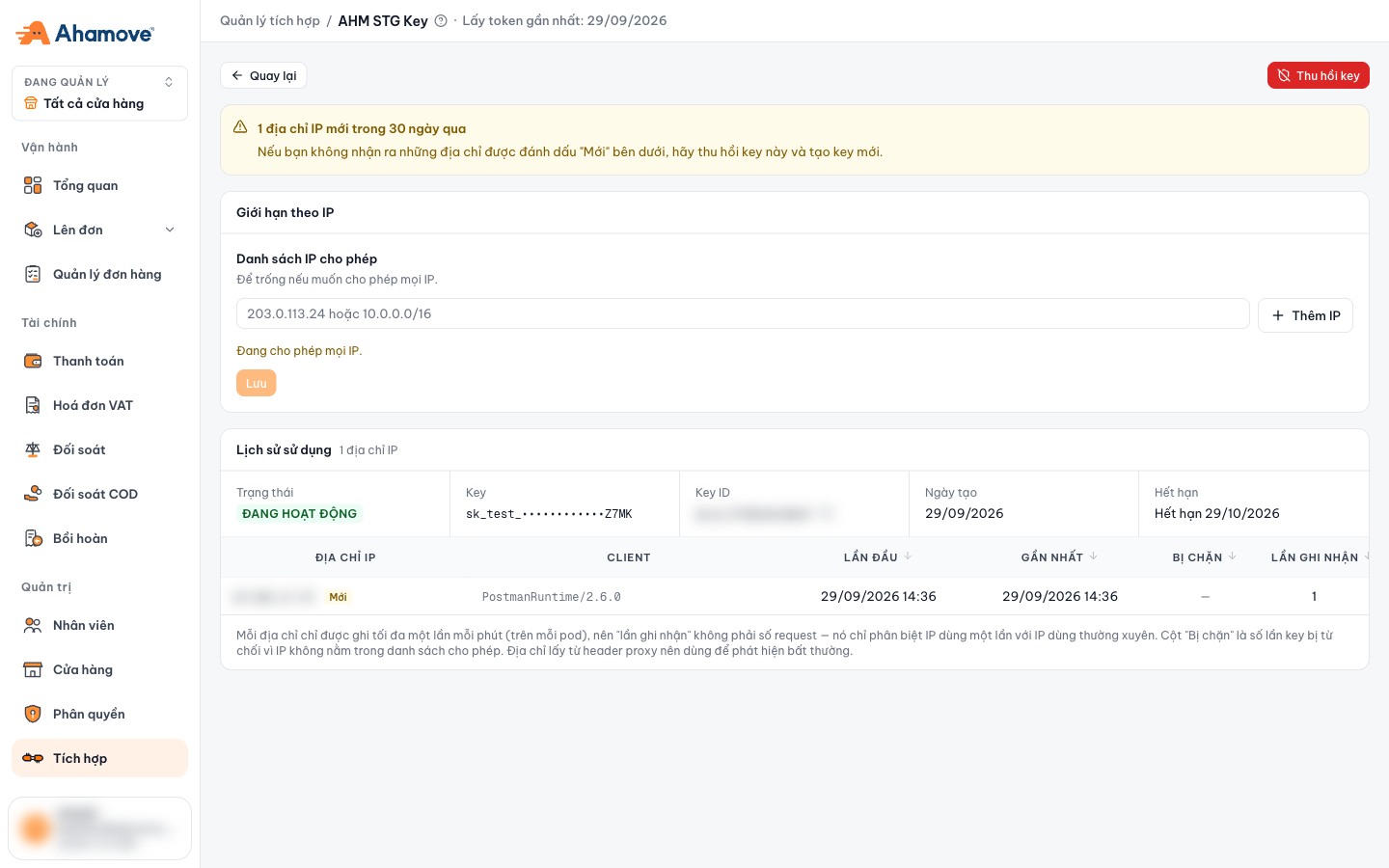
- Back to the list
- Revoke the key
- Warning: number of new IPs in the last 30 days
- Allowed IP list: add IPs, then click Lưu (Save)
- Status, masked key, Key ID, created date, expiry date
- Each IP that used the key; new IPs have the Mới (New) label
IP restriction. Enter an IP or IP range in Danh sách IP cho phép (Allowed IP list), click + Thêm IP (Add IP), then Lưu (Save). Only IPs in the list can use the key. Leaving it empty means any IP is allowed.
Usage history. Lists every IP address that has used the key:
| Column | Meaning |
|---|---|
| Địa chỉ IP (IP address) | The IP that made calls with this key. An IP seen for the first time in the last 30 days has the Mới (New) label |
| Client | The software calling the API, e.g. PostmanRuntime/2.6.0 |
| Lần đầu / Gần nhất (First / Latest) | When this IP first and most recently used the key |
| Bị chặn (Blocked) | Number of times the key was rejected because the IP is not in the allowed list |
| Lần ghi nhận (Times recorded) | Each IP is recorded at most once per minute, so this is not the number of requests. It only helps you tell a one-off IP from a regularly used one |
Open the key details and check the IPs labeled Mới (New):
- An IP from your own system (new server, changed network provider…): add that IP to Danh sách IP cho phép (Allowed IP list) so the key can only be used from these IPs.
- An IP you do not recognize: revoke the key immediately and create a new one.
Revoke a key
On the key details page, click Thu hồi key (Revoke key; the red button, top right), then click Thu hồi (Revoke) in the confirmation dialog. Click Huỷ (Cancel) if you change your mind.
A revoked key can no longer be used. Create a new key and update your system to replace it.
When you revoke a key, every token fetched with that key also expires immediately, even tokens that have not reached their expiry time. API requests using those tokens will be rejected. Update your system with the new key and fetch new tokens before revoking the old key, so order creation is not interrupted.
If the key has leaked, though, revoke it immediately. Every token fetched with it is invalidated as well.
Webhook
A webhook is an address (endpoint) on your system where Ahamove sends order update events.
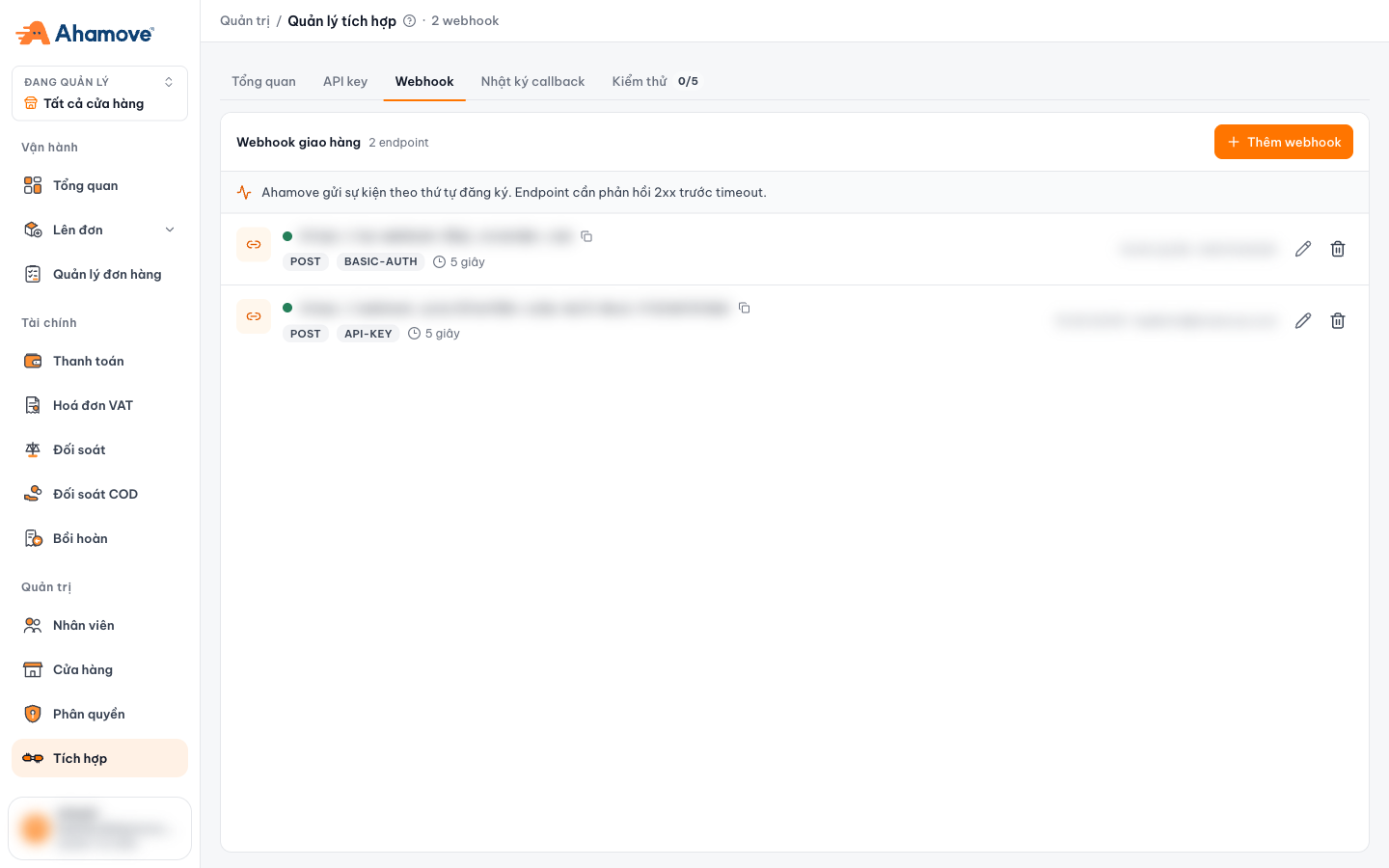
- Add a webhook
- Endpoint URL (masked in the screenshot)
- Method · authentication type · timeout
- Created time and creator
- Edit or delete the endpoint
- Each endpoint shows its method (e.g.
POST), authentication type (e.g.BASIC-AUTH,API-KEY) and timeout (e.g. 5 seconds). - You can register multiple endpoints. Ahamove sends events in the order they were registered.
- Your endpoint must respond with a 2xx code before the timeout; otherwise the delivery counts as failed. See the Callback log.
- Click the pen icon to edit, or the trash icon to delete.
Add a webhook
Click + Thêm webhook (Add webhook) to open the form.
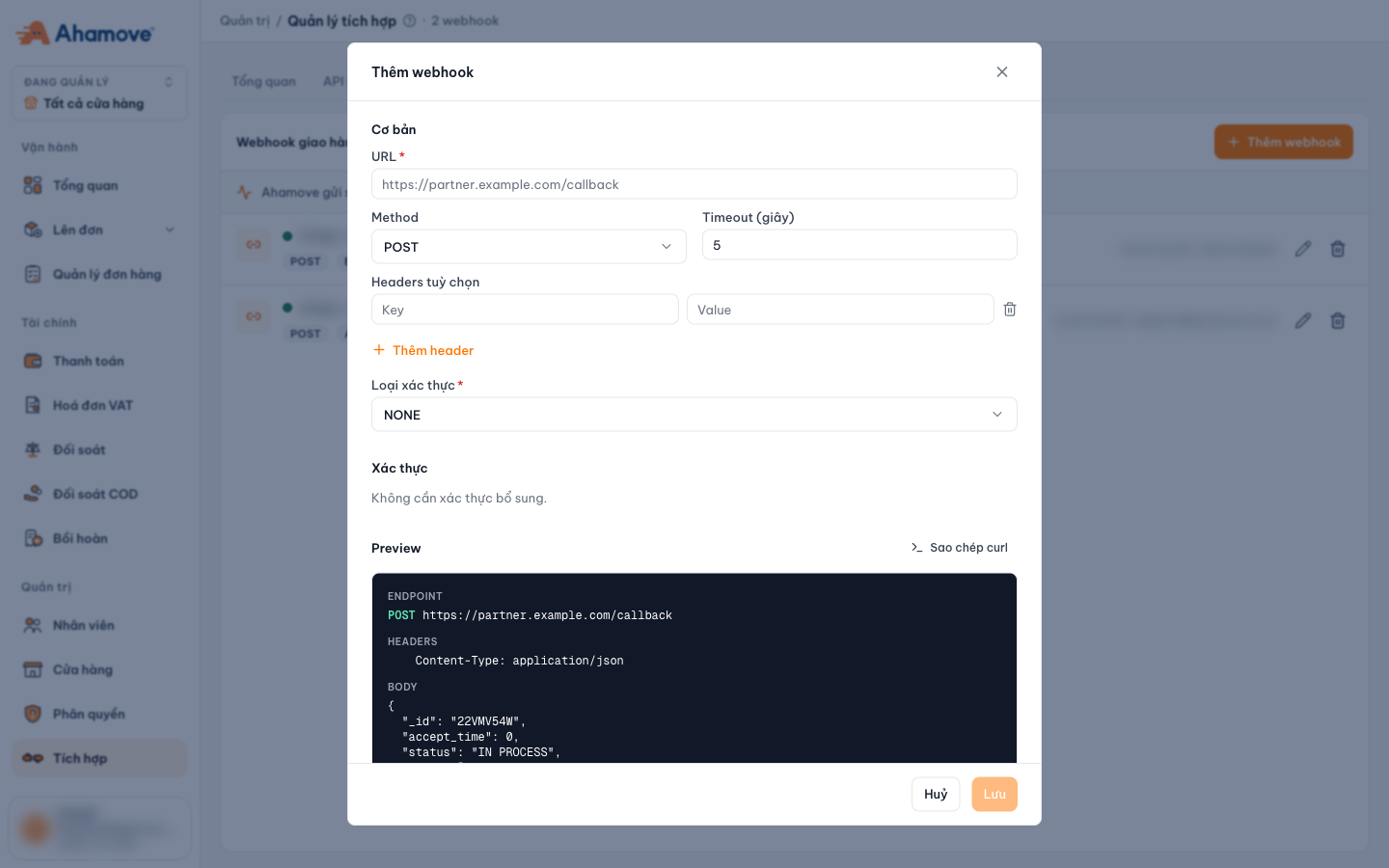
- Endpoint URL (required)
- Method
- Timeout (seconds)
- Optional headers: add Key / Value pairs one by one
- Authentication type (required)
- Copy the curl command to test the endpoint
- Preview: sample request Ahamove will send
- Lưu (Save)
| Field | Value |
|---|---|
| URL * | Your endpoint address, e.g. https://partner.example.com/callback |
| Method | GET, POST (default), PUT, PATCH, DELETE |
| Timeout (giây) (Timeout, seconds) | Maximum time to wait for your endpoint to respond. Default 5 |
| Headers tuỳ chọn (Optional headers) | Headers added to every request. Click + Thêm header (Add header) to add a row |
| Loại xác thực (Authentication type) * | How Ahamove authenticates with your endpoint; see the table below |
| Authentication type | Required fields |
|---|---|
NONE | No extra authentication (default) |
API-KEY | Header name *, Scheme (optional), Token * |
BEARER-TOKEN | Token * |
BASIC-AUTH | Username *, Password * |
The Preview section shows the sample request that will be sent: the endpoint, headers (Content-Type: application/json) and the JSON body of an order event. Click Sao chép curl (Copy curl) to send this request to your endpoint yourself and check that it returns 2xx before saving.
Choose API-KEY, BEARER-TOKEN or BASIC-AUTH so your endpoint only accepts requests from Ahamove. Use NONE only for testing.
Callback log
Track each time Ahamove calls your webhook to troubleshoot your integration.
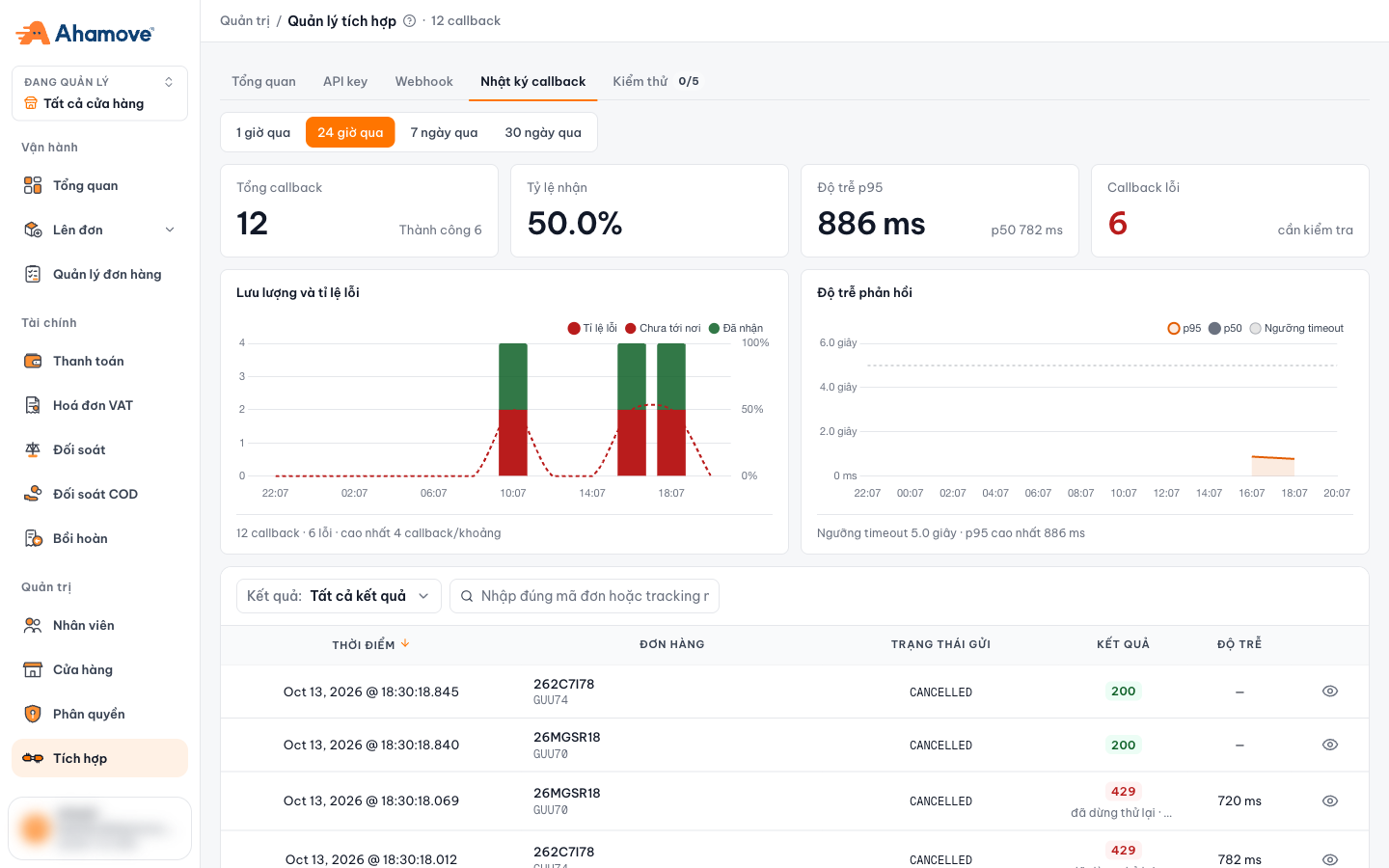
- Time range: 1 hour, 24 hours, 7 days, 30 days
- 4 summary metrics
- Traffic and error rate
- Response latency compared with the timeout threshold
- Filter by result, search by order ID or tracking code
| Section | Contains |
|---|---|
| Chỉ số (Metrics) | Total callbacks (with the number succeeded) · Delivery rate · p95 latency (with p50) · Failed callbacks |
| Lưu lượng và tỉ lệ lỗi (Traffic and error rate) | Callbacks over time, split into Đã nhận (Received) / Chưa tới nơi (Not delivered), with an error-rate line |
| Độ trễ phản hồi (Response latency) | p95 and p50 compared with the timeout threshold (e.g. 5.0 seconds) |
| Bảng chi tiết (Detail table) | Time · Order · Sent status · Result · Latency. Filter by Kết quả (Result), search by order ID or tracking code |
Reading the detail table:
- Đơn hàng (Order): the Ahamove order ID, with your internal ID below it (if any).
- Trạng thái gửi (Sent status): the order status in the event, e.g.
CANCELLED. - Kết quả (Result): the HTTP code your endpoint returned.
200means received successfully; any other code (e.g.429) is a failure. - Click the eye icon at the end of a row to see the details of that call.
Check that your endpoint returns 2xx fast enough. If the p95 latency is close to the timeout threshold, make your endpoint return 2xx immediately and process the event afterwards (asynchronously).
Testing
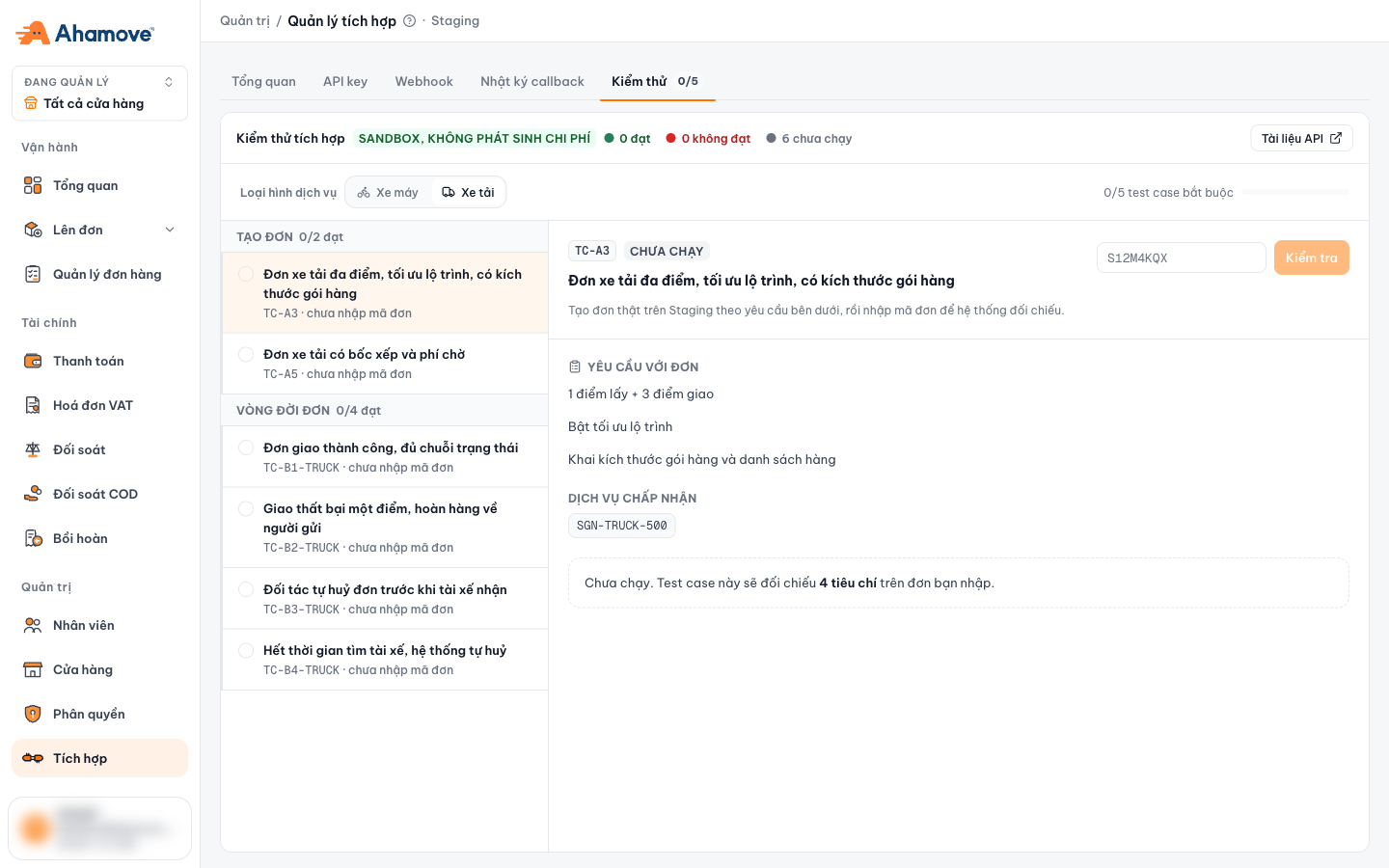
The set of required test cases you must pass before Production is opened.
The Kiểm thử (Testing) tab only supports the Staging environment for trial runs of your integration. Orders created for testing are sandbox orders and incur no charges.
For each case, you create a real order on Staging that matches the requirements, then enter the order ID so the system can check it.
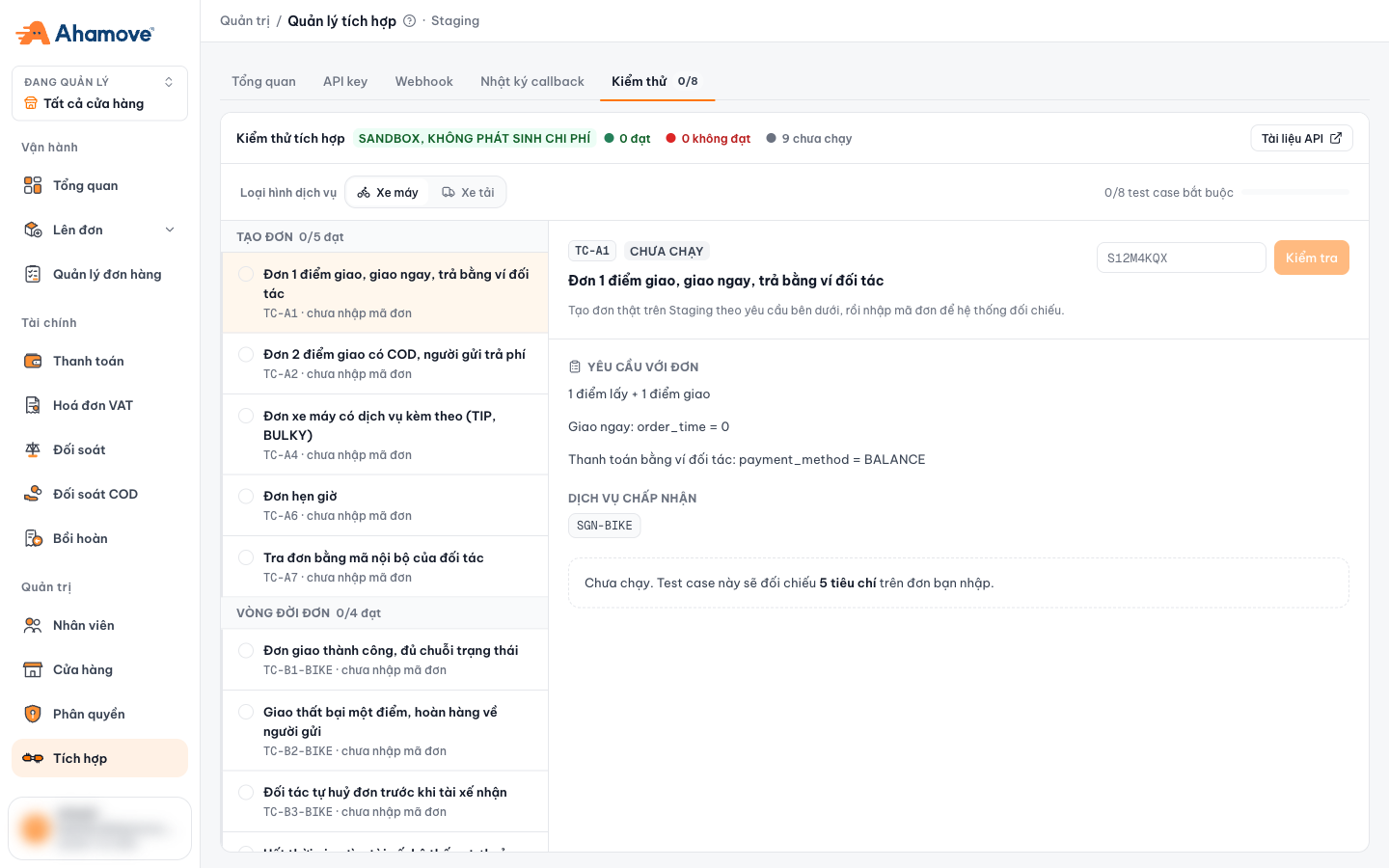
- Totals: passed · failed · not run
- Choose the service type: Xe máy (Motorbike) / Xe tải (Truck)
- Tạo đơn (Create order) group
- Vòng đời đơn (Order lifecycle) group
- Order requirements and accepted services
- Enter the created order ID, then click Kiểm tra (Check)
Read Yêu cầu với đơn (Order requirements) and Dịch vụ chấp nhận
(Accepted services) (e.g. SGN-BIKE, SGN-TRUCK-500).
See Send a go-live request below.
Send a go-live request
When every required test case for the selected service type is Đạt (Passed), a green message appears above the list: Đã đạt toàn bộ … test case bắt buộc — sẵn sàng go-live Production (All … required test cases passed — ready to go live on Production).
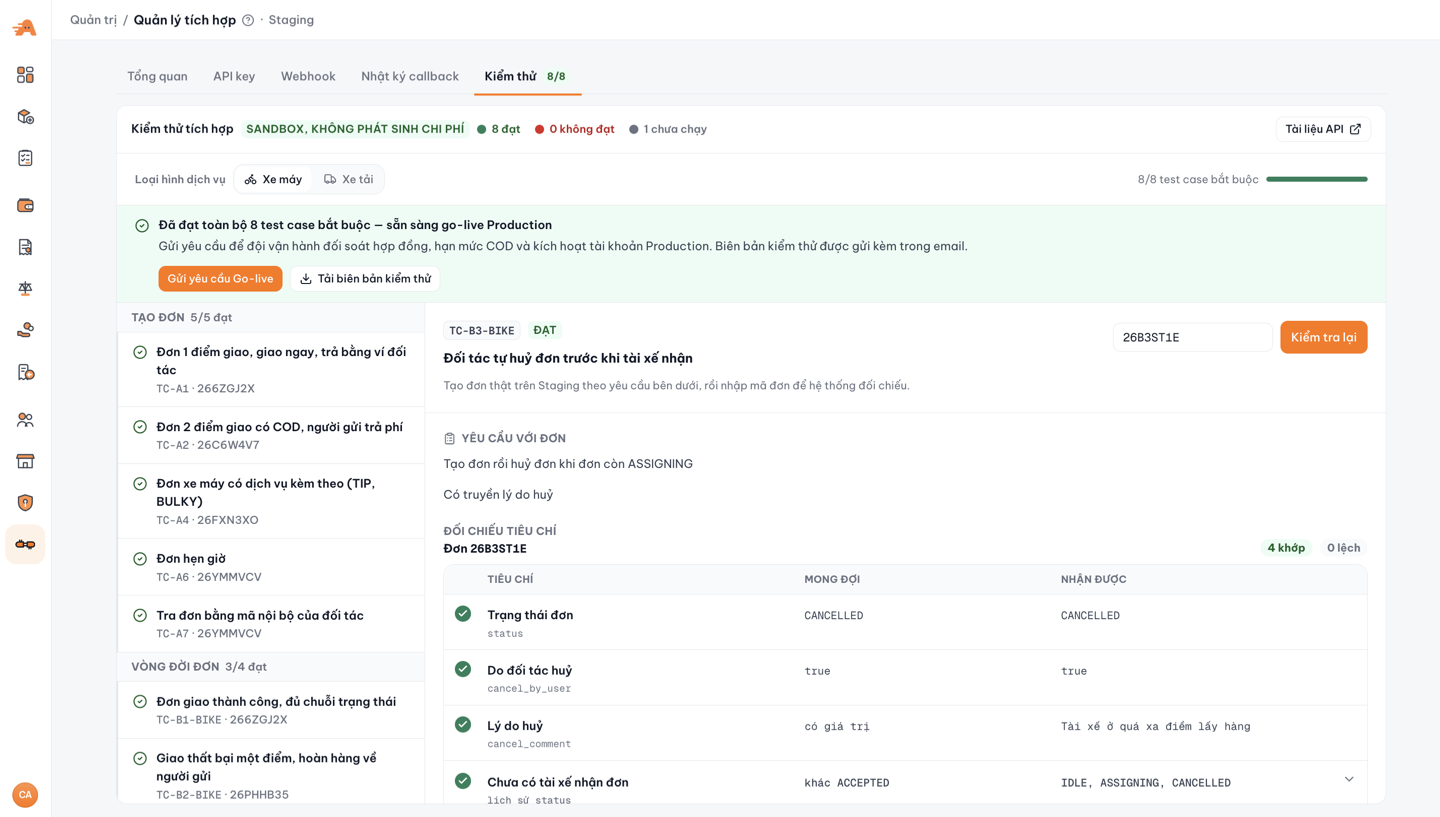
- Totals: passed · failed · not run
- Progress on required test cases
- Gửi yêu cầu Go-live (Send go-live request)
- Tải biên bản kiểm thử (Download test report)
- Enter another order ID and check again
- Number of matching and mismatching criteria
The request is sent immediately, with no confirmation step. The test report is attached to the email.
- Click Tải biên bản kiểm thử (Download test report) to save a copy of the test results for your records.
- After sending, the button changes to Gửi lại yêu cầu (Resend request) in case you need to send it again.
- No green message? Some required case is still Không đạt (Failed) or Chưa chạy (Not run). Open that case, look at the lệch (mismatch) rows in the Đối chiếu tiêu chí (Criteria check) table, create a new order that matches the requirements, then click Kiểm tra lại (Check again).
Test case list
- Xe máy / Motorbike (8 required)
- Xe tải / Truck (5 required)
| Group | Code | Test case |
|---|---|---|
| Create order | TC-A1 | 1 drop-off point, deliver now, paid from the partner wallet (payment_method = BALANCE, order_time = 0) |
| Create order | TC-A2 | 2 drop-off points with COD, sender pays the fee |
| Create order | TC-A4 | Motorbike order with add-on services (TIP, BULKY) |
| Create order | TC-A6 | Scheduled order |
| Create order | TC-A7 | Look up an order by the partner's internal ID |
| Order lifecycle | TC-B1-BIKE | Order delivered successfully, full status sequence |
| Order lifecycle | TC-B2-BIKE | Delivery fails at one point, goods returned to the sender |
| Order lifecycle | TC-B3-BIKE | Partner cancels the order before a driver accepts |
| Order lifecycle | TC-B4-BIKE | Driver search times out, the system cancels automatically |
| Group | Code | Test case |
|---|---|---|
| Create order | TC-A3 | Multi-point truck order, route optimization, with package dimensions (1 pickup point + 3 drop-off points) |
| Create order | TC-A5 | Truck order with loading/unloading and waiting fee |
| Order lifecycle | TC-B1-TRUCK | Order delivered successfully, full status sequence |
| Order lifecycle | TC-B2-TRUCK | Delivery fails at one point, goods returned to the sender |
| Order lifecycle | TC-B3-TRUCK | Partner cancels the order before a driver accepts |
| Order lifecycle | TC-B4-TRUCK | Driver search times out, the system cancels automatically |
Order simulator
You control a sandbox driver on your Staging order (accept, pick up, deliver each point, return, cancel) and check the callbacks Ahamove sends to your webhook after each action.
Simulated orders are Staging orders and incur no charges. The sandbox driver is provided by Ahamove. If you pick a driver by phone number or a driver near the pickup point, that is a real Staging driver account: only use drivers from your team or people who agreed to help with testing.
Open the tool in either of these ways:
- The Giả lập đơn hàng (Order simulator) tab on the Integrations page, then pick an order.
- In the order details, click the Giả lập đơn hàng icon (a lab flask) or the tab of the same name, then click Mở trong Giả lập đơn hàng (Open in Order simulator).
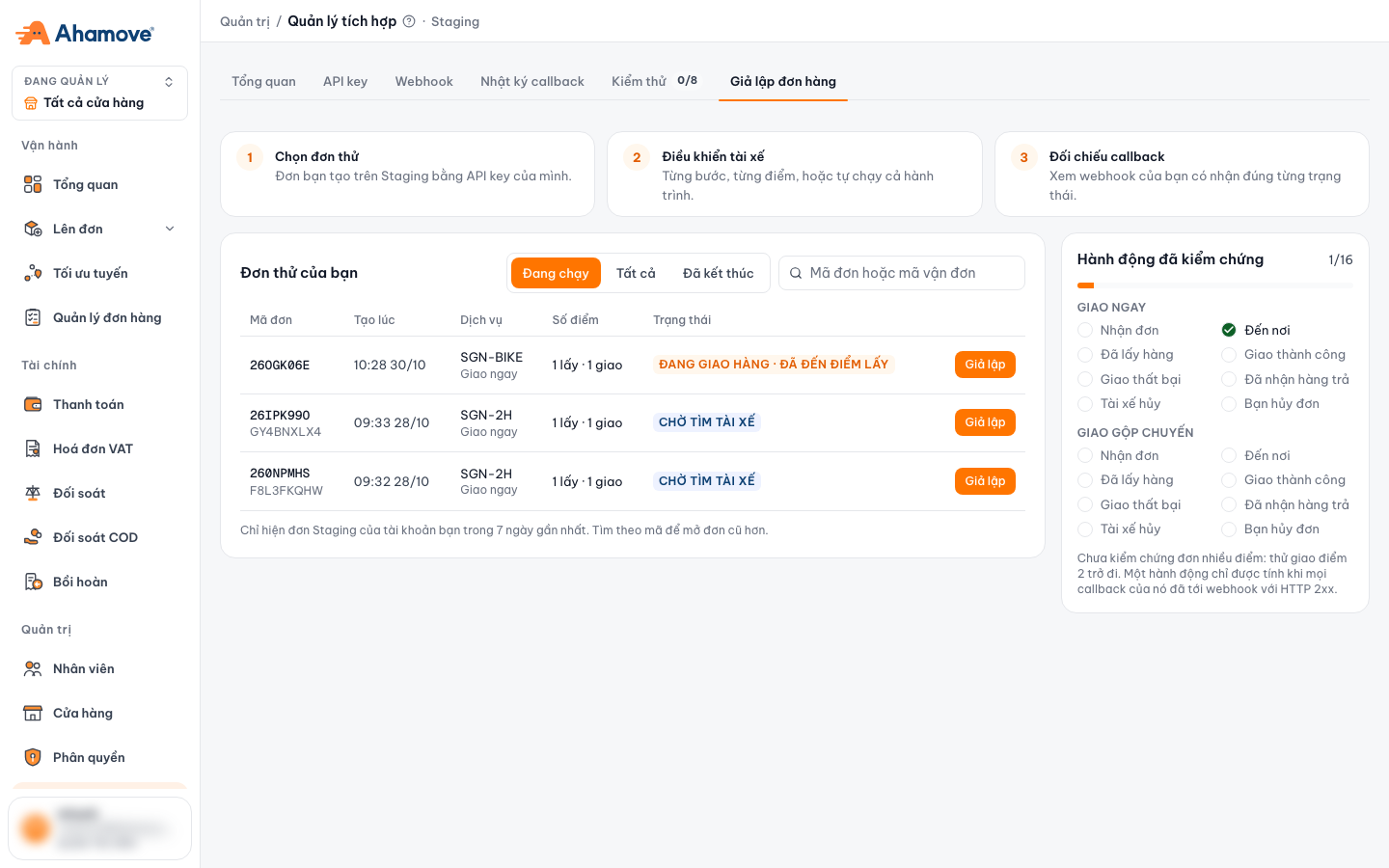
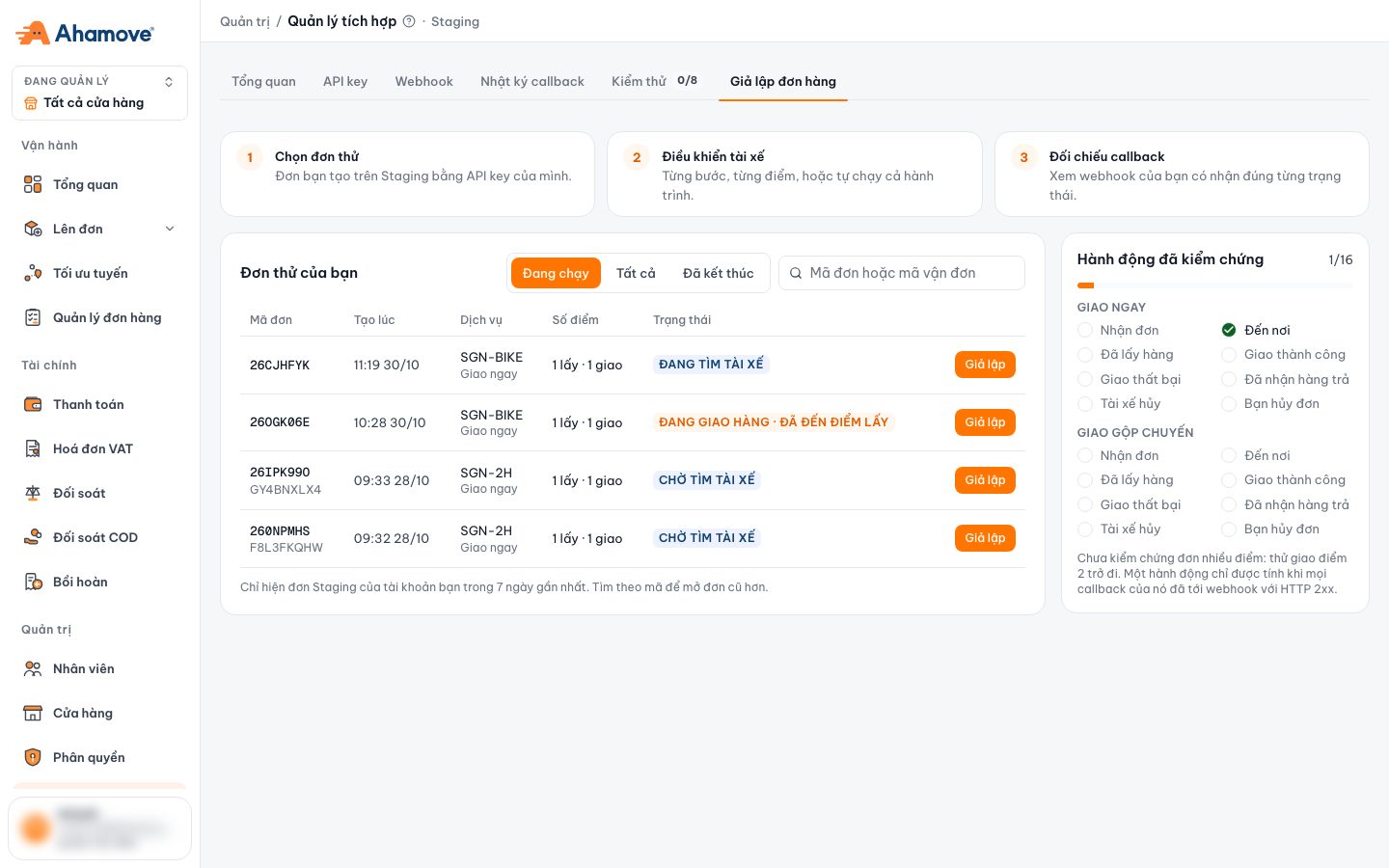
- Giả lập đơn hàng (Order simulator) tab
- 3 steps: pick a test order · control the driver · check callbacks
- Filter: Đang chạy (Running) · Tất cả (All) · Đã kết thúc (Finished)
- Search by order ID or waybill code
- Giả lập (Simulate): open the order to control the driver
- Verified actions out of 16
- Two groups: Giao ngay (Instant) and Giao gộp chuyến (Pooled)
- When an action counts as passed
Đơn thử của bạn (Your test orders) lists your account's Staging orders from the last 7 days, both orders created through the API and orders created in Lên đơn (Create order). Search by order ID to open older orders.
Hành động đã kiểm chứng (Verified actions) tracks 8 actions for each order type (Giao ngay (Instant) and Giao gộp chuyến (Pooled)), 16 in total. An action only counts as passed when every callback for it reached your webhook with HTTP 2xx. The panel also reminds you if you have not tried a multi-point order yet (delivering point 2 onwards).
Simulating one order
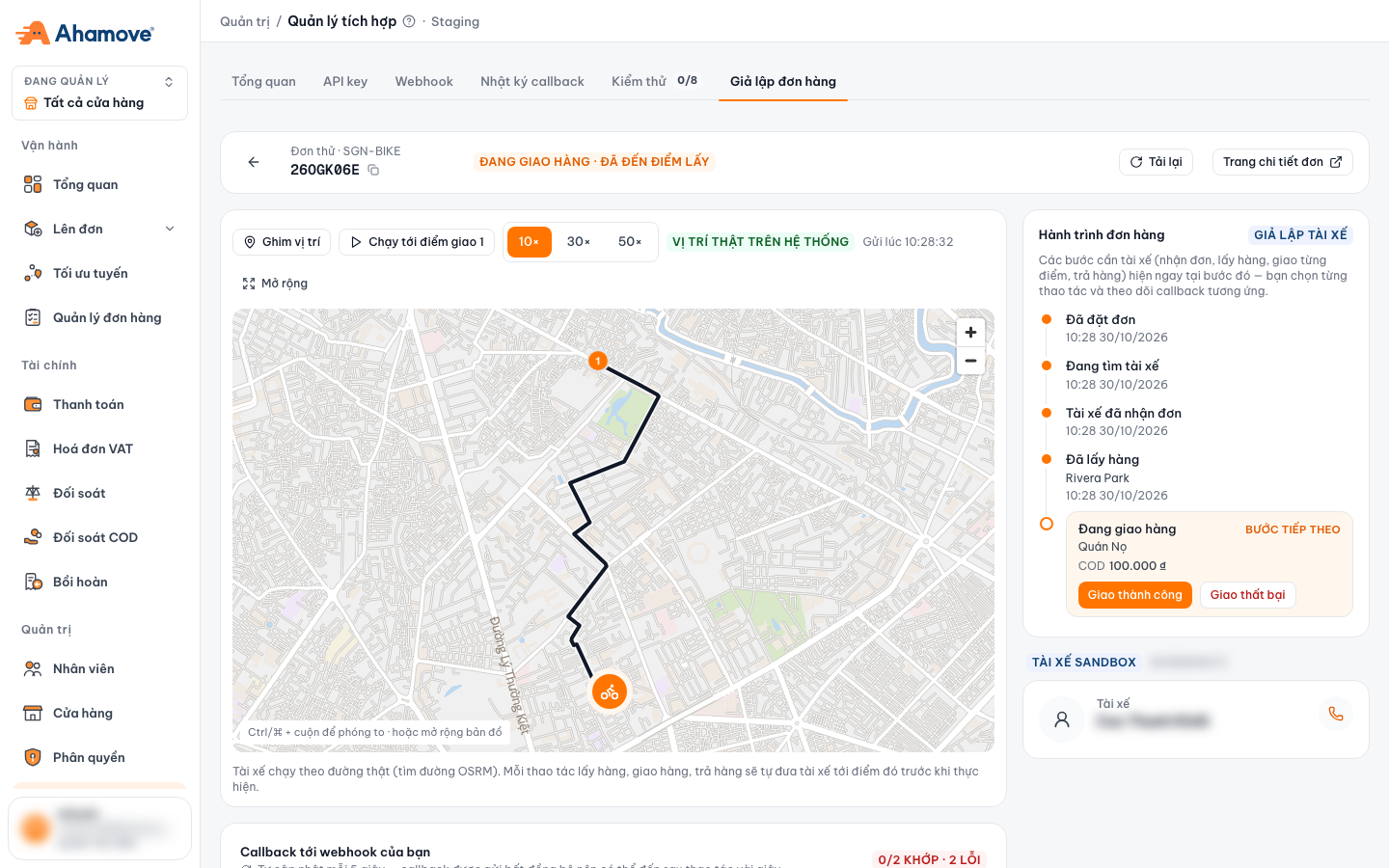
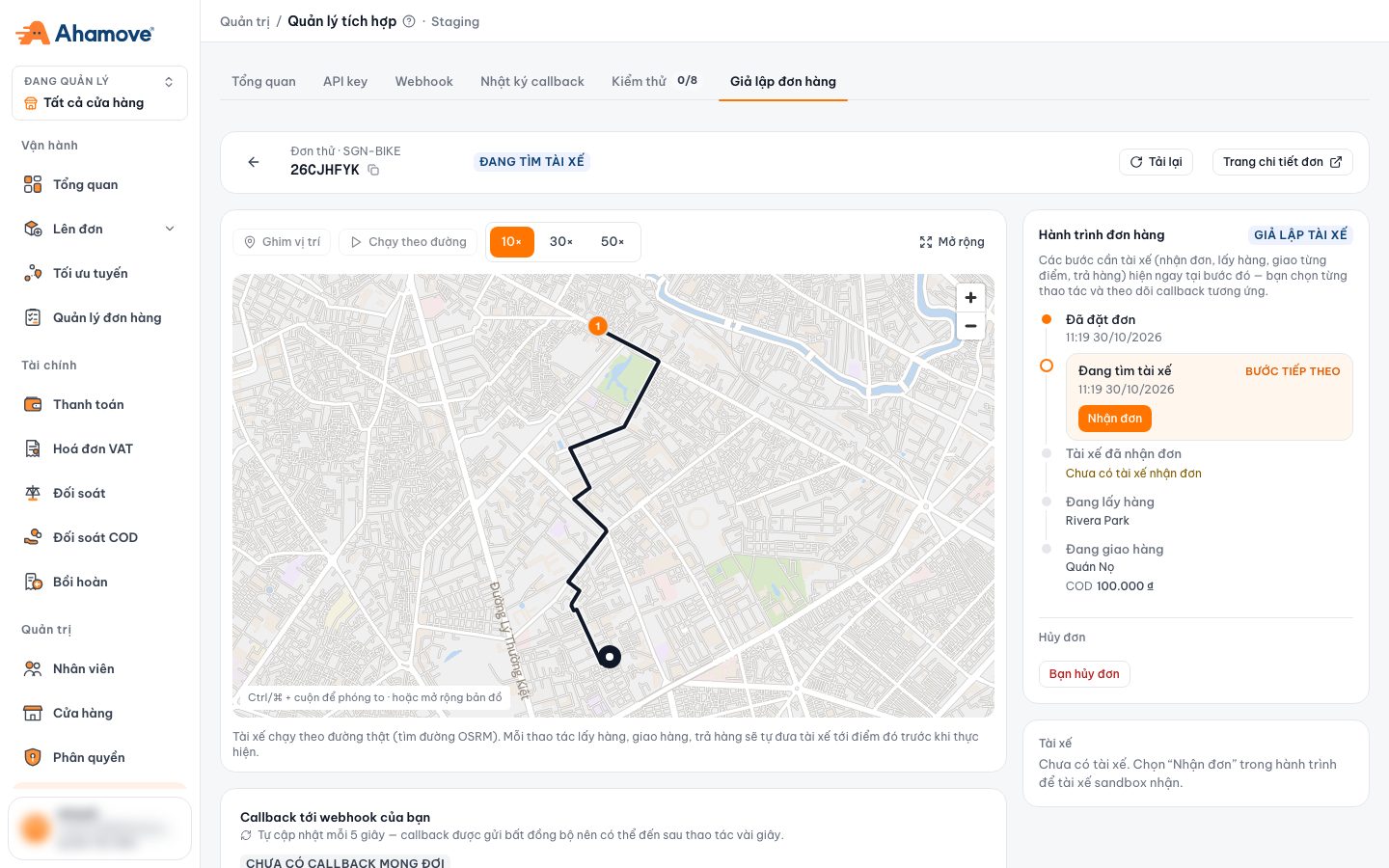
- Back to the test order list
- Current order status
- Tải lại (Reload) order data
- Open the order details page
- Ghim vị trí (Pin location): click the map to place the driver
- Drive the driver to the next point
- Driving speed 10× · 30× · 50×
- Simulated position or the real position sent to the system
- Mở rộng (Expand) the map
- Next step and its actions
- Driver currently on the order
- Map: the driver follows real roads. Every pickup, delivery or return action moves the driver to that point first, so you do not have to click Chạy tới… (Drive to…) yourself. Use Ghim vị trí (Pin location) when you want to place the driver somewhere specific to test location callbacks.
- Hành trình đơn hàng (Order journey): the order's steps in sequence, with one step per delivery point. The waiting step is labelled BƯỚC TIẾP THEO (Next step) and carries the action buttons. The Hủy đơn (Cancel) section at the bottom has Tài xế hủy (Driver cancels) and Bạn hủy đơn (You cancel).
- Below the map: the Callback tới webhook của bạn (Callbacks to your webhook) section, point details, payment details, goods and the order creator.
Driver actions
| Action | Shown when | Result | Expected callback |
|---|---|---|---|
| Nhận đơn (Accept) | The order is looking for a driver | Pick a driver (see below); the order is assigned directly to that driver | status=ACCEPTED (sent about 1 second late by design) |
| Ghép chuyến 1-1 (Pool 1-1) | A pooled order (e.g. SGN-2H) awaiting driver | Pools the order into an SGN-POOL trip first, then the order can be accepted | Follows the pooled trip |
| Đến nơi (Arrived) | The driver has accepted | The driver arrives at the pickup point | sub_status=ARRIVED, only sent if you enabled ARRIVED in support_sub_status |
| Đã lấy hàng (Picked up) | The driver has accepted | The order moves to Đang giao hàng (Delivering) | status=IN PROCESS |
| Giao thành công (Delivered) | Each delivery point, after pickup | That point becomes Đã giao hàng (Delivered) | path[i].status=COMPLETED (per-point callback, _id like ORDERID-i) |
| Giao thất bại (Delivery failed) | Each delivery point, after pickup | Pick a reason. That point becomes Giao hàng không thành công (Failed); if the goods must go back (e.g. a point with COD), the order moves to Đang hoàn hàng về điểm lấy (Returning to pickup) | path[i].status=FAILED with the reason |
| Đã nhận hàng trả (Return received) | The order is returning | Goods are back at the pickup point; the order ends | sub_status=RETURNED (always sent, no opt-in needed) |
| Tài xế hủy (Driver cancels) | Driver accepted, before pickup | Pick a reason. The order looks for a new driver, or is cancelled if the service does not allow re-assignment | status=ASSIGNING (or CANCELLED) |
| Bạn hủy đơn (You cancel) | Before pickup | Pick a reason. The order is cancelled with you (the partner) as the canceller | status=CANCELLED |
When the last delivery point is done (delivered or failed), the order also sends status=COMPLETED.
status=COMPLETED only means the driver has handled every point. The result of each point is in path[i].status (COMPLETED or FAILED). Your system must read each point to know which ones were delivered.
Choosing a driver on Nhận đơn (Accept). The dialog has 3 tabs:
| Tab | Use when |
|---|---|
| Tài xế sandbox (Sandbox driver) | Default. A driver Ahamove provides for testing, labelled Có thể nhận đơn này (Can take this order) |
| Nhập số điện thoại (Enter phone number) | Assign to your team's Staging driver. The driver must have the order's service enabled (or the trip's, for pooled orders), not be locked, and have an operating city |
| Tài xế gần điểm lấy (Drivers near pickup) | Drivers with this service within 20 km of the pickup point who sent a location in the last 7 days |
With a real driver, the order appears in their Staging driver app and they can continue from the app.
Checking callbacks
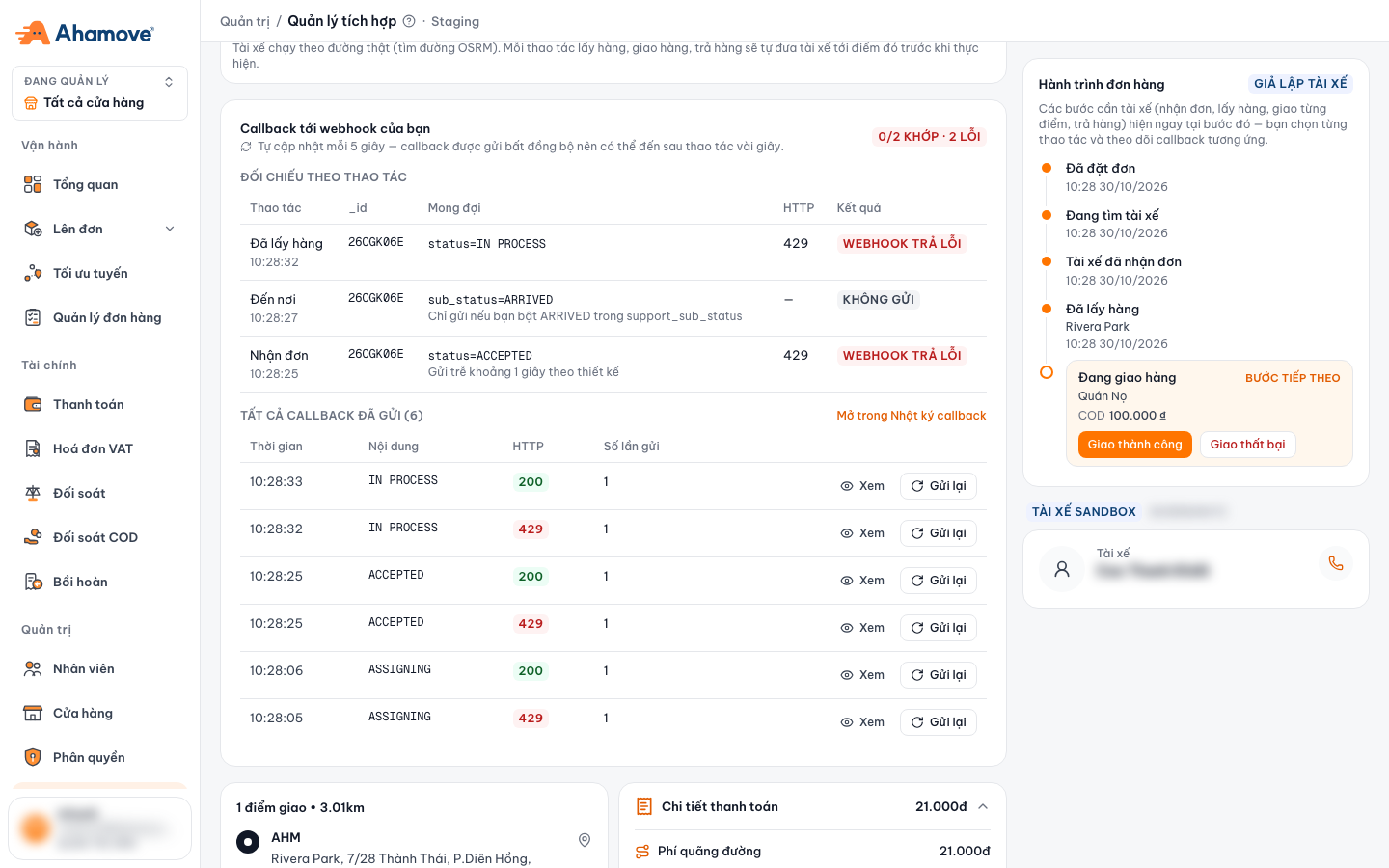
- Refreshes every 5 seconds
- Summary: matched · pending · errors
- Expected callback for the action
- Note: when the callback is sent
- Check result
- Every callback sent for this order
- Open in the Callback log
- HTTP code your webhook returned
- Xem (View) the sent content and response
- Gửi lại (Resend) the callback
Callbacks are sent asynchronously and can arrive a few seconds after the action. This section refreshes every 5 seconds.
Đối chiếu theo thao tác (Per-action check): each action you click is one row, with the time, _id (the order ID, or ORDERID-i for per-point callbacks), the Mong đợi (Expected) value, the HTTP code and the Kết quả (Result):
| Result | Meaning |
|---|---|
| Khớp (Matched) | Your webhook received the expected callback and returned 2xx |
| Đang chờ… (Pending) | The callback has not arrived yet; wait a few seconds |
| Webhook trả lỗi (Webhook error) | The callback was sent but your endpoint returned a non-2xx code (e.g. 429, 503) or no response (0) |
| Không gửi (Not sent) | This action does not produce a callback with your current settings (e.g. ARRIVED not enabled) |
Tất cả callback đã gửi (All sent callbacks): every call Ahamove made to your webhook, with the time, content (e.g. ACCEPTED, Điểm 1: COMPLETED, COMPLETED · RETURNED), HTTP code and number of attempts. Each registered endpoint gets its own callback, so with 2 webhooks you see 2 rows for the same status.
- Xem (View): opens Chi tiết callback (Callback details) with the time, sent status, attempt count, the Yêu cầu (Request) tab (endpoint, headers, payload) and the Phản hồi (Response) tab (exactly what your endpoint returned). Sensitive values such as
Authorizationorapi_keyare masked. - Gửi lại (Resend), or Thử lại (Retry) in the callback details: sends the same content to that endpoint again right now. Use it after fixing your endpoint.
- Mở trong Nhật ký callback (Open in Callback log): shows the order's callbacks in the Callback log.
Interactive walkthrough
Click the flashing box to run one instant-delivery round: accept, pick up, deliver, then check the callback. Screenshots come from a sample order on Staging.
Running a scenario
To test point-by-point delivery, create an order with 2 or more delivery points. To test a return, give a delivery point a COD amount.
For example: Đến nơi (Arrived) → Đã lấy hàng (Picked up) → Giao thành công (Delivered) at point 1 → Giao thất bại (Delivery failed) at point 2. For Delivery failed, Driver cancels and You cancel, pick a reason and click Xác nhận (Confirm); the reason is included in the callback.
On Webhook trả lỗi (Webhook error), click Xem (View) to read the response, fix your endpoint, then click Gửi lại (Resend).
Tài xế hủy (Driver cancels) and Bạn hủy đơn (You cancel) only show before Đã lấy hàng (Picked up). To test both cancelling and delivering, use separate orders (after Driver cancels the order goes back to looking for a driver, so you can accept it again and continue on the same order).
The payload contains recipient data, and headers may contain credentials. Do not take screenshots of them or share them verbatim outside your team.
Who can use this page?
Creating or revoking API keys and changing webhook endpoints requires the Thao tác (Manage) permission on the Integrations page. See Roles & permissions.