Create a standard order
| Method | Best when | See |
|---|---|---|
| Create orders via the API | Your system (online store, OMS, WMS…) pushes orders to Ahamove automatically | Ahamove API · Integrations |
| Create orders on the Business Portal | Staff create orders by hand, one-off orders, or you have not integrated the API yet | This page |
Both methods use the same business account: orders created either way appear in Order management and are charged to the same wallet.
Open Lên đơn (Create order) in the left menu and you will see 3 items: Đơn thường (Standard order), Truck B2B — Doanh nghiệp (Truck B2B — Business) and Mẫu lên đơn (Order templates). Not sure which one to use? Answer the 2 questions below:
Đơn thường (Standard order) is for delivery by motorbike or small truck. The price appears as soon as you finish entering the route.
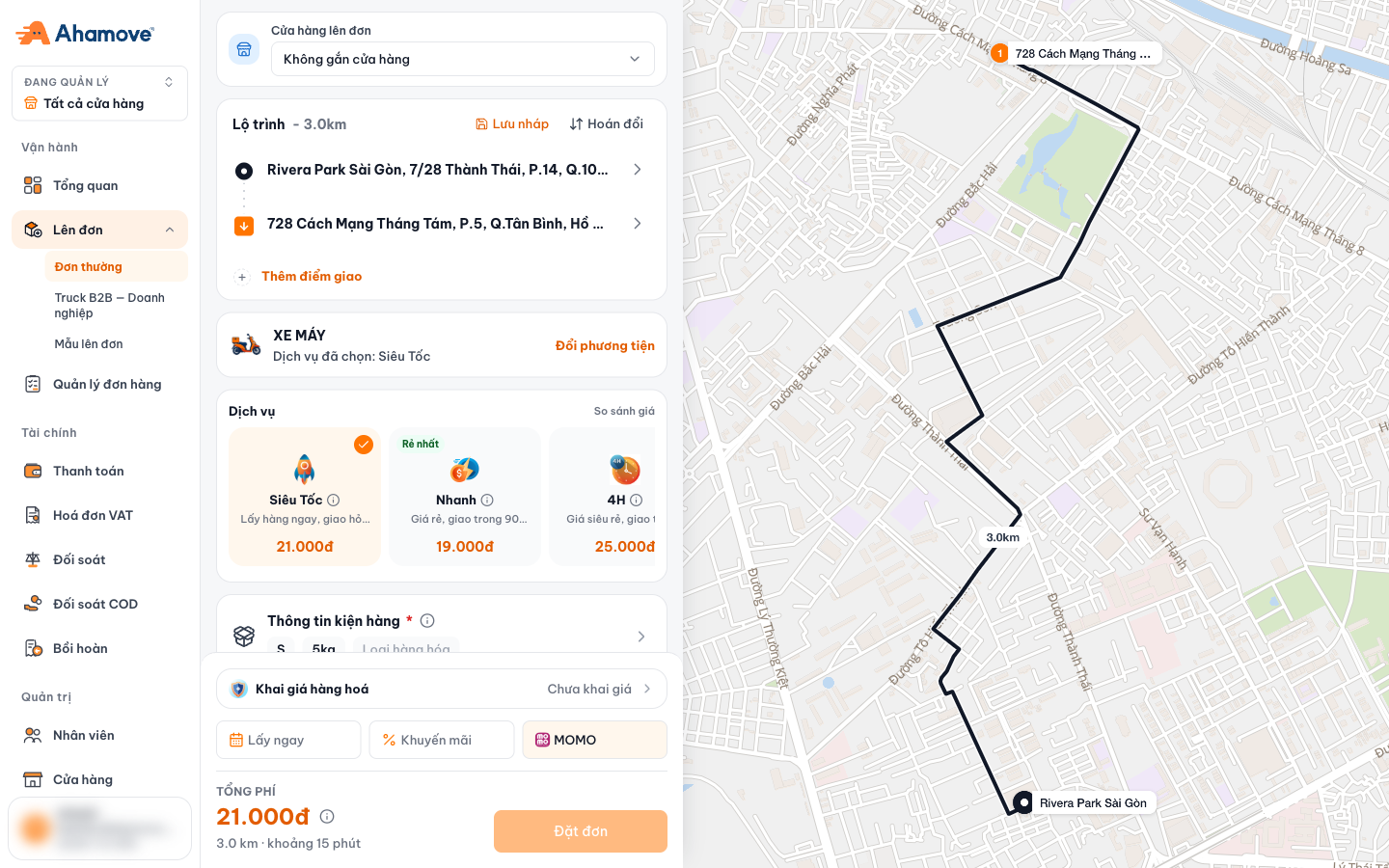
- Ordering store: links the order to a branch
- Add a drop-off point to deliver to several places in one trip
- Save the route you are entering as a draft
- Swap the pickup and drop-off points
- Change vehicle (motorbike, truck…)
- Choose a service package; the price shows on each card
- Package details (required)
- Declared goods value
- Pick up now or schedule a pickup
- Payment method
- Total fee, distance, estimated time and the Đặt đơn (Create order) button
Interactive walkthrough
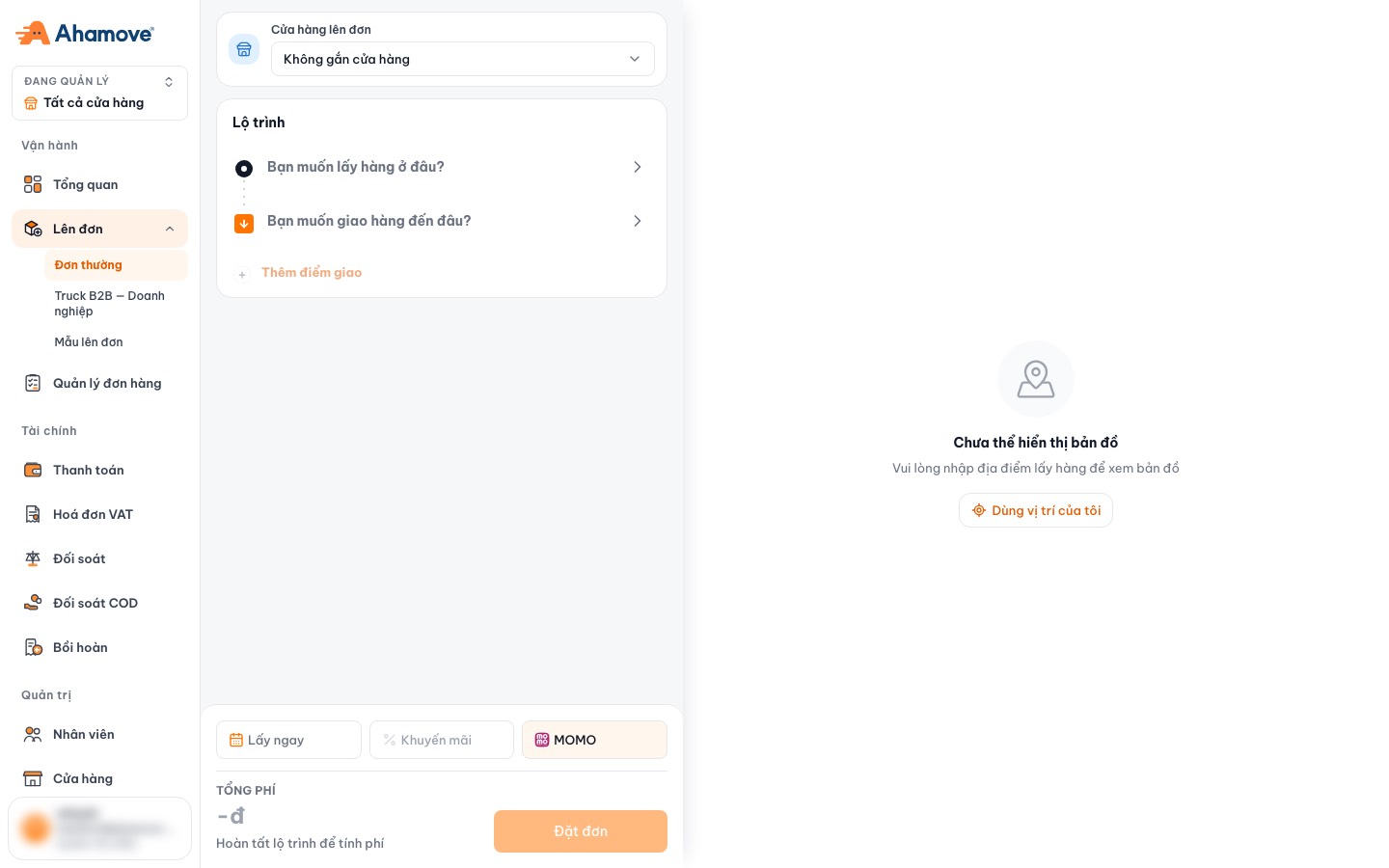
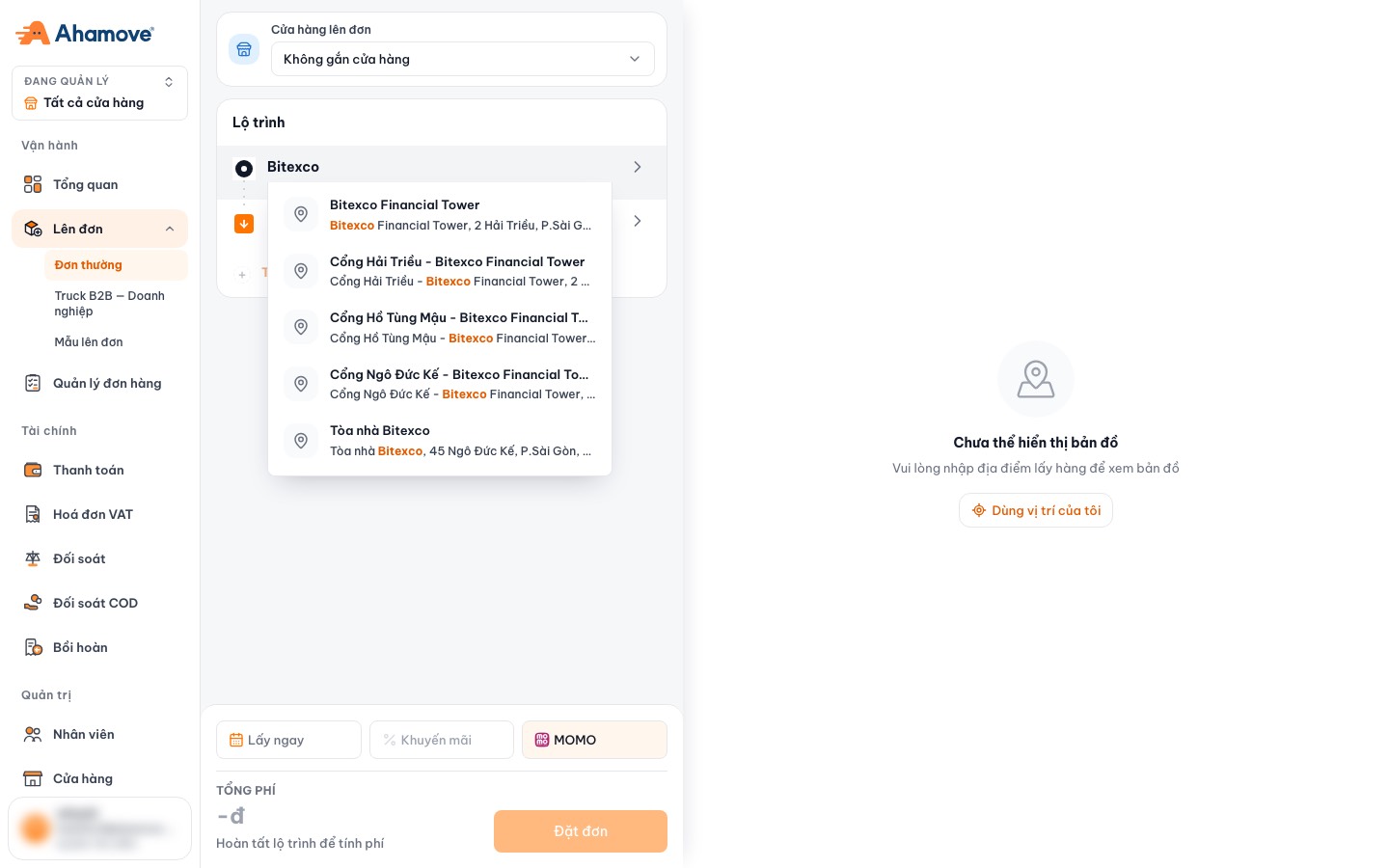
Follow each step right on the screenshots below to place a test motorbike delivery order. Click the flashing box to go to the next step. Each part is explained in detail under Steps.
Steps
Ordering store
The first field sets which chi nhánh (branch) this order belongs to. Choose Không gắn cửa hàng (No store) if it is a company order that does not belong to any branch.
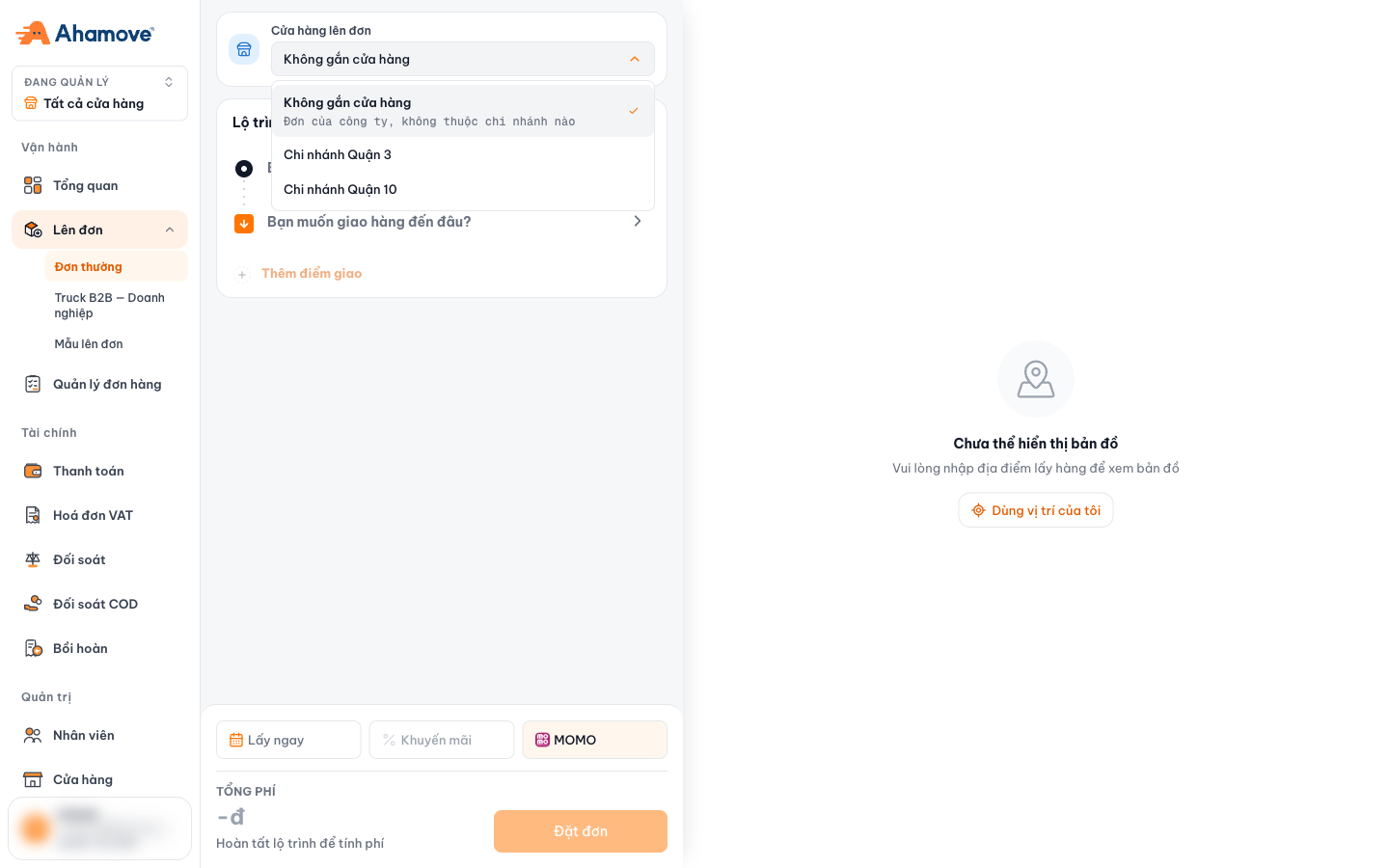
Orders linked to a store are counted in that branch's figures when you switch the Đang quản lý (Managing) selector to that branch. See Stores.
Step 1: Enter the route
Type an address into Bạn muốn lấy hàng ở đâu? (Where do you want to pick up?) and choose a suggestion. Do the same for Bạn muốn giao hàng đến đâu? (Where do you want to deliver?). The map on the right draws the route and distance.
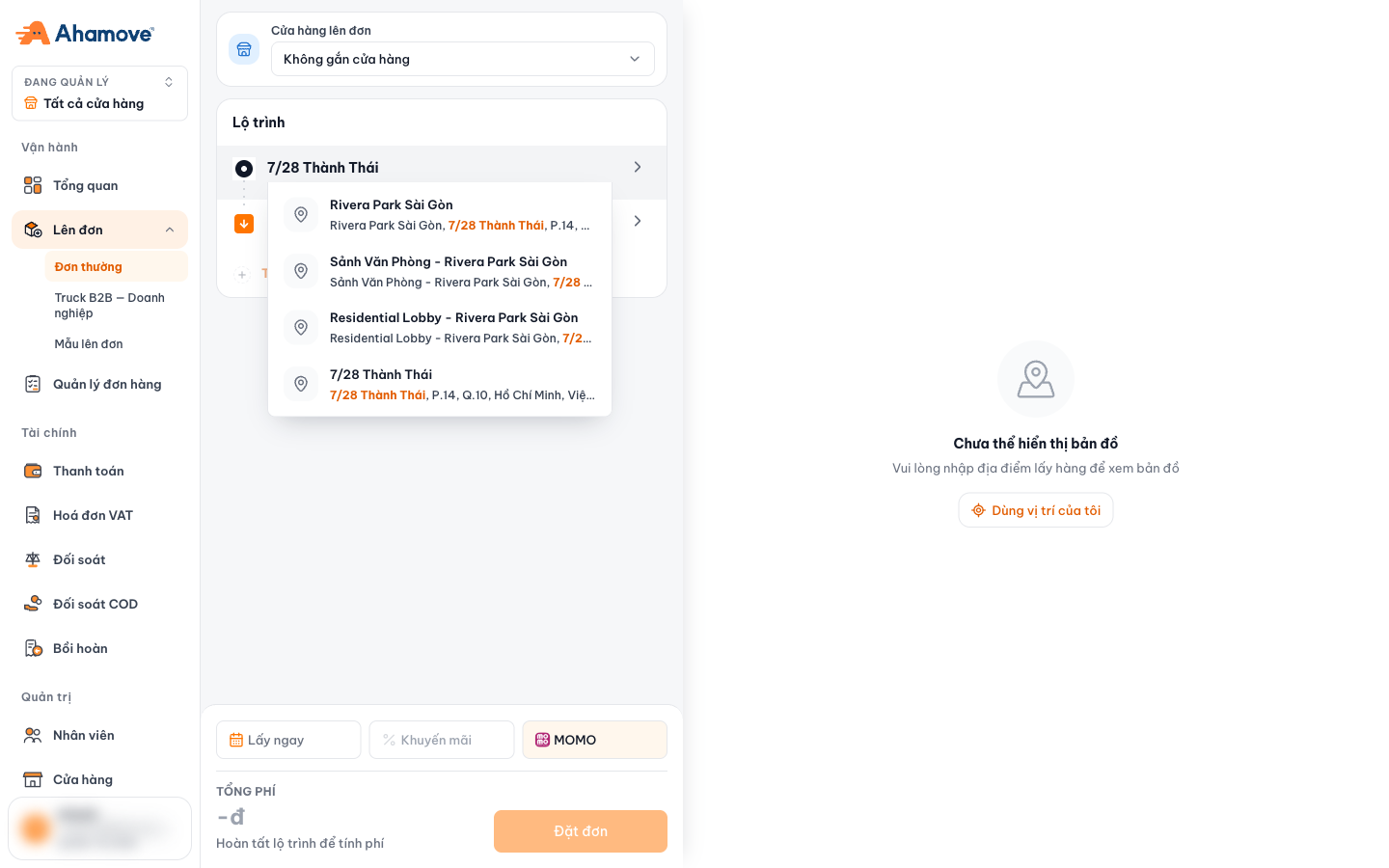
- Need to deliver to several places in one trip? Click + Thêm điểm giao (Add drop-off point) (enabled once a pickup point is set).
- The portal remembers your last pickup point and fills it in the next time you open Lên đơn.
- The Dùng vị trí của tôi (Use my location) button on the map uses your current location as the pickup point.
Recipient details
As soon as you choose the drop-off point, the Thông tin người nhận (Recipient details) dialog opens automatically. To edit it later, click the › arrow at the end of the drop-off row.
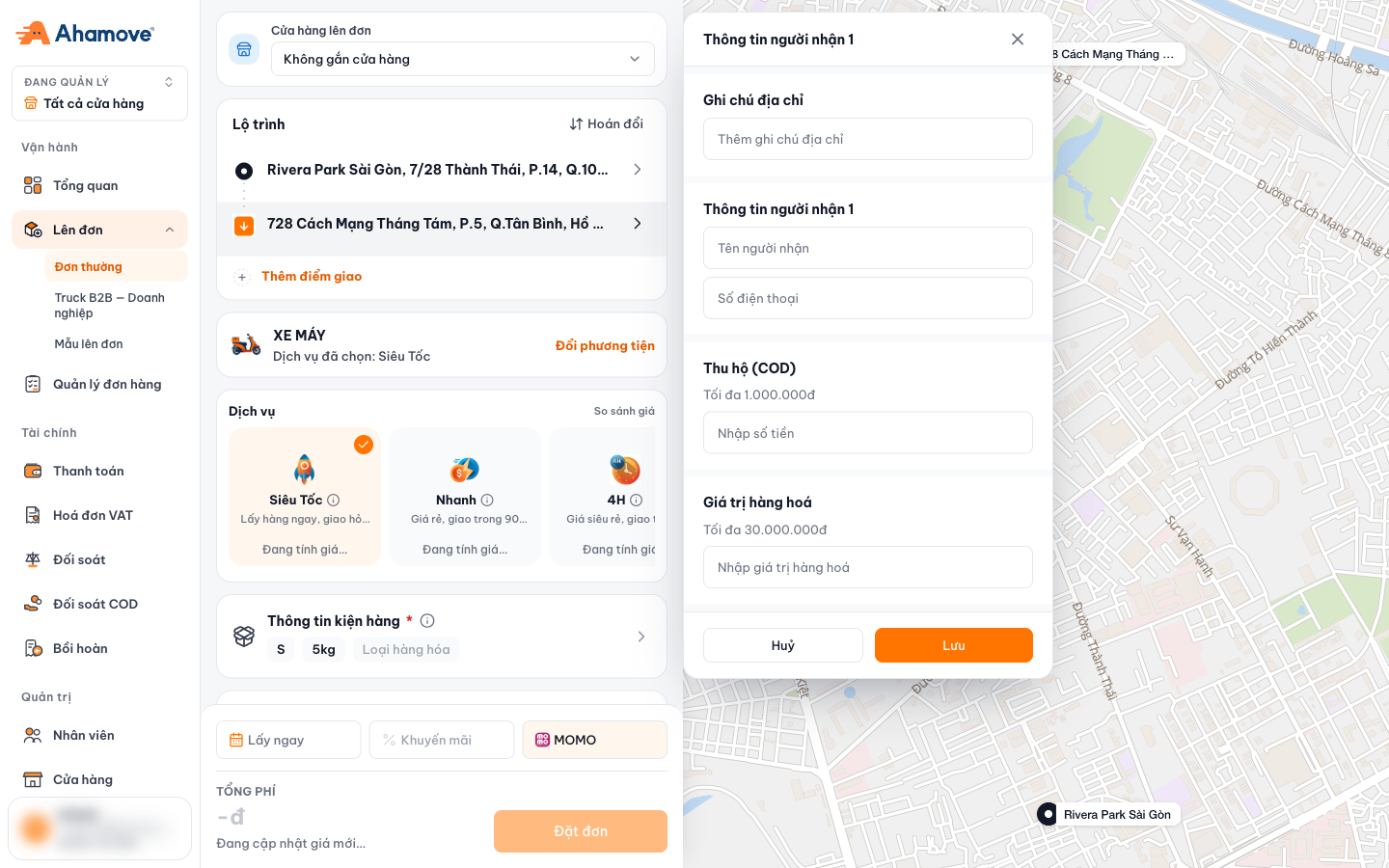
| Field | Used for | Limit |
|---|---|---|
| Ghi chú địa chỉ (Address note) | Extra directions for the driver (floor, gate…) | |
| Recipient name and phone number | So the driver can contact the recipient on delivery | |
| Thu hộ (COD) (Cash on delivery) | Amount the driver collects at the drop-off point. Track it in COD reconciliation | Up to 1.000.000đ |
| Giá trị hàng hoá (Goods value) | Value of the goods at this point | Up to 30.000.000đ |
Step 2: Change vehicle
The default is Xe máy (Motorbike). Click Đổi phương tiện (Change vehicle) if you need a larger vehicle.
Step 3: Choose a service
The price shows on each card. The cheapest card is labeled Rẻ nhất (Cheapest). Click So sánh giá (Compare prices) to see the packages side by side.
| Package (motorbike) | Description on the portal | Best when |
|---|---|---|
| Siêu Tốc (Bike) | Immediate pickup, express delivery | Urgent goods, customer is waiting |
| Nhanh (Eco) | Low price, delivered within 90 minutes | Same-day delivery, moderately fast |
| 4H | Very low price, delivered within 4 hours at most | Not urgent, you want to save money |
Step 4: Package details & special requests
Click Thông tin kiện hàng (Package details) (required) to choose the size, weight and goods type.
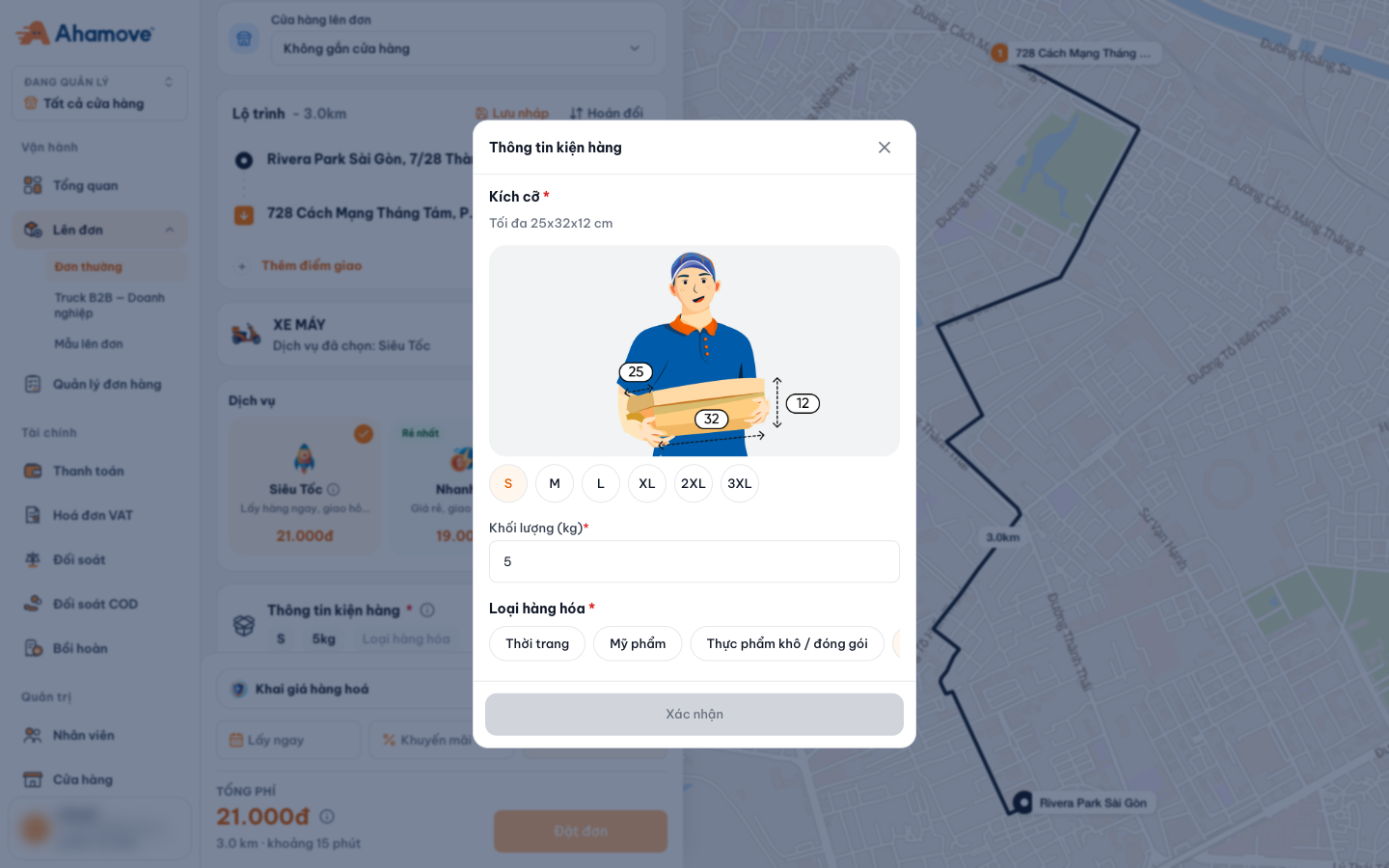
- Kích cỡ (Size): S, M, L, XL, 2XL, 3XL. Each size shows its maximum dimensions, for example S is up to 25×32×12 cm.
- Khối lượng (Weight) (kg).
- Loại hàng hoá (Goods type): Thời trang (Fashion), Mỹ phẩm (Cosmetics), Thực phẩm khô / đóng gói (Dry / packaged food), Khác (Other).
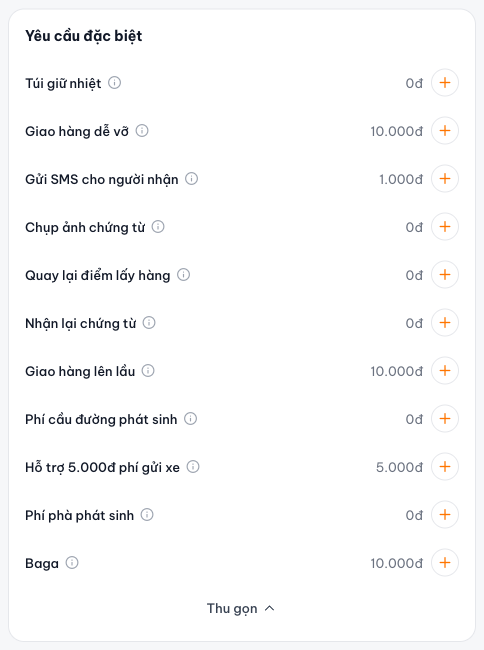
Below that is Yêu cầu đặc biệt (Special requests): add-on services, each row showing its surcharge. Click + on the row you want to add. By default the list shows only a few rows; click Xem thêm (See more) to show all of them and Thu gọn (Collapse) to hide some. Click the ⓘ icon next to a name to see an explanation.
Step 5: Declared goods value
Click the Khai giá hàng hoá (Declared goods value) row (default Chưa khai giá (Not declared)) to declare the value, so you can be compensated if the goods are damaged or lost.
Step 6: Scheduled pickup (optional)
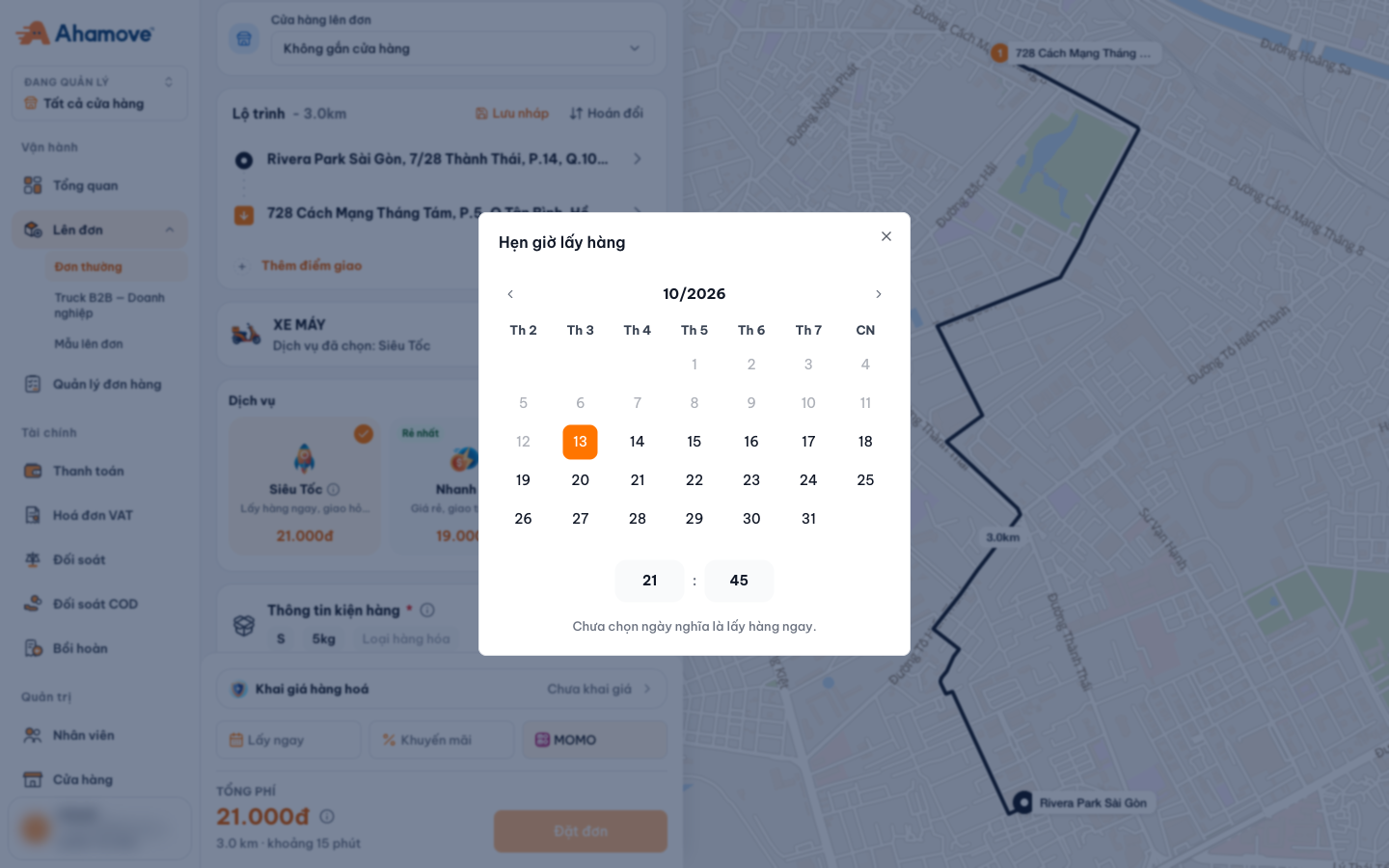
The Lấy ngay (Pick up now) button opens the Hẹn giờ lấy hàng (Scheduled pickup) calendar: choose a date and time (in 5-minute steps). If you do not choose a date, the goods are picked up immediately. A scheduled order stays in the Chờ hẹn giờ (IDLE) status until the scheduled time.
Step 7: Choose a payment method
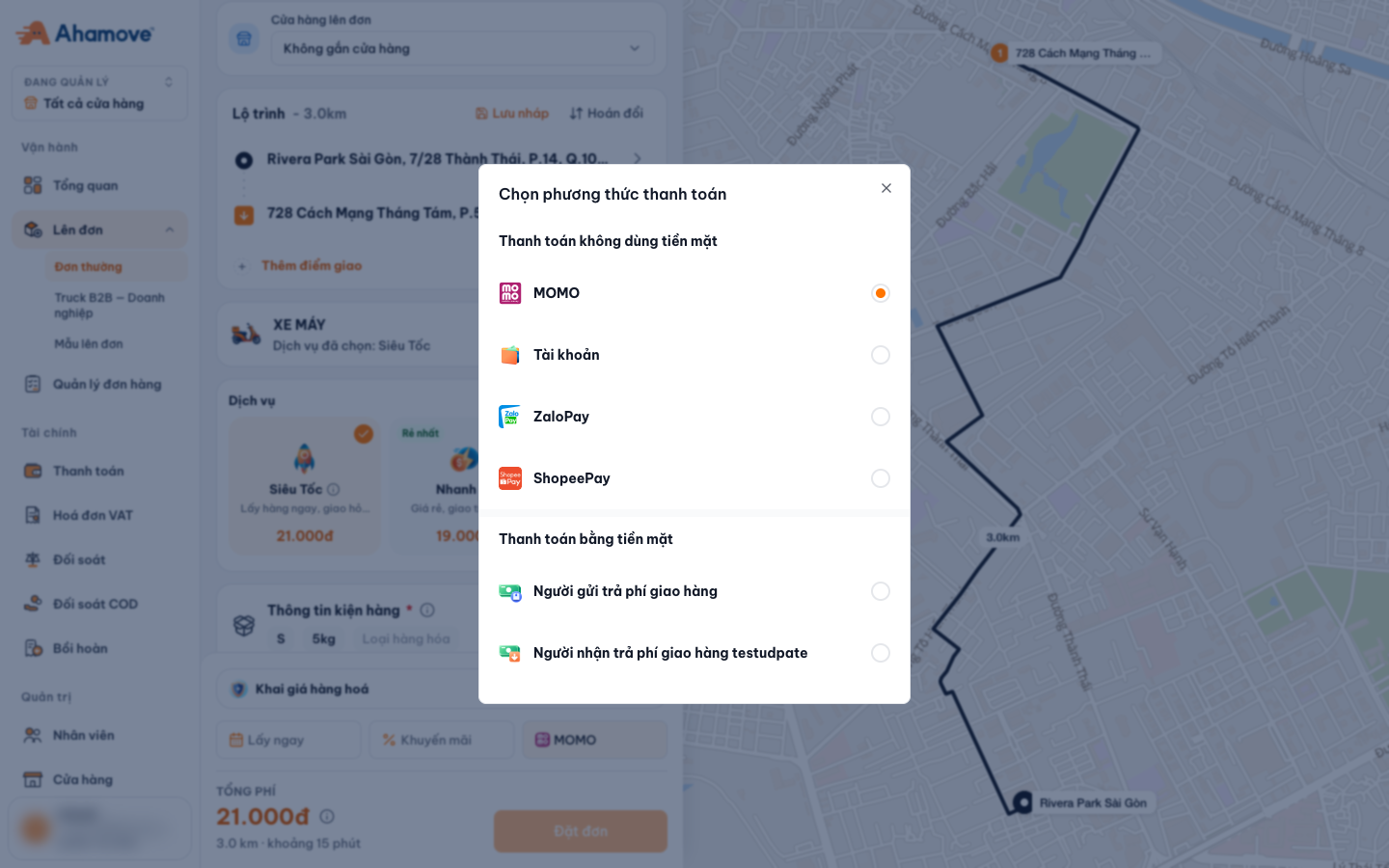
Click the payment button (shows MOMO by default) to change it:
| Group | Options |
|---|---|
| Cashless | MOMO, Tài khoản (charged to the company wallet), ZaloPay, ShopeePay |
| Cash | Người gửi trả phí (Sender pays) or Người nhận trả phí (Recipient pays) |
Orders paid with Tài khoản (company account balance) are charged directly to the company wallet and appear in Transaction history and in the Reconciliation statement.
The Khuyến mãi (Promotion) button is enabled once the route is complete.
Step 8: Check the total fee and click Đặt đơn (Create order)
Tổng phí (Total fee) is shown with the distance and estimated time (e.g. 3.0 km · khoảng 15 phút (about 15 minutes)). Click Đặt đơn (Create order). The order appears in Order management.
Tips
- Lưu nháp (Save draft) (next to the Lộ trình (Route) heading): keeps a half-entered route so you can come back and finish it.
- Hoán đổi (Swap): reverses the pickup and drop-off points. Handy for booking a return trip.
Frequently asked questions
The Đặt đơn (Create order) button is grayed out? Check that you have a pickup point, a drop-off point and Thông tin kiện hàng (Package details).
Paying with Tài khoản but the balance is too low? Go to Payments to top up, or choose another method.
Want to cancel the order? Open the order in Order management.