Order management
The Danh sách đơn hàng (Order list) page is where you look up every order you have created. It is also the first screen you see after signing in.
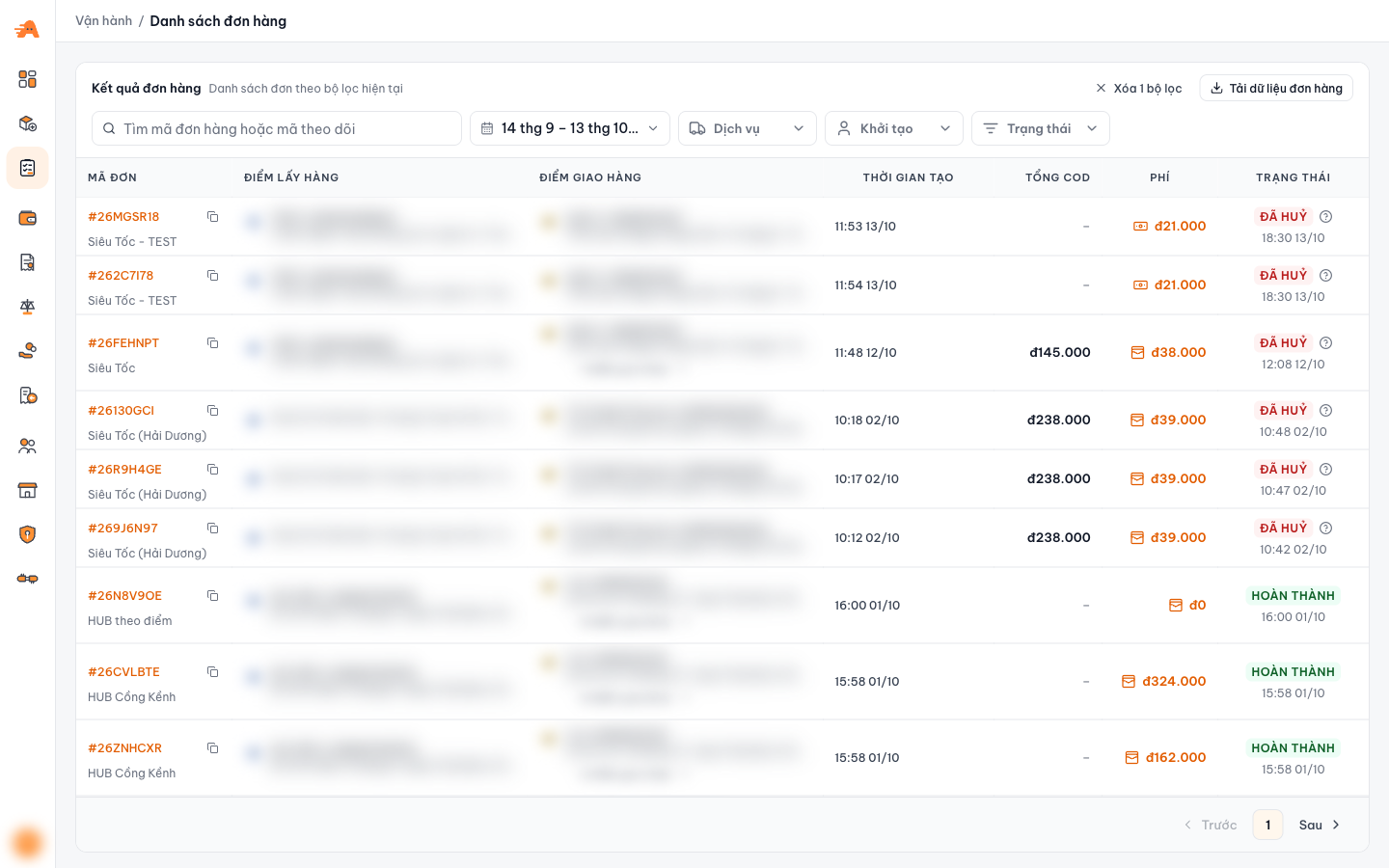
- Search by order ID or tracking code
- Order creation date range
- Filter by service
- Filter by creator
- Filter by status
- Clear active filters
- Download order data
- Copy order ID
- Hover to see the cancellation reason
Find an order
- Quick search by order ID or tracking code.
- Filter by date range, service, creator, and status. Click Xoá bộ lọc (Clear filters) to go back to the defaults.
- Want to see a branch's orders? Change the Đang quản lý (Managing) box in the left menu. See Managing.
By default, each person only sees their own orders. You need the Xem đơn của toàn công ty (View company-wide orders) permission to see orders created by others. See Roles & permissions.
Information in each row
| Column | Content |
|---|---|
| Mã đơn (Order ID) | Order ID (click the icon to copy) and service name |
| Điểm lấy hàng (Pickup point) | Sender's name, phone number, and address |
| Điểm giao hàng (Drop-off point) | First recipient, plus "+N điểm giao khác" (+N other drop-off points) if the order has multiple points |
| Thời gian tạo (Created at) | When the order was created |
| Tổng COD (Total COD) | Total cash on delivery amount for the order |
| Phí (Fee) | Delivery fee |
| Trạng thái (Status) | Current status and when it was last updated |
Order statuses
The Trạng thái (Status) filter has 8 options. Click each status in the diagram to see what it means, what you need to do, and what happens to the money.
- What it means
- The system is offering the order to drivers near the pickup point.
- What you should do
- Wait. If nobody accepts for too long, the order is cancelled automatically. Peak hours and remote areas usually take longer.
- Money
- If paid by "Tài khoản" (company account): the fee was charged when ordering.
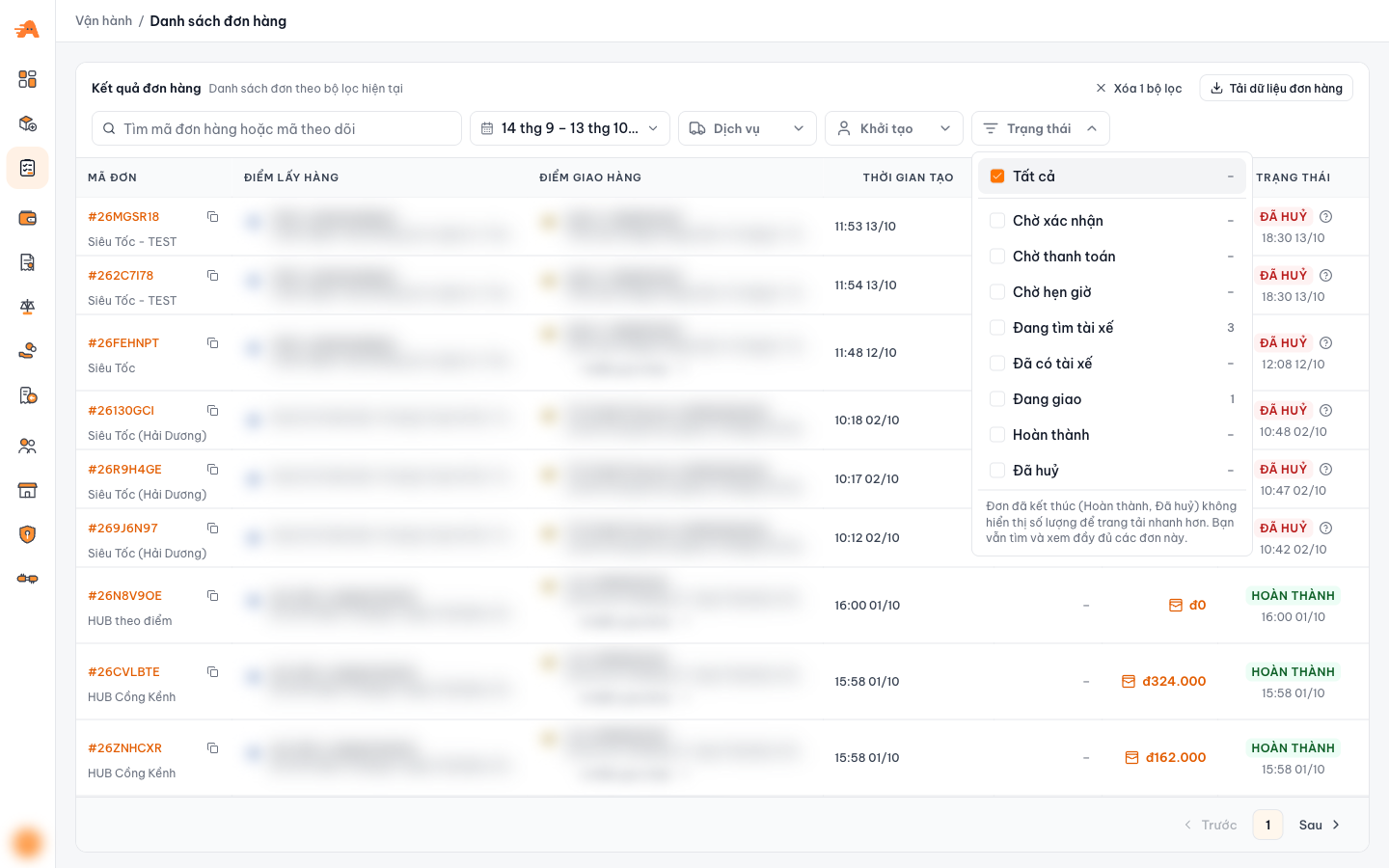
The filter shows the number of orders currently in that status. Only Hoàn thành (COMPLETED) and Đã huỷ (CANCELLED) do not show a number, so the page loads faster; you can still filter and view them in full.
Order details
Click a row to open the order details.
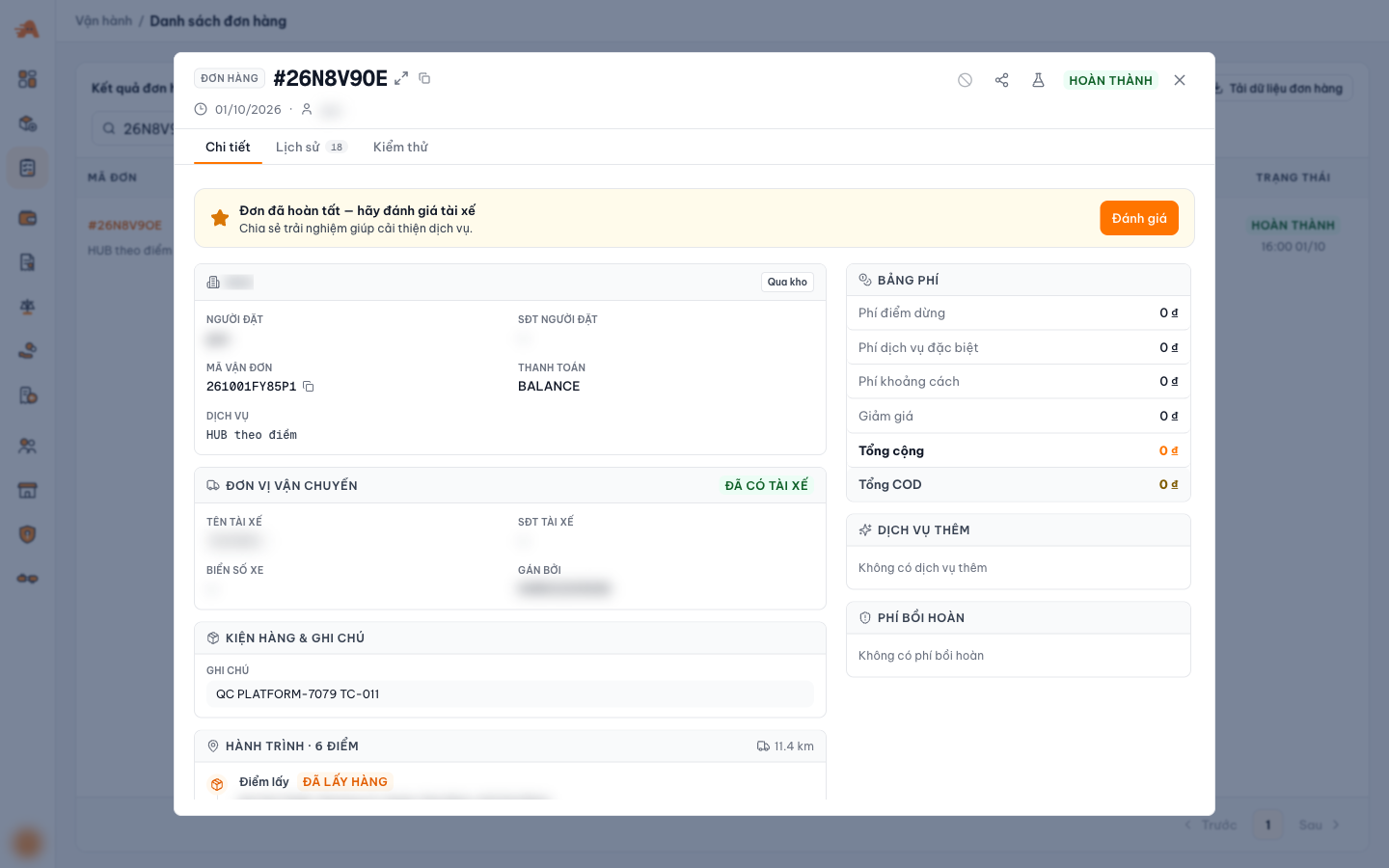
- Expand to full screen · copy order ID
- Huỷ đơn (Cancel order), greyed out when the order can no longer be cancelled
- Chia sẻ link theo dõi (Share tracking link)
- Giả lập đơn hàng (Order simulator), Staging only
- Order status
- 3 tabs: Chi tiết (Details) · Lịch sử (History) · Giả lập đơn hàng (Order simulator)
- Rate the driver once the order is finished
- Đơn vị vận chuyển (Carrier): driver, license plate, assigned by
- Bảng phí (Fee table): stop fee, special services, distance, discount, total COD
- Phí bồi hoàn (Reimbursement fee), if any
- Hành trình (Route): status of each point
Buttons in the top-right corner:
| Button | Used to |
|---|---|
| ⊘ Huỷ đơn (Cancel order) | Cancel the order. The button is greyed out when the order is in a status that cannot be cancelled (e.g. already Hoàn thành (COMPLETED)) |
| Chia sẻ link theo dõi (Share tracking link) | Get a link so the recipient can follow the order's route |
| Giả lập đơn hàng (Order simulator) | Open the Giả lập đơn hàng (Order simulator) tab (Staging only) |
| Section | Content |
|---|---|
| Thông tin đơn (Order information) | Orderer, waybill code, payment method, service |
| Đơn vị vận chuyển (Carrier) | Driver's name and phone number, license plate, assigned by |
| Kiện hàng & ghi chú (Packages & notes) | Order notes |
| Hành trình · N điểm (Route · N points) | Each point with its status: pickup point Đã lấy hàng (Picked up), drop-off point Đã giao (Delivered) or Thất bại (Failed) |
| Bảng phí (Fee table) | Phí điểm dừng (Stop fee) · Phí dịch vụ đặc biệt (Special service fee) · Phí khoảng cách (Distance fee) · Giảm giá (Discount) · Tổng cộng (Total) · Tổng COD (Total COD) |
| Dịch vụ thêm (Add-on services) | The special requests that were selected |
| Phí bồi hoàn (Reimbursement fee) | Reimbursement amounts incurred on the order. Approve them in Reimbursement |
A multi-point order moves to Hoàn thành (COMPLETED) once the driver has finished handling every point, including points marked Thất bại (Failed) (recipient absent, wrong address…). Always check the Hành trình (Route) section to see the result of each point.
History tab
A timeline of every event on the order, from creation to the end. Use it when you need to know what happened, when, and by whom, for example when a customer asks why an order was delivered late or why a point failed.
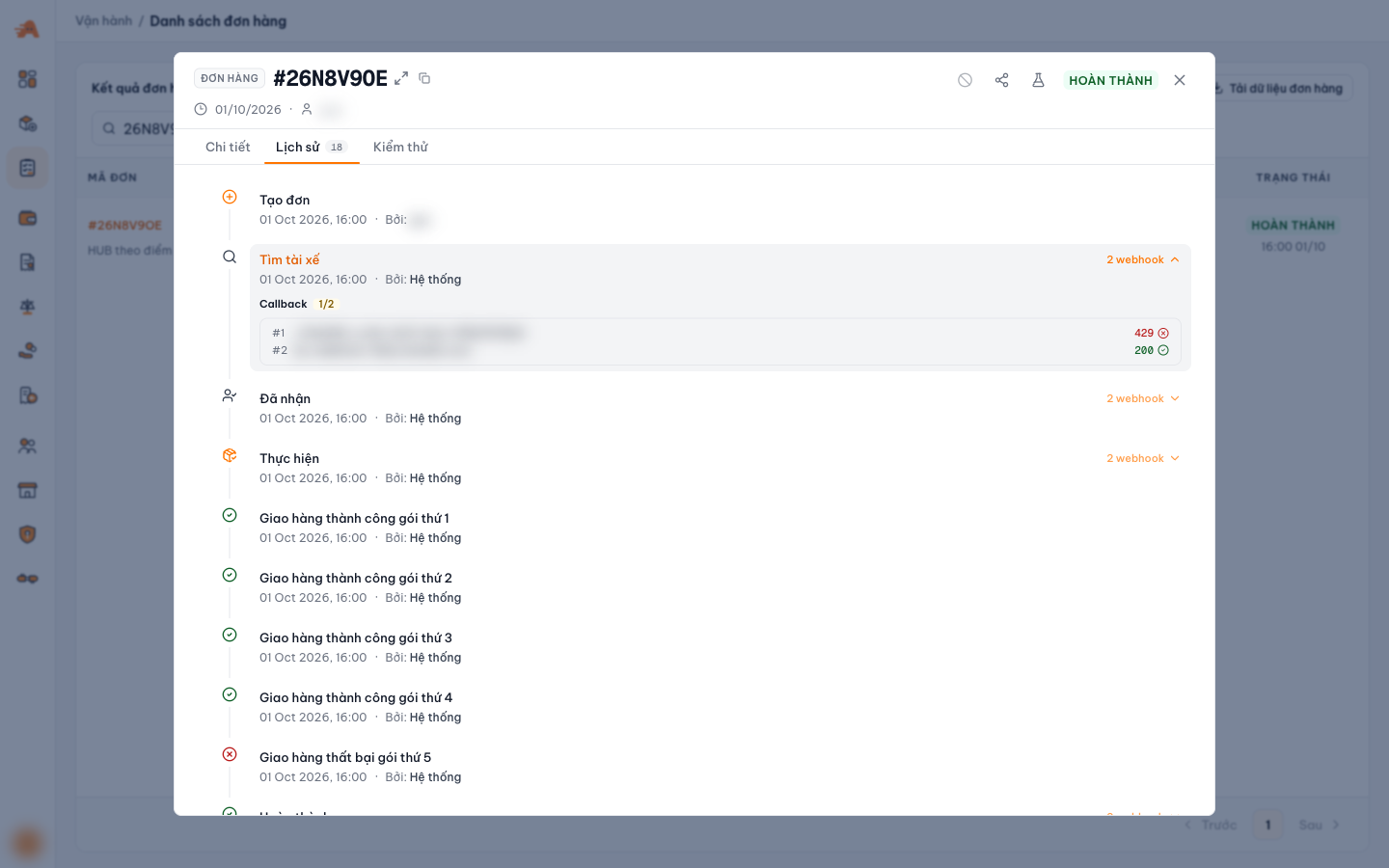
- Number next to the tab name = number of events + number of webhook sends
- Icon by event type: green means success, red means failure
- Time and actor (the orderer or Hệ thống (System))
- Click "N webhook" to see the callbacks sent at this step
- Result per endpoint: response code 200 / 429…
- Events for each drop-off point (package N)
Each event shows the event name, the time, and Bởi (By): the orderer's name (for the Tạo đơn (Create order) step) or Hệ thống (System) (for automated steps).
| Event | Meaning | Matching order status |
|---|---|---|
| Tạo đơn (Create order) | The order was created (on the portal or via the API) | — |
| Tìm tài xế (Find driver) | The system starts looking for a driver | Đang tìm tài xế (ASSIGNING) |
| Đã nhận (Accepted) | A driver accepted the order | Đã có tài xế (ACCEPTED) |
| Thực hiện (In progress) | The driver picked up the goods and started delivering | Đang giao (IN PROCESS) |
| Giao hàng thành công gói thứ N (Package N delivered) | Drop-off point N has been delivered | — |
| Giao hàng thất bại gói thứ N (Package N failed) | Drop-off point N could not be delivered | — |
| Hoàn thành (COMPLETED) | The driver has finished handling every point | Hoàn thành (COMPLETED) |
Webhooks at each step. Each step where Ahamove sent a callback has an N webhook label (N = number of registered endpoints). Click the label to expand it:
- Callback x/N: number of endpoints that received it successfully out of the total, e.g. 1/2 means 1 of 2 endpoints received it successfully.
- Each endpoint #1, #2… with its response code:
200means received successfully; any other code (e.g.429) means the endpoint rejected it.
- Late delivery? Compare the times between Tìm tài xế (Find driver) → Đã nhận (Accepted) (waiting for a driver) and Thực hiện (In progress) → Giao hàng thành công (Delivered) (delivery time).
- A point failed? Find the Giao hàng thất bại gói thứ N (Package N failed) line, then match it with point N in the Hành trình (Route) section of the Chi tiết (Details) tab.
- Your system is not receiving updates? Expand the webhook label at that step to see which code the endpoint returned. See the full data in the Callback log, or the Giả lập đơn hàng (Order simulator) on Staging.
Order simulator tab (Staging only)
For partners integrating the API: a shortcut to the Giả lập đơn hàng (Order simulator) tool, where you control a sandbox driver for this order (step by step, point by point) and check the callbacks sent to your webhook.
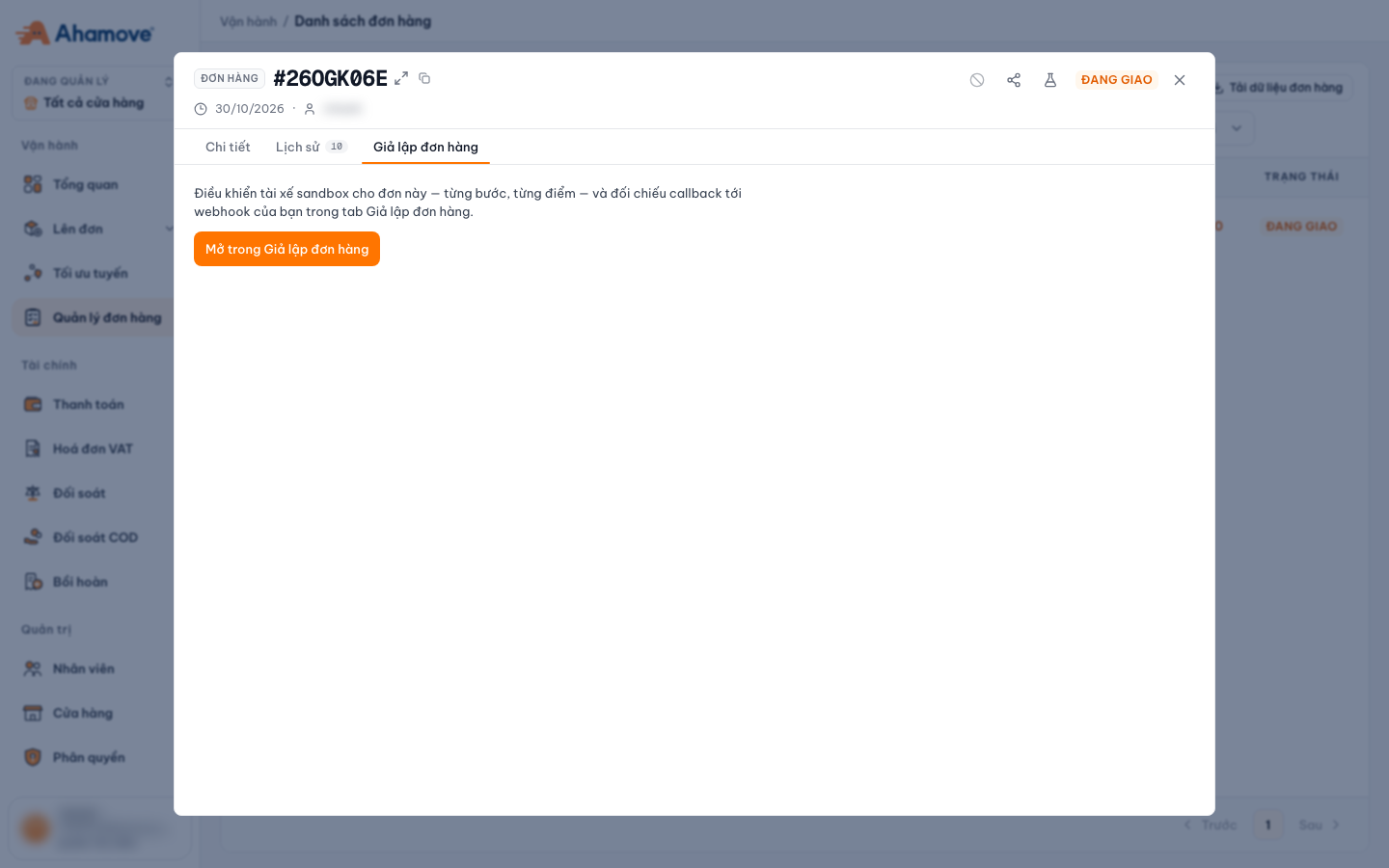
- Giả lập đơn hàng (Order simulator) icon
- Giả lập đơn hàng (Order simulator) tab
- Open this order in the Order simulator
Click Mở trong Giả lập đơn hàng (Open in Order simulator) to go to Integrations › Order simulator with the current order loaded. See Integrations › Order simulator for how to use it.
Orders and statuses here are test data and incur no charges.
To run the test cases required before go-live, see Integrations › Testing.
Export data
Click Tải dữ liệu đơn hàng (Download order data) in the right corner to export the order list using the current filters.
Sending the order file by email requires the Xuất danh sách đơn ra email (Export order list to email) permission. See Roles & permissions.