Staff
This page controls who can use the portal, which stores they work at and what role they hold there.
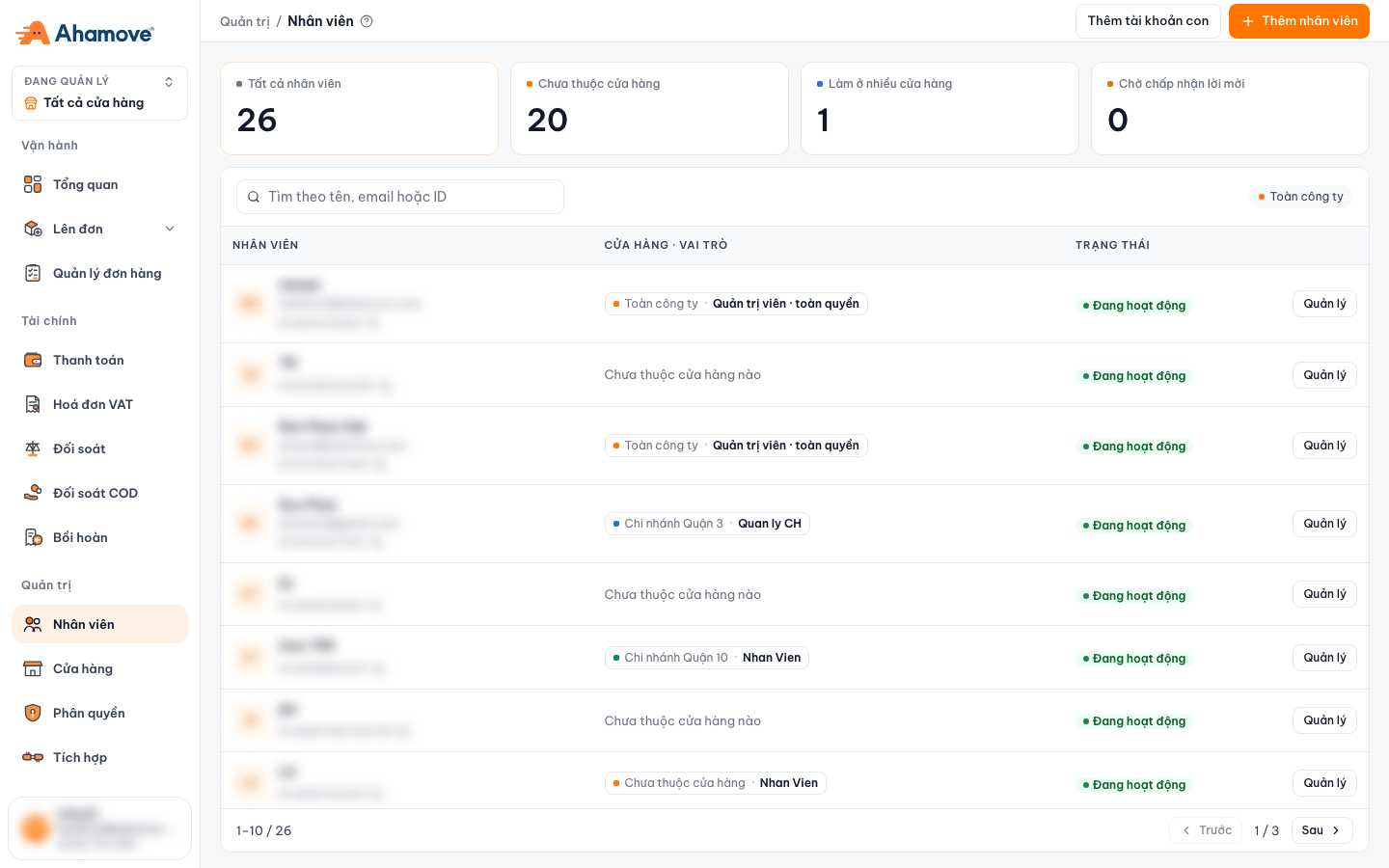
- Thêm nhân viên (Add staff): add an existing Ahamove account
- Thêm tài khoản con (Add sub-account): only shown to Parent accounts
- Click a card to filter quickly: all, not in any store, works at several stores, invitation pending
- Search by name, email or ID
- Store · Role the staff member holds there
- Quản lý (Manage): change store, role or remove the staff member
Summary cards
| Card | Meaning |
|---|---|
| Tất cả nhân viên (All staff) | Total number of accounts in the company |
| Chưa thuộc cửa hàng (Not in any store) | People not yet assigned to any branch. Review this regularly |
| Làm ở nhiều cửa hàng (Works at several stores) | People assigned to more than one branch |
| Chờ chấp nhận lời mời (Invitation pending) | Invited, but the person has not accepted yet |
Each staff row
- Nhân viên (Staff): name, email and ID (this is the phone number of the Ahamove account).
- Cửa hàng · Vai trò (Store · Role): for example
Toàn công ty · Quản trị viên · toàn quyềnorChi nhánh Quận 10 · Nhân viên. People not yet assigned show Chưa thuộc cửa hàng nào (Not in any store). - Trạng thái (Status): for example Đang hoạt động (Active).
- The Quản lý (Manage) button to edit.
Two ways to add people
The top-right corner has one or two buttons, depending on the account you are using:
| Button | Use when |
|---|---|
| + Thêm nhân viên (Add staff) | The person already has an Ahamove account. You add them to the company and assign a store and role right away |
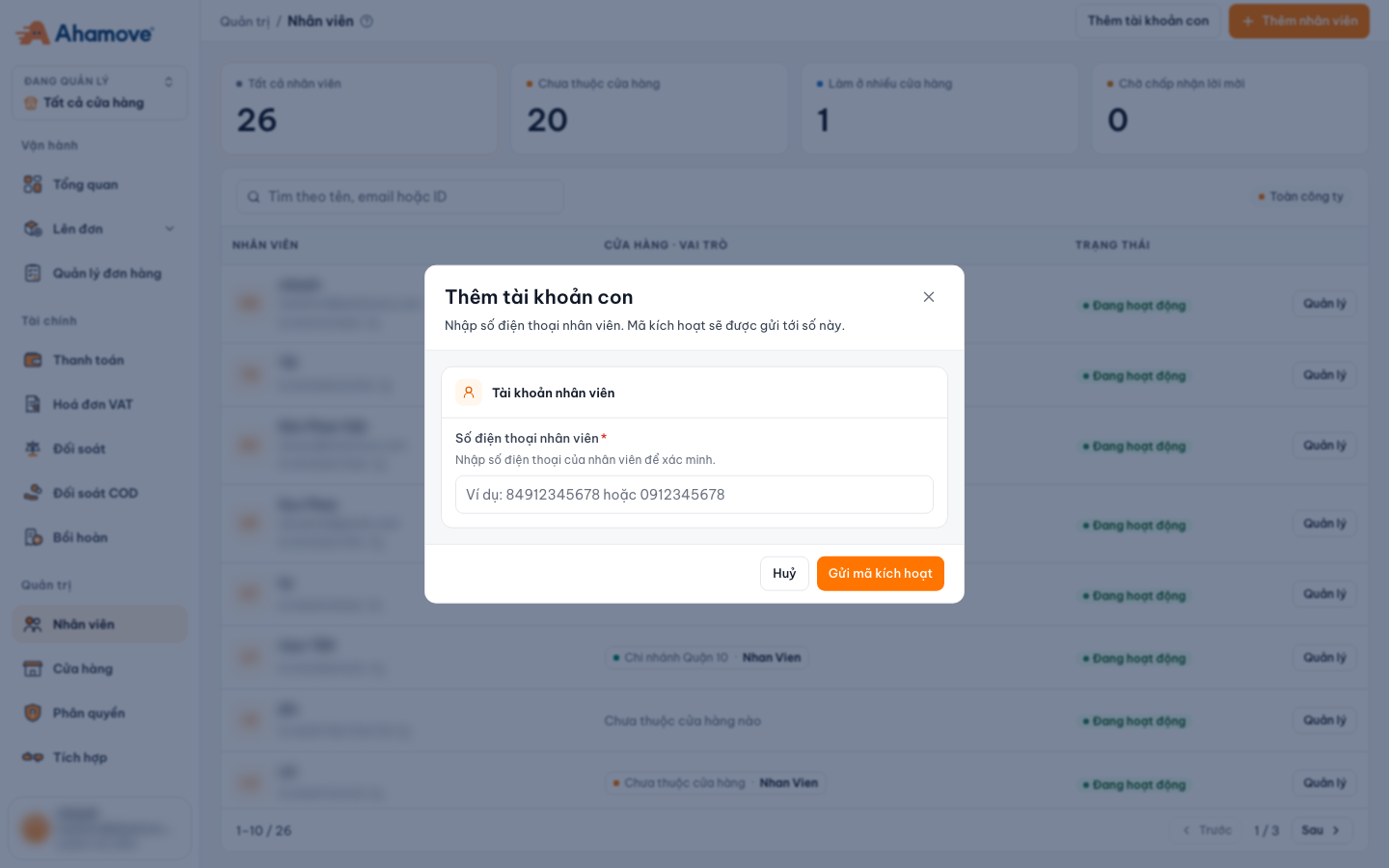
| Thêm tài khoản con (Add sub-account) | Creates a sub-account under the Parent account. Ahamove sends an activation code to the staff member's phone number |
| You log in as | Buttons you see |
|---|---|
| Administrator and Parent account | Both Thêm tài khoản con and + Thêm nhân viên |
| Administrator (not a Parent account) | Only + Thêm nhân viên |
| Parent account (not an Administrator) | Only + Thêm tài khoản con |
The Staff page for a Parent account
A Parent account that is not an Administrator sees the Staff page for the store currently selected in the Đang quản lý ("Managing") store switcher (top left), not for the whole company:
- The list only shows the Parent account's sub-accounts. Other staff of the store do not appear here.
- The first card is Nhân viên ở cửa hàng này (Staff at this store), and the list is labelled Lọc theo [store name] (Filtered by [store name]).
- There is only the + Thêm tài khoản con (Add sub-account) button. When there are no sub-accounts yet, the list shows Chưa có tài khoản nhân viên (No staff accounts yet) with a + Thêm tài khoản con button in the middle.
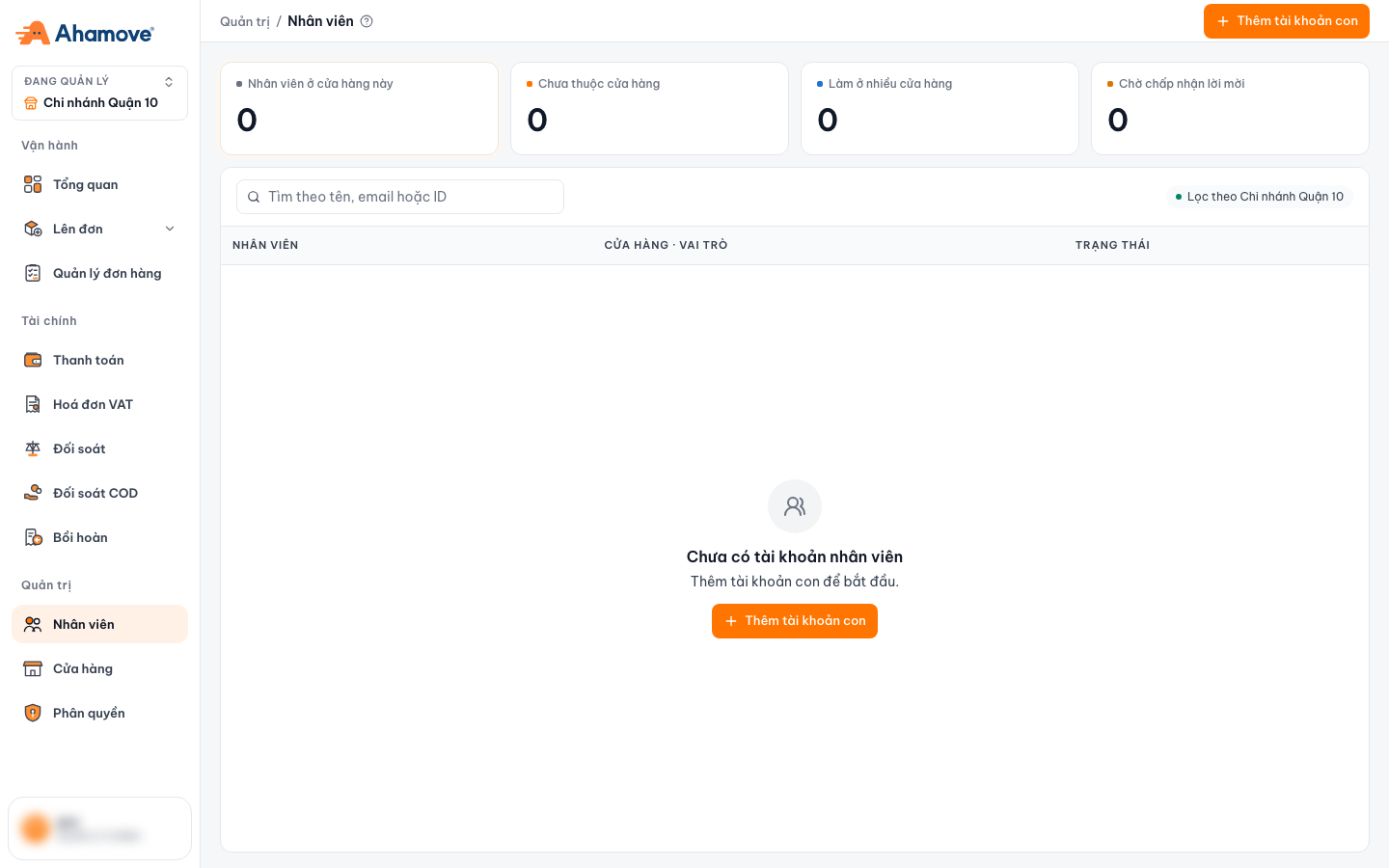
- Only the Thêm tài khoản con (Add sub-account) button
- Selected store: the page only shows staff of this store
- The list is filtered by the selected store
Add staff
The person you add must already have an Ahamove account. Enter the exact phone number registered to that account.
The list shows all stores of the company. Tick the stores this person works at, then choose a Vai trò (Role) in the box next to each. Tick several stores if they work at several branches, with one role per store. The top corner shows how many are selected, for example Đã chọn 1/2 (1/2 selected).
Interactive walkthrough: follow each step right on the screenshots below. Click the flashing box to go to the next step.
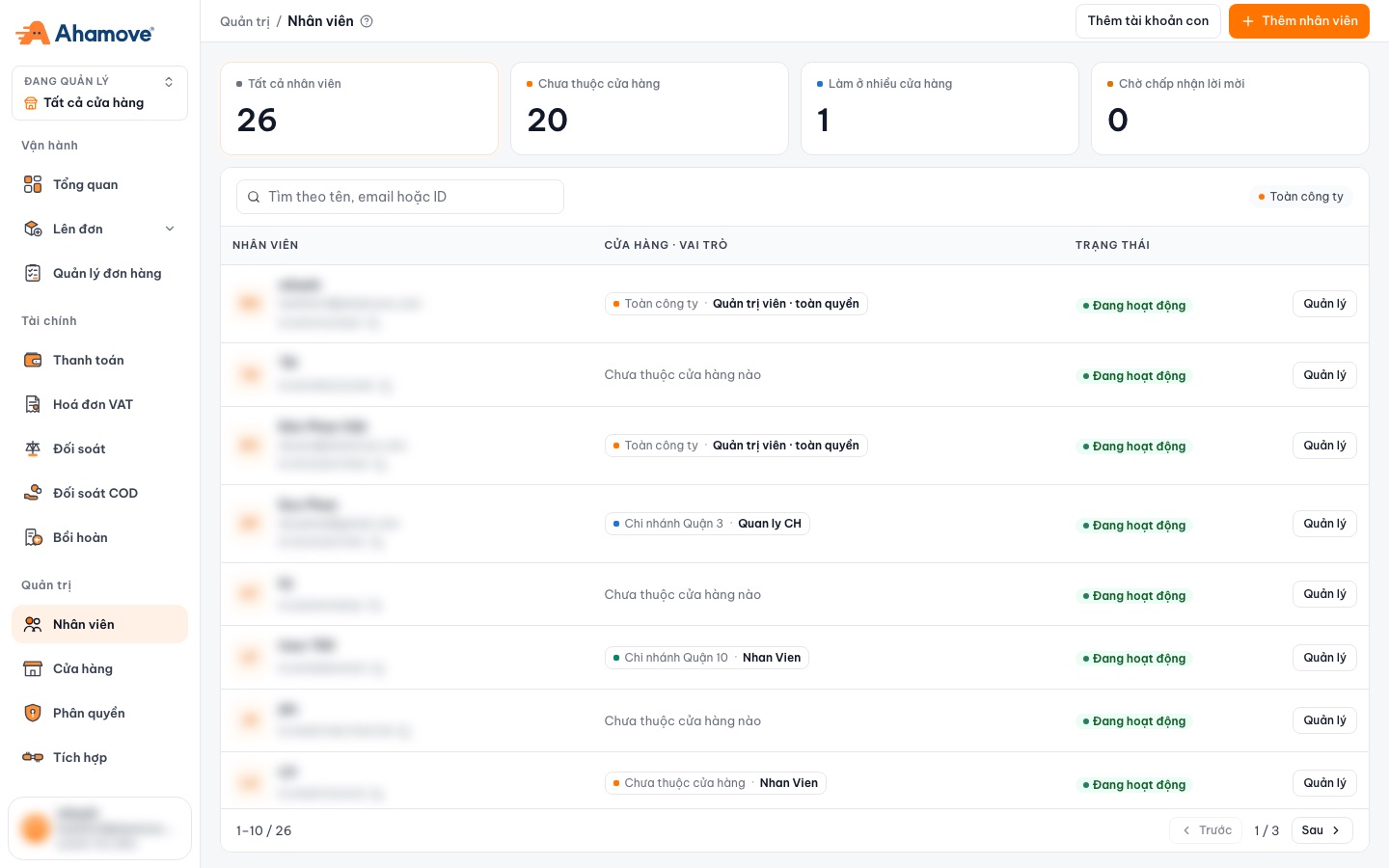
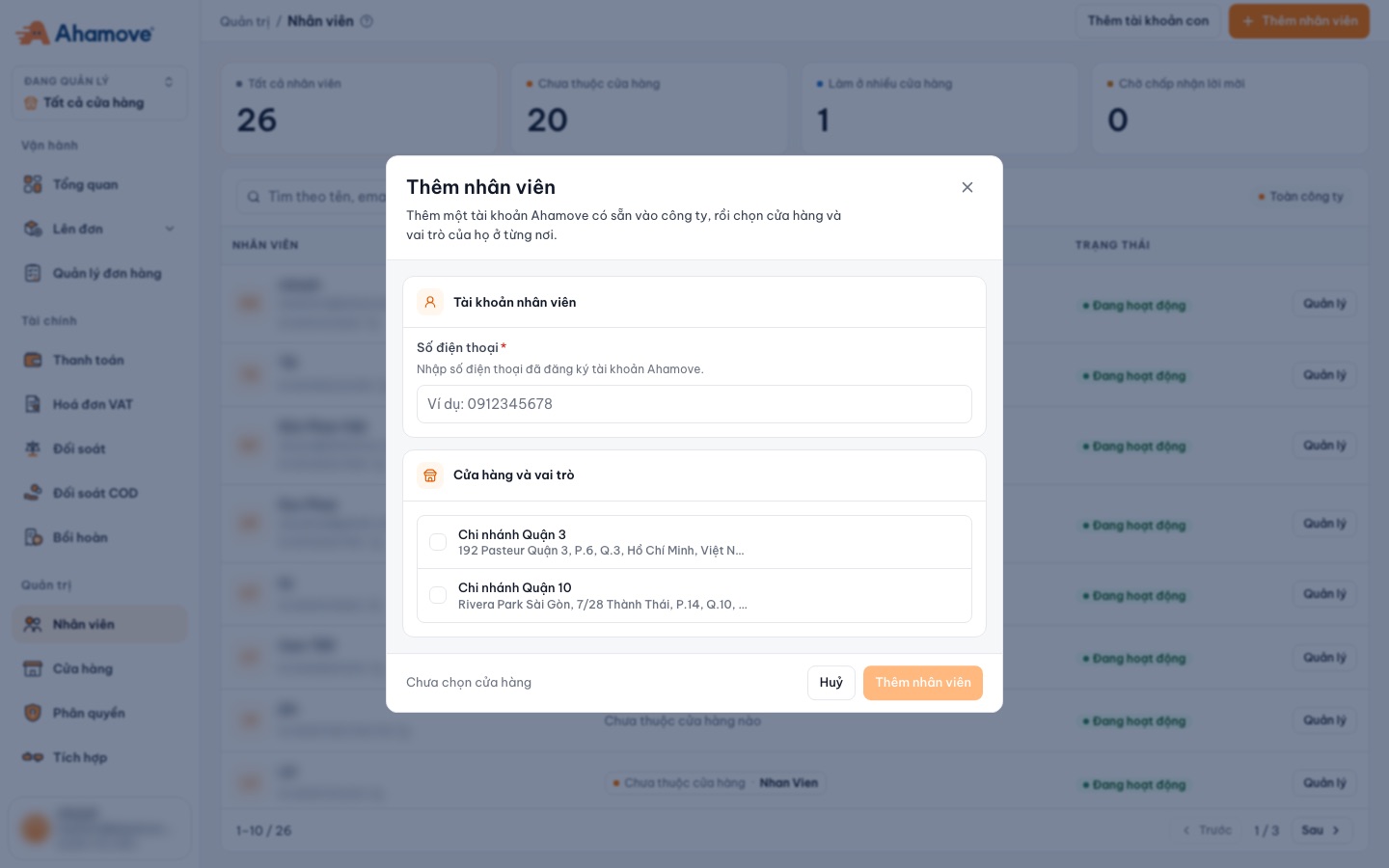
Add a sub-account
Only available when you log in with a Parent account.
Use the format 0912345678 or 84912345678.
You can give a team lead the Gán nhân viên vào cửa hàng (Assign staff to stores) and Gán vai trò cho nhân viên (Assign roles to staff) permissions without letting them create or change permission sets. See Roles & permissions.
Click Quản lý (Manage) on that person's row to remove them from the company right away, so they cannot keep placing orders with the company wallet.